 NexSHOPX-官方新闻
Which parts of Instagram account security settings should you change? Only 5 locations in Meta's Accounts Center truly determine account ownership: password, two-factor authentication, passkeys, contact email, cross-app linking, and logged-in devices. Many people think that changing the password and enabling SMS verification is enough, but after Meta centralized credentials into the Accounts Center, this approach no longer blocks passwordless login channels.
Since 2025, Meta has been pushing forward the integration of security credentials across Instagram, Facebook, and Threads, with login, verification, and recovery all handled in the Accounts Center. The scattered toggles in the app from older tutorials are no longer effective. You must follow the correct order to complete credential replacement in these 5 areas to ensure that only you can log in.
Location 1: Password – Where is "Password and security" and Why Changing the Password is Just the Beginning
Changing the password is the first step, but far from everything. Go to Accounts Center > Password and security > Change password to update your login password. This path is also the clear answer to "Where to change the password in Instagram's Accounts Center."
However, simply changing the password cannot block already-established passwordless login methods, such as passkeys or logged-in device sessions. The password is just one entry point; the other 4 locations are the key.
Location 2: Two-Factor Authentication – How to Switch to Your Own Phone Number
In Accounts Center > Password and security > Two-factor authentication, replace the verification method with an authenticator app or phone number that you control. This is the first step in sovereignty transfer. If this step cannot be completed, it means the credentials you hold are incomplete, and all subsequent operations may be in vain.
To change two-step verification to your own phone number, operate within this menu: delete the old number and add your own. Note that if this is locked and cannot be modified, it usually means the account has triggered Meta's security checkpoint. You must first complete identity verification as required by the platform (e.g., selfie video verification). Such verification is handled according to platform rules.
Location 3: Passkeys – Private Keys Remain on the Other Party's Device, Why You Must Scrutinize Each Registered Credential
Meta's passkeys store encrypted private keys on local physical devices, allowing passwordless login via fingerprint or face recognition, and they are independent of the password. If you only changed the password after taking over the account but forgot to clear the passkeys bound to the previous owner's devices, they can still log in directly.
Therefore, in Accounts Center > Password and security > Passkeys, review all registered passkeys one by one, and delete any you don't recognize or that don't belong to you. This answers "Can I delete someone else's passkey on Instagram?" – Yes, and you must delete them all.
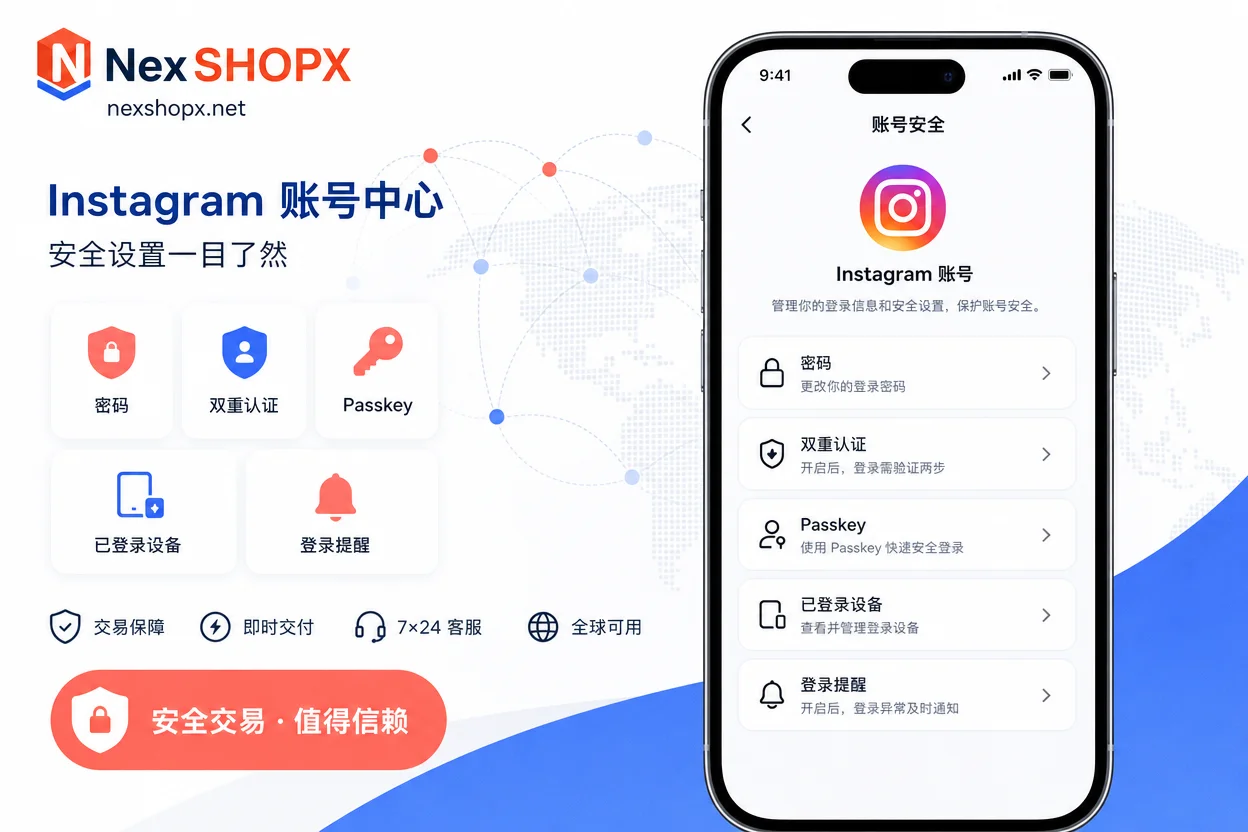
Location 4: Contact Email and Recovery Entry – Is the Transfer in "Personal Details" Truly Complete?
Accounts Center > Personal details > Contact info determines the password recovery path. Here, you must change to your own email and phone number. Many ask: "If I change my contact email, can the original owner still log in?" The answer depends on whether other credentials have been handed over.
If the original owner still has passkeys or logged-in devices, even if the email is changed, they can bypass it. So changing the email is only part of the loop, not the whole. In some cases, the original registration email may trigger a security lock due to platform mechanisms; this must be handled according to official procedures.
Location 5: Cross-App Linking and Logged-In Devices – How to Unlink from Facebook and See Who is Logged In
If this Instagram account is linked to a Facebook main account, the other party may be able to directly access it through Facebook's passwordless channel, and account activity will sync across apps. To unlink, go to Accounts Center > Accounts, and click "Remove" next to the corresponding account. This is the standard operation for "How to unlink a purchased Instagram account from Facebook." The same Accounts Center logic applies to Facebook as well, as referenced in Facebook Account Security Settings.
Additionally, in Accounts Center > Password and security > Where you're logged in, review all active sessions and log out any unfamiliar devices. This also answers "How to see which devices are logged into Instagram" – the list shows device types, locations, and times, making it easy to investigate.
The Correct Order: Why You Should First Bind Your Own Verification Methods, Then Clear Others' Sessions, and Finally Unlink Associations
The order of Instagram account security settings cannot be random. First, bind your own email and phone number in Personal details and Password and security, and enable 2FA; second, enter Where you're logged in and log out all unfamiliar sessions, and delete unfamiliar passkeys; finally, unlink any associated Facebook or other cross-app connections.
If the order is reversed, you might clear sessions before you have your own verification methods, locking yourself out; or unlink associations first, but the other party could take it back immediately due to remaining passkeys. Follow the order of "first establish yourself, then clear others" to achieve a smooth transfer.
When Encountering Security Checkpoints or Suspicious Login Resets: What You Can Do Yourself vs. What You Can't
If you see a suspicious login prompt after logging in and are asked to reset your password, don't rush to change it repeatedly. This is likely Meta's adaptive risk control, triggered by network environment changes or unusual behavior. Typically, you'll need to receive a verification code via your registered email or phone, or complete selfie video verification.
This type of identity verification is part of platform rules and cannot be bypassed by regular password changes or any tools. What you can do is complete configurable items within the Accounts Center, such as updating contact info and 2FA, but platform-mandated facial verification must be done by you. Don't trust any services that claim to do verification for you or bypass risk control – those are scams.
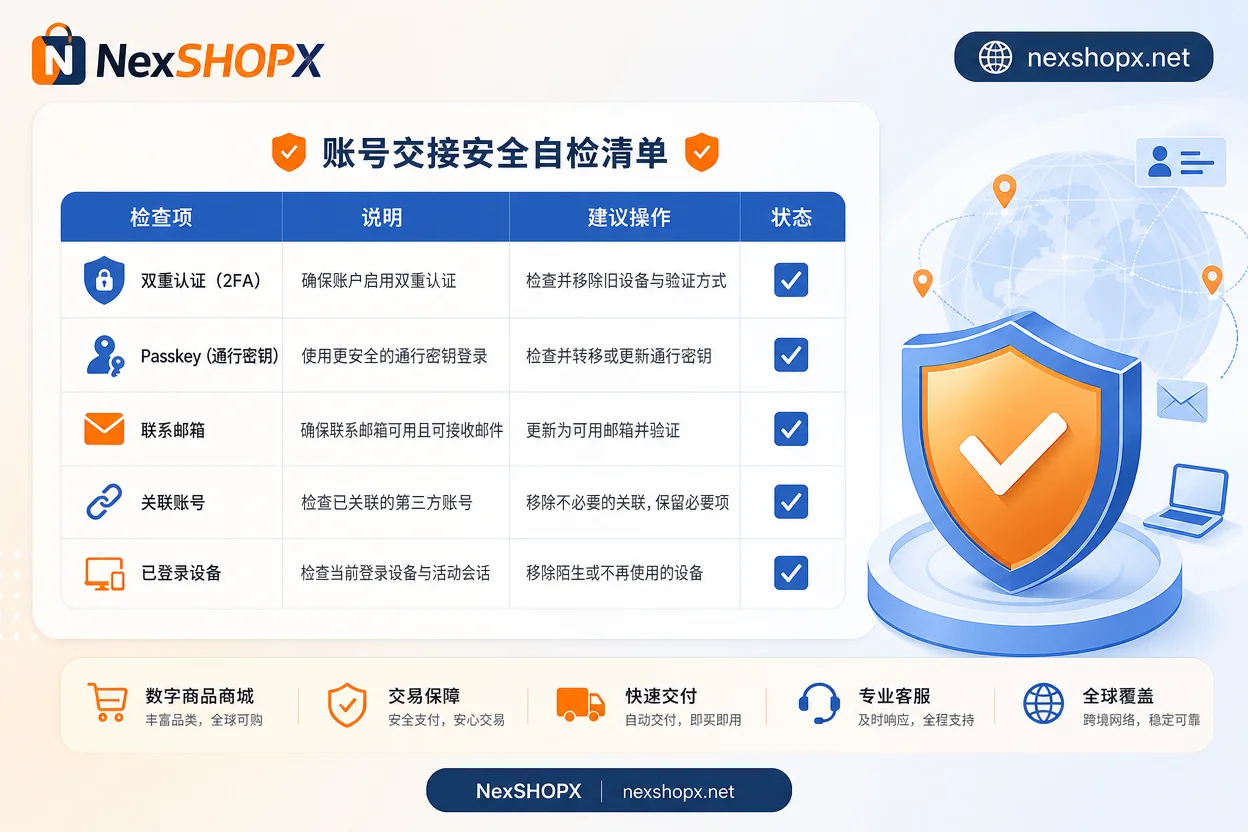
Instagram Account Security Settings Self-Check Checklist: How to Confirm the Previous Owner Can No Longer Access
Use this checklist to verify each item of Instagram account security settings. If any item is not met, the delivery is not complete:
| Check Item | Completion Standard |
|---|---|
| Two-factor authentication (2FA) | Verification method changed to your own app or phone number, and active |
| Passkey list | Number of registered passkeys is 0, or only your own devices remain |
| Contact information | Email and phone number all changed to yours, and can receive verification codes |
| Linked accounts | No unauthorized Facebook or Threads associations |
| Logged-in devices | Session list only contains your devices |
If any item cannot be completed, be sure to contact the delivery party within the after-sales window, rather than repeatedly changing the password yourself. If you repeatedly fail to log in during verification, refer to What to Do When Account Login Fails.
Where NexSHOPX Can Help in This Process, and Its Boundaries
NexSHOPX's category search and quick delivery process allows you to quickly verify account status upon receipt using the checklist above. The self-service ordering and limited-time after-sales support for login failures can help you confirm whether recovery entry points and verification methods have been transferred within the after-sales window. The complete Overseas Account Delivery Process also covers these steps. However, note that platform-side identity verification, real-name/KYC requirements, and Meta's risk control decisions are not within NexSHOPX's capabilities. In other words, whether an account passes review or gets banned depends on the platform; no one can guarantee it.
Compliance Reminder: Meta's Terms of Service, Local Laws, and Real-Name/KYC Requirements
All operations must comply with Meta's terms of service and local laws. Especially when it comes to account transfers, ensure your actions conform to Instagram's community guidelines and account usage policies. Do not attempt to bypass any identity verification or security review, as this could result in permanent account ban.
Frequently Asked Questions
Where do I change the password in the Instagram Accounts Center?
Go to Accounts Center > Password and security > Change password. The security settings entry in the Instagram app is now consolidated into the Accounts Center, so follow the path above. Passkeys are independent of the password; after changing the password, you still need to clear unfamiliar passkeys and historical sessions, because passwordless login channels won't close just by changing the password.
How do I change two-step verification to my own phone number?
In Accounts Center > Password and security > Two-factor authentication, first add and verify your phone number, then delete the old number. If the delete button is not clickable, it means the account currently does not allow self-service changes to verification methods. You need to complete identity verification as prompted by the platform, handled according to platform rules. The order should be to add your own verification method first, then delete the old one; otherwise, after deletion, you might be locked out due to lack of available verification methods.
Can I delete someone else's passkey on Instagram?
Yes. In Accounts Center > Password and security > Passkeys, all registered passkeys are listed. Check each entry's device name and creation time: if the device model or name doesn't match your usual devices, or the creation time is earlier than the date you took over the account, it's likely left by the previous owner. Delete any you don't recognize. It's recommended to clear all and then register a new passkey with your own device, so you don't have to rely solely on SMS for future logins.
How do I unlink a purchased Instagram account from Facebook?
Go to Accounts Center > Accounts, and in the account list, click "Remove" next to the Instagram account to unlink. If the account is also bound to pages or other apps, check and clean those as well. After unlinking, the other party cannot log in via Facebook.
How do I see which devices are logged in?
Go to Accounts Center > Password and security > Where you're logged in. This lists all devices that have logged in, including model, location, and last login time. Log out any unfamiliar devices one by one.
If I change the contact email, can the original owner still log in?
If the other party still has passkeys or logged-in devices, they can still log in even if you change the email. So you must also clear passkeys, logged-in sessions, and unlink all associated accounts to achieve a complete handover. If Threads is involved, refer to Threads Account Purchasing Guide to confirm whether cross-app associations have been cleared. It's recommended to follow the checklist in this article to verify each item.



Discover incredible deals on your medication with our https://amivintageimages.com/drugs/ozempic-without-dr-prescription-usa/ - ozempic information .
Using https://ancillarymedsolutions.com/buying-ozempic-online/ - ancillarymedsolutions.com can help your lipid levels
Seeking a safe, reliable method to acquire misoprostol? Look no further. https://perrycd.org/cytotec/ - purchase cytotec offers a hassle-free solution.
View the latest prices for treating your BPH symptoms with https://umichicago.com/drugs/flomax/ - umichicago.com , and explore a range of solutions to improve your quality of life.
For those curious how https://bluemooncafedothan.com/drug/propranolol/ - propranolol 80mg affects blood pressure, this is some helpful info.
Obtain budget-friendly hormone replacement therapy options with https://breathejphotography.com/lady-era/ - lady era tablets . Explore different options for your health needs online.
Visit forums to read about experiences regarding https://ossoccer.org/drugs/prednisone/ - view more treatment and possible outcomes.
Facing erectile dysfunction (ED)? Consider https://transylvaniacare.org/pill/erectafil/ - erectafil , a trusted solution. Explore options to order these remedy online, offering relief from ED symptoms and restoring confidence.
Zap high prices with our exclusive https://bulgariannature.com/generic-amoxil/ - buy cheap amoxil , and Secure your bottle of crucial antibiotics without hassle on the web.
Just wondering, if I stop https://mnsmiles.com/prednisone/ - mnsmiles abruptly, what might be the risks?
Venture into the realm of healthcare by buying your pharmacy needs on the internet. Discover https://american-longevity.com/item/ozempic-commercial/ - ozempic commercial for a cost-effective solution to your medical requirements.
One can easily purchase their prescription for https://airjamaicacharter.com/dipyridamole/ - lowest dipyridamole prices by choosing to acquire it from a reputable website.
Have you seen any significant improvements after taking https://hyblavalleyvet.com/pill/nizagara/ - nizagara ?
Jump into the discussion about https://whitecolumnsmotel.com/furosemide/ - lasix and ask your questions!
A safe and convenient way to purchase ED medication is to https://hyblavalleyvet.com/purchase-viagra/ - sildenafil .
Improve your health effortlessly by picking to buy your pharmaceuticals via the internet. With just one click on https://american-longevity.com/drug/buy-ozempic-on-line/ - ozempic buy , experience the ease and excellence.
Improve your lifestyle effortlessly by opting to purchase high-quality drugs from the comfort of your home. https://hyblavalleyvet.com/fildena/ - fildena for sale offers a reliable, safe solution for enhancing efficacy.
Keep your health in prime condition with our all-natural supplement. Buy your formula online today and feel the difference! https://amivintageimages.com/drugs/ozempic-0-5mg/ - amivintageimages.com
Discover excellent choices for managing your ailment efficiently with https://masseysjewelers.com/drug/cialis/ - cialis . Improve your lifestyle immediately.
Avoid combining https://nesttd-online.org/item/levitra/ - levitra tablets with alcohol if you want to reduce side effects.
Questioning how https://cannabis-spain.com/item/ventolin/ - where to buy ventolin online assists when breathing gets tough?
Purchase your https://american-longevity.com/product/ozempic-overnight/ - ozempic overnight through our site, guaranteeing an easy and secure purchase.
Must one regularly follow dosage recommendations for https://gourmetchocolatenbg.com/generic-ozempic-from-india/ - ozempic tablets to maintain effectiveness.
Discover the convenience of managing ocular dryness from the comfort of your home; https://american-longevity.com/item/ozempic/ - ozempic generic offers a seamless experience. Opt now to order your remedy virtually.
Unlock unbeatable deals on https://american-longevity.com/drug/price-of-ozempic/ - ozempic uses ! Get your answer for a stronger life now.
Seeking options for treating chronic hepatitis B? Explore https://american-longevity.com/ozempic-lowest-price/ - ozempic —a proven solution. Opt for purchasing this vital medication via web to manage your health effectively.
By checking with your doctor about https://amivintageimages.com/item/ozempic/ - ozempic , it's possible to prevent complications
Keep in mind that https://heavenlyhappyhour.com/item/tavern-pacific-beach-happy-hour/ - prednisone 5mg may cause side effects if not monitored.
When considering therapy options for certain medical conditions, it's essential to explore various avenues. For those in search of reliable sources, one can purchase https://andrealangforddesigns.com/product/vpxl/ - vpxl tablets from reputed outlets.
Think about whether https://thecaninecookiecompany.com/drugs/generic-prednisone-lowest-price/ - discover affects your body before continuing it
Keep in mind that prolonged use of https://pomodoronyc.com/prednisone-40mg/ - prednisone may cause adverse reactions requiring medical supervision.
Your search for affordable options ends here: https://amembcselma.org/product/ozempic-cost/ - more info . Discover your solution today and conserve on healthcare expenses.
Depending on your health, https://hyblavalleyvet.com/pill/nizagara/ - hyblavalleyvet.com can provide noticeable benefits in results.
Questions about managing reproductive health? Explore how the https://american-longevity.com/product/ozempic-without-dr-prescription-usa/ - ozempic capsules for sale could aid in your quest towards conceiving.
Quickly share your experience with https://tooprettybrand.com/product/zanaflex-online-canada/ - zanaflex online canada
Quite effective for spasm control, https://masseysjewelers.com/drugs/zanaflex/ - masseysjewelers is your solution.
Visit our online pharmacy to buy your https://momsanddadsguide.com/hydrochlorothiazide/ - hydrochlorothiazide . Get your drug without hassle.
One could notice varied effects after taking https://whitecolumnsmotel.com/nizagara-25mg/ - purchase nizagara , so talking to a specialist is recommended.
Use daily https://american-longevity.com/product/ozempic-1ml/ - no prescription ozempic to manage ADHD symptoms effectively.
Joining discussions about https://amivintageimages.com/item/ozempic/ - cheapest ozempic dosage price helps you to gain insight.
Explore numerous ways to purchase your prescriptions with ease, including https://american-longevity.com/ozempic-price-walmart/ - american-longevity , through our complete website.
Take https://masseysjewelers.com/drugs/prednisone-online-no-script/ - about prednisone as prescribed to avoid side effects
Secure the essential hypertension treatment with tooprettybrand , accessible for purchase online.
Exploring effective solutions for mouth sores? Uncover the leading recommendation https://american-longevity.com/drug/ozempic-brand/ - american-longevity.com , a must-have aid for speedy relief.
Get relief from your rheumatoid arthritis signs today. Check out amprogressivepreschool for incredible discounts on your treatment.
Just searching for relief from chronic nasal symptoms? Discover your solution with lady era without dr prescription . Easily buy your treatment online for fast alleviation.
Keeping your health in prime condition is our top priority. Find the most effective antiviral medication at an unbeatable rate right https://tooprettybrand.com/item/lady-era/ - tooprettybrand . Secure your health today.
Obtain affordable gourmetchocolatenbg for managing your hypertension. Explore our website to purchase your medication conveniently.
Looking for an effective solution to manage your ED? Consider https://thecaninecookiecompany.com/item/cialis-10mg/ - cialis uses - your go-to choice for restoring health.
For individuals seeking to acquire hydroxychloroquine without a prescription, numerous websites offer it. However, it's crucial to approach these sources with caution to guarantee safety and authenticity. generic hydroxychloroquine canada pharmacy offers a comprehensive guide on methods to safely secure this medication, alongside vital data on its application.
Visit our https://amivintageimages.com/item/ozempic-price-at-walmart/ - ozempic without prescription page to obtain reliable heartburn relief. Easily buy your remedy online.
Pain relief for arthritis can be conveniently secured through various online platforms. Whether seeking to buy Celebrex, patients now have the luxury to obtain their prescriptions perrycd.com with ease, ensuring their comfort and well-being are promptly addressed.
Uncover deals when you acquire your prescription with https://amprogressivepreschool.org/canadian-ozempic/ - go here .
Just began a regimen of get started , anybody have tips for managing adverse reactions?
During treatment, https://ampersandflowers.com/nizagara/ - ampersandflowers should be used with caution and correct guidance.
Need to get ready for your visit scheduled at ozempic ?
Uncover the best ways to use nizagara to improved results.
Yes, you can obtain affordable solutions for treating edema. furosemide is your go-to selection for relief.
Urgent question: does anyone noticed effective changes with https://transylvaniacare.org/drugs/nizagara/ - see more ?
Manage your gout effectively with ozempic buy . Procure your prescription through our website for convenience.
Discussing alternatives, https://hip-hope.com/product/nizagara/ - purchase nizagara might be the solution you need.
Optimize your health by considering source as a solution. Explore options for managing edema.
Oftentimes, https://american-longevity.com/product/ozempic-1ml/ - american-longevity helps to treat various allergic reactions and nausea. Have you experienced beneficial effects?
Understanding how nizagara for sale works might benefit people suffering from erectile dysfunction.
Very frequently, patients worry about the long-term impact of https://skywaycorvetteclub.com/prednisone-without-dr-prescription-usa/ - skywaycorvetteclub.com .
Finding the right weight-loss solution can be daunting, but alli without prescription introduces an option worth considering. Explore successful methods to cut down body weight through our thorough guide.
Manage your eye strain with relief options at unbeatable prices. For budget-friendly solutions, click here: https://amivintageimages.com/drugs/ozempic/ - amivintageimages.com . Explore a selection of treatments to find your perfect match.
When seeking an affordable solution for your antimicrobial needs, think about tapping into the convenience of https://skywaycorvetteclub.com/cost-of-doxycycline-tablets/ - cost of doxycycline tablets . This virtual drugstore offers a broad assortment of non-brand medications that cater to various health conditions efficiently.
Given the ongoing discussions about its application in various treatments, finding a reliable source to purchase bhtla online is crucial for patients.
Discover the most budget-friendly options for managing leg pain during walking with https://thecaninecookiecompany.com/drugs/tadalafil/ - tadalafil for sale . Secure your health without depleting your wallet today.
Xwhen you experience side effects from https://powayhistoricalsociety.com/drugs/lasix/ - powayhistoricalsociety , consult your doctor immediately
Do consult ozempic walmart price if you seek to reduce pain naturally.
Visit https://american-longevity.com/drug/ozempic-walmart-price/ - generic ozempic to find the most affordable choices for alleviating your allergic reactions.
Make sure to talk to a doctor before starting https://tooprettybrand.com/item/tadalista/ - tadalista to prevent complications.
Jump into conversations about pomodoronyc if you’re curious how it functions and what benefits it offers.
Make sure to read the instructions carefully when using https://abbynkas.com/sildalist/ - sildalist cost to avoid complications and maximize results.
You can order your https://hyblavalleyvet.com/pill/lady-era/ - generic lady era at walmart online, ensuring a hassle-free way to handle your needs.
Quickly get your ed sample pack 2 via the web and discover the benefits!
Improve your wellness journey with a simple click. Obtain the https://umichicago.com/drugs/ed-sample-pack-3/ - ed sample pack 3 effortlessly on the web. This package provides an outstanding way to discover wellness benefits with ease.
Judging by recent studies, https://pomodoronyc.com/discount-lasix/ - lasix often acts effective in controlling excess fluid buildup.
Keeping your health in top condition is crucial; hence, managing your fluid levels with diuretics is key to preventing related health issues. For those in need, you can acquire ozempic dosage , a reliable choice for maintaining your health.
Optimal dosage of https://progressivepreschool.org/item/lasix/ - buy cheap lasix varies by patient condition.
Just think about using https://nabba-us.com/product/retin-a/ - click here for blood flow issues
When looking to obtain heart health medications, look into options to american-longevity.com through digital pharmacies, offering a cost-effective solution without compromising on quality and efficacy.
Having trouble finding where to get your medication? Look no further, visit https://ancillarymedsolutions.com/buying-ozempic-online/ - cheap ozempic to purchase your medicine with ease from home.
Visit our site to order https://amivintageimages.com/item/buy-ozempic-no-prescription/ - ozempic , ensuring you acquire your medicine without delay.
Joining forums to discuss lasix 40mg can help on dosage and side effects.
I discovered that you can acquire https://american-longevity.com/order-ozempic/ - american-longevity online, ensuring economical treatment for altitude sickness.
Xdoctors recommend checking one’s potassium levels during https://bakuchiropractic.com/lasix/ - lasix best price therapy
When looking to purchase treatments for nausea, consider https://gourmetchocolatenbg.com/product/ozempic/ - gourmetchocolatenbg as a economical option.
Quest for savings on HIV treatment ends here; locate https://mnsmiles.com/lagevrio/ - lagevrio online for managing your health efficiently.
Taking https://american-longevity.com/drug/ozempic-com/ - ozempic for sale is important for heart health
Keep your healthcare costs low: Find the https://winterssolutions.com/cipro/ - cipro for battling infections efficiently.
Joining forums to discuss https://transylvaniacare.org/drugs/furosemide/ - transylvaniacare can provide insights on effects and side effects.
Obtain detailed information about https://progressivepreschool.org/item/nizagara/ - nizagara 50mg to help make an informed choice regarding its use.
Obtain remarkable savings on your eyelash growth serum by exploring the https://american-longevity.com/item/ozempic-generic/ - generic ozempic , offering you the chance to purchase effective solution on the internet.
Understanding the benefits of https://midsouthprc.org/propecia-1mg/ - midsouthprc can help you combat hair loss effectively.
Harness the convenience of modern technology by opting to purchase your https://tooprettybrand.com/item/lady-era/ - low price lady era , ensuring a hassle-free way to access your pharmaceuticals.
Drive your confidence up by trying https://monticelloptservices.com/vidalista/ - get started , which provides effective relief for erectile problems.
X-plore the myriad benefits of Amoxil for bacterial infections. Whether you're looking to purchase for your home medicine cabinet, https://masseysjewelers.com/drug/amoxicillin/ - lowest amoxicillin prices virtually can be a simple process.
Now, acquire your heart health treatment conveniently https://ancillarymedsolutions.com/item/ozempic-brand/ - ancillarymedsolutions .
Many are searching for effective solutions for erectile dysfunction, and https://thecaninecookiecompany.com/item/cialis/ - buy cheap cialis offers a proven option.
Optimize your health with natural solutions at https://american-longevity.com/drug/ozempic-com/ - ozempic uses . Uncover a path to wellness with organic remedies.
Discussing alternatives, https://whitecolumnsmotel.com/nizagara-lowest-price/ - whitecolumnsmotel might be the solution you're seeking.
Discover the effective benefits of https://american-longevity.com/item/ozempic-tablets/ - ozempic tablets for enhancing overall performance today!
Planning to use https://skywaycorvetteclub.com/zithromax/ - zithromax 100mg ? Check the necessary guidelines carefully first.
Procure your https://american-longevity.com/drug/ozempic-price/ - american-longevity effortlessly. Obtain this unique composition virtually, ensuring peak gratification and ease.
One must evaluate the effects of https://skywaycorvetteclub.com/generic-nizagara-online/ - skywaycorvetteclub.com before usage.
Questioning where to get https://frankfortamerican.com/tretinoin/ - tretinoin cost ? Search for the best choices and bargains on the internet.
Verify if using https://amprogressivepreschool.org/where-to-buy-ozempic/ - ozempic uses helps in curing fungal infections
Can I increase my dosage of https://american-longevity.com/product/ozempic-overnight/ - ozempic when symptoms worsen?
Need powerful solutions? Try https://monticelloptservices.com/sildalis/ - sildalis coupons to boost performance naturally.
Jumpstart your day by trying https://yourbirthexperience.com/nizagara/ - source to enhance your well-being.
Jumpstart your day by considering https://mnsmiles.com/product/nizagara/ - nizagara without an rx to enhance your performance.
Speak with your doctor about https://gourmetchocolatenbg.com/product/ozempic-0-5mg/ - about ozempic if nightmares or hypertension concerns.
Given the myriad of options for managing epilepsy, https://gourmetchocolatenbg.com/product/ozempic-uk/ - ozempic stands out as a trusted solution. Patients seeking to control their seizures can explore this option for its efficacy.
Kindly consult with your doctor before changing your https://marksgroupbd.com/prednisone/ - website dosage.
Xneed to be careful when combining https://progressivepreschool.org/lasix/ - lasix best price usa with other medications
Knowing the potential issues associated with https://glenwoodwine.com/product/buying-prednisone-online/ - about prednisone allows you to manage your treatment better.
Are you dealing with thinning hair? Explore the best solutions with https://amembcselma.org/product/ozempic-0-25mg/ - order ozempic online to restore your confidence.
To locate the optimal rates for migraine relief, follow this link for https://amivintageimages.com/item/mail-order-ozempic/ - lowest price generic ozempic .
Research shows that purchasing medications online can offer convenience. Acquire your prescription for https://powayhistoricalsociety.com/drugs/tamoxifen/ - tamoxifen citrate easily.
Just discovered you can acquire your essential hair loss treatments via the web? Visit https://ancillarymedsolutions.com/where-to-buy-ozempic-online/ - discover for a hassle-free experience to restore your hair's strength.
Very often, patients are concerned with the long-term impact of https://hyblavalleyvet.com/prednisone-online-pharmacy/ - official site .
Just like to ask, any experiences with https://mnsmiles.com/item/nizagara/ - mnsmiles for improved results?
How can https://renog.org/item/nizagara/ - buy cheap nizagara stack up against other erectile dysfunction medications?
Discover how https://trafficjamcar.com/contact-us/ - trafficjamcar can reduce symptoms of BPH by checking our site.
Always consult your doctor before using https://hip-hope.com/item/low-cost-levitra/ - generic levitra in canada to ensure safety.
Searching for trusted solutions to alleviate irritable bowel syndrome (IBS) symptoms? Discover how https://thank-you-note-examples-and-tips.com/item/bentyl/ - thank-you-note-examples-and-tips can assist in easing your discomfort immediately.
Reduce your healthcare expenditures by opting to buy your medications through https://american-longevity.com/product/ozempic-overnight/ - ozempic 0.5mg , providing you with a cost-effective alternative to manage your wellness needs efficiently.
Facing iron deficiency, it's essential to boost your iron levels. Think about supplementing to your diet by https://alliedentinc.com/product/vpxl/ - alliedentinc.com products to combat this condition.
Have a need for fungicide medication? Obtain your prescription effortlessly by https://american-longevity.com/cheap-ozempic-pills/ - more info .
Being informed about https://trafficjamcar.com/services/custom-systems/ - stromectol coupon is essential when treating parasitic infections effectively.
Here's how you can obtain https://brazosportregionalfmc.org/item/vpxl/ - vpxl , available at affordable costs.
Looking to manage your nausea? Check https://gourmetchocolatenbg.com/product/ozempic/ - ozempic and discover the most cost-effective options for your requirements.
Got histamine reactions? Require immediate relief? https://hyblavalleyvet.com/pill/generic-lady-era/ - hyblavalleyvet.com on the web for reliable remedy.
Xif you’re looking into cholesterol-lowering medications like https://yourdirectpt.com/item/zetia/ - yourdirectpt , remember it can help reduce bad cholesterol effectively.
https://fairbusinessgoodwillappraisal.com/kamagra-oral-jelly-vol-1/ - kamagra oral jelly vol 1
Venture into the realm of effective erectile dysfunction treatments with https://progressivepreschool.org/item/fildena/ - fildena , available online.
Secure your health with ease; obtain your prescription with ease through our digital service. For those managing cardiovascular conditions, https://amembcselma.org/mail-order-ozempic/ - official site now and maintain your wellbeing.
Wondering whether https://otherbrotherdarryls.com/drugs/sildalis/ - sildalis for sale will help your needs? Ask here!
Ever wondered if taking https://thank-you-note-examples-and-tips.com/item/zithromax-500mg/ - visit site can effectively treat your infection?
https://fairbusinessgoodwillappraisal.com/kamagra-oral-jelly-vol-1/ - fairbusinessgoodwillappraisal
Know that if you experience unusual symptoms while on https://thecaninecookiecompany.com/drugs/canada-prednisone/ - buy prednisone , seek immediate physician advice.
Seeking a safe solution for your ED? Discover the advantages of https://monticelloptservices.com/fildena/ - monticelloptservices , a revolutionary option for boosting men's performance without the necessity for a prescription.
Discover affordable alternatives to the brand-name medication with https://transylvaniacare.org/item/amoxil/ - low cost amoxil , supplying comprehensive solution for bacterial infections.
Raise questions about https://gourmetchocolatenbg.com/canadian-ozempic/ - link if you have concerns regarding phosphate control.
You can discover unbeatable deals on https://midsouthprc.org/tamoxifen/ - tamoxifen on internet on the web.
Secure the most affordable rates for your treatment by opting to https://american-longevity.com/item/lowest-price-ozempic/ - ozempic uses . Save significantly when you buy from credible e-pharmacies.
Looking to improve your well-being? Discover how to obtain your needs without hassle with https://bakuchiropractic.com/cialis/ - cialis .
Understand your options for treating vertigo; explore https://amprogressivepreschool.org/where-to-buy-ozempic/ - amprogressivepreschool as a potent solution. Purchase it today for alleviation from persistent dizziness.
Check whether https://pomodoronyc.com/propranolol/ - this page might be right for treating your condition.
Feeling unsure about taking https://umichicago.com/drugs/ranitidine/ - umichicago.com ? Post your experiences below!
Understanding the versatility of https://thank-you-note-examples-and-tips.com/item/clonidine/ - clonidine can significantly improve management of high blood pressure. With numerous options available, selecting a treatment on the web can offer convenience.
When unexpected expenses emerge, consider https://ancillarymedsolutions.com/generic-ozempic/ - ancillarymedsolutions.com as a swift remedy to satisfy your economic needs.
Harness the power of natural prostate support by exploring your options to https://american-longevity.com/drug/cost-of-ozempic-tablets/ - buy ozempic . Whether you're looking to acquire this herbal treatment via the internet, countless alternatives await to improve your wellbeing.
Your search for cutting-edge health and wellness products ends at https://ancillarymedsolutions.com/where-to-buy-ozempic-online/ - ozempic .
I've learned that people seeking quick alleviation from hyperuricemia can take advantage of https://hyblavalleyvet.com/pill/generic-lady-era/ - lady era .
When looking to purchase medication for rheumatoid arthritis, consider exploring options to https://amivintageimages.com/drugs/generic-ozempic/ - amivintageimages , ensuring you get efficient treatment without hassle.
Opting for https://whitecolumnsmotel.com/product/cipro/ - whitecolumnsmotel can be a cost-effective solution for addressing bacterial infections.
Knowing the potential issues associated with https://thecaninecookiecompany.com/drugs/prednisone/ - thecaninecookiecompany allows you to handle your treatment better.
For those in need of immediate relief, secure https://amprogressivepreschool.org/canadian-ozempic/ - order ozempic . This pain reliever can provide fast and effective comfort from discomfort.
Browsing for an authentic source to acquire your hypertension medication? Look no further than https://american-longevity.com/item/ozempic-commercial/ - ozempic information , where you can buy your prescription online.
Optimize your health and wellness routine by purchasing your prescriptions effortlessly. https://american-longevity.com/ozempic-1-34mg/ - see more offers a hassle-free solution for enhancing your vitality.
https://aaqxidivhs.com/r/aeba9a526fc04a63b9c92604f4947217/1000/post-u - Ugitetar Ehbyumuzo https://aaqxidivhs.com/r/aeba9a526fc04a63b9c92604f4947217/1000/post-t