 NexSHOPX-官方新闻
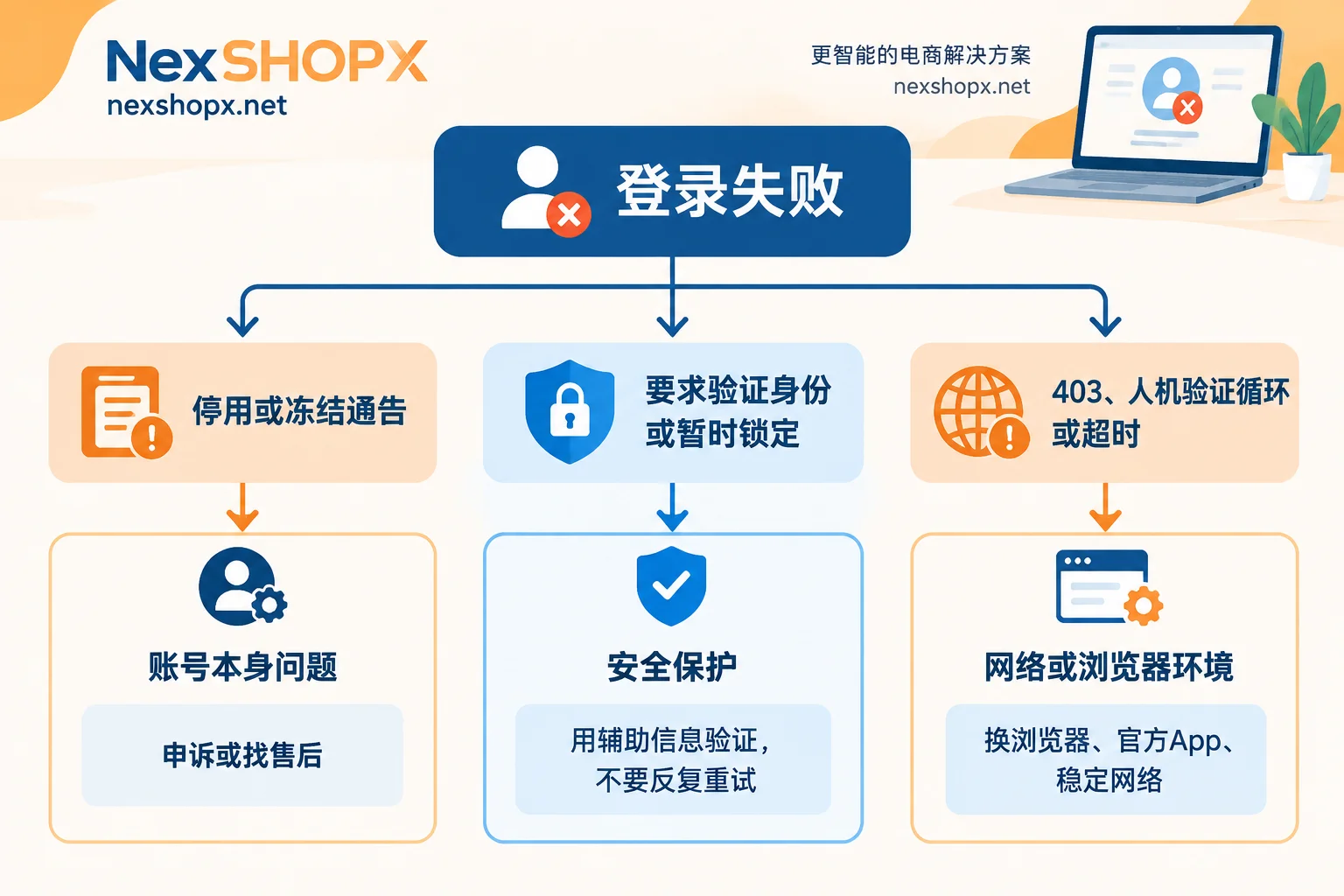
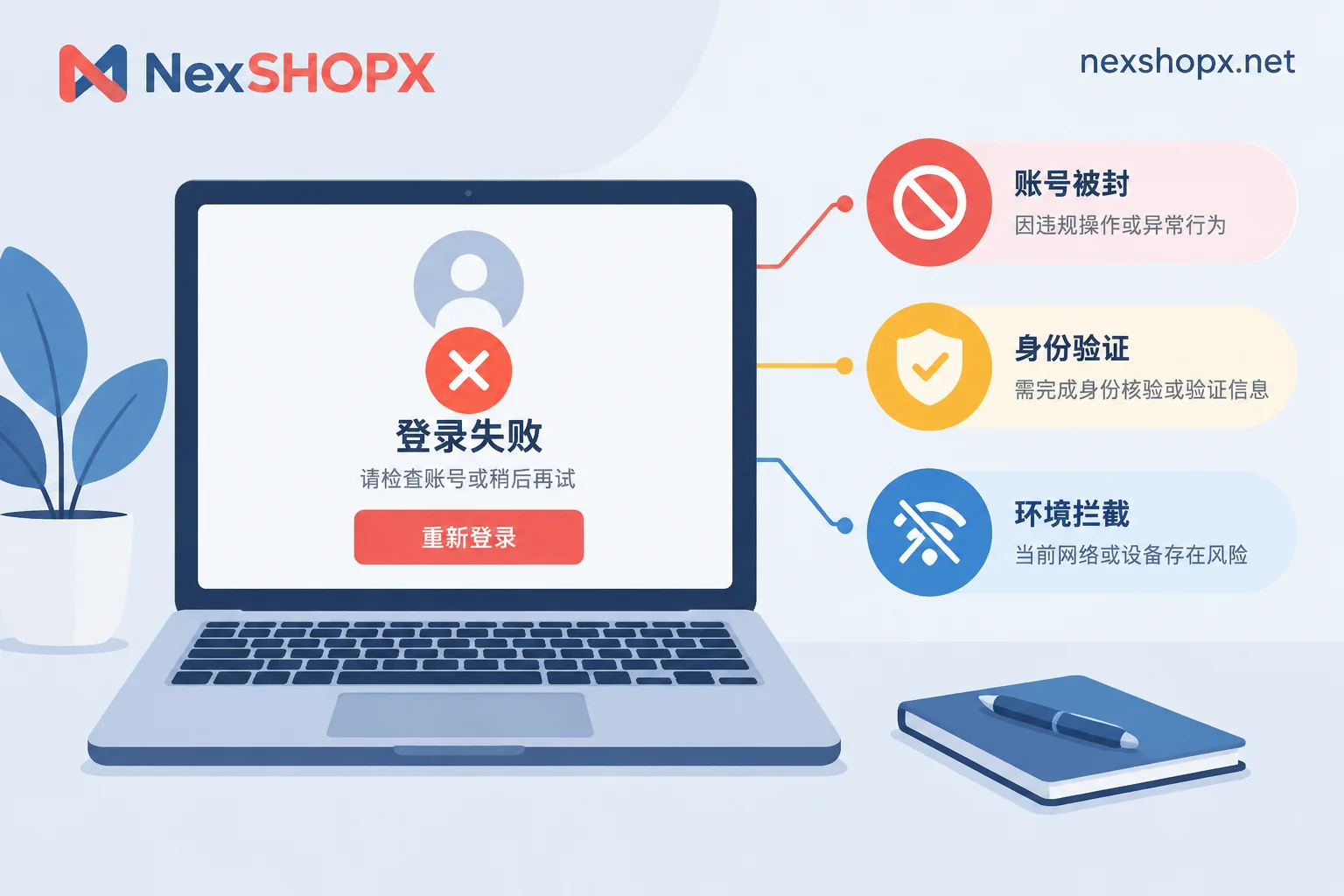
When an account login fails, don't rush to change your password or repeatedly click login. First, look at what type of message the platform is showing. There are three main categories:
- The page explicitly says the account is disabled, suspended, or deleted, and provides an appeal link: The problem is with the account itself, not your network or browser.
- The page asks you to confirm it's you, sends a verification code to a recovery email or phone, or says the account is temporarily locked: This is the platform's security protection. The account is still there; the platform just isn't sure about this login attempt.
- The failure happens before you even reach account verification, such as a 403 error, Access denied, endless CAPTCHA refreshes, or connection timeouts: You're being blocked at the network or browser environment level.
Below, we'll explain how to tell these apart, how to handle each case, and finally, how to avoid losing warranty coverage when a purchased account encounters these issues.
Before You Start Troubleshooting, Avoid These Actions
- Don't retry continuously. This is especially important when a security verification pops up: repeatedly trying on the same problematic network may cause the platform to escalate a temporary restriction to a suspension.
- Don't rush to change your password, recovery email, or phone number. These actions won't solve environment issues and may be flagged as abnormal activity. Purchased accounts carry an extra risk: many categories don't allow changing account details during the warranty period, and doing so may void the warranty (see What It Means That You Can't Change Account Details During the Warranty Period).
- Take a screenshot first. Capture the full error screen, the address bar, and the current time—you'll need this for appeals or after-sales support later.
Type 1: Explicit Ban Notice – The Problem Is the Account Itself
These messages target the account, with a conclusive tone, often accompanied by an appeal button or official email. Common examples:
| Platform | Typical Message | Notes |
|---|---|---|
| Your account is disabled | Usually includes a Start Appeal link | |
| Facebook / Meta | We suspended your account / We disabled your account | Typically gives an appeal deadline; Facebook Help Center states 180 days |
| OpenAI (ChatGPT) | You do not have an account because it has been deleted or deactivated | Account has been deleted or deactivated |
| X (Twitter) | Account suspended | The public profile usually shows suspension as well |
If you see these messages, changing networks or browsers won't change the outcome because the ban status is recorded on the platform's servers. For self-registered accounts, file an official appeal; for purchased accounts, contact after-sales support within the warranty period.
For social media accounts, you can do an extra check: Log out and open the account's public profile link in an incognito window. If the page shows the account doesn't exist, Account suspended, or is inaccessible, the account is likely frozen or removed. If the profile displays normally, the account still exists and the issue is with the login process. This method only works for platforms with public profiles; it doesn't apply to accounts like Gmail or ChatGPT that don't have public profiles.
Type 2: Identity Verification Request – Security Protection, Not a Ban
Typical messages include "Verify it's you," "Unusual activity," "Suspicious login attempt," or a request to enter a code sent to a recovery email or phone, or a "Temporarily locked" notice.
These messages usually mean the platform detected unfamiliar signals, such as a new device, an IP from a country or region you've never used, or multiple failed login attempts in a short time. The account itself is fine; this login attempt just needs extra proof that it's you.
Handling order:
- Use the account's built-in verification methods to pass verification. If the purchased account comes with a recovery email or 2FA key, this is where they come in handy (for their roles, see What Are the Uses of an Account with 2FA and Recovery Email).
- If your current network is unstable or the route frequently switches regions, switch to a stable network before verifying. Don't keep refreshing in the original environment.
- If it shows temporarily locked, wait as instructed. Don't repeatedly try during the lock period.
- If you can't receive the verification code or lack recovery information, take a screenshot first, then contact the appropriate channel. Don't change any binding information yourself.
This type is the easiest to make worse: what could be solved with one verification attempt might escalate to a suspension after repeated failures.
Type 3: Blocked Before Account Verification – Network or Browser Environment Issue
These failures occur before account verification and the errors aren't specific to any account:
- 403 Forbidden, Access denied
- Endless CAPTCHA loops (e.g., Cloudflare)
- "Oops, something went wrong," connection reset, constant timeouts
- Logging in with another account in the same environment gives the same error—this strongly suggests an environment issue
Common causes include: your current IP comes from a shared node heavily flagged by the platform (e.g., a datacenter line used by many people); the IP's region changes back and forth during login; browser cache, cookies, or extensions interfering with page scripts.
Troubleshoot from simple to complex:
- Switch to an incognito window or another clean browser, and disable ad blockers and script-blocking extensions before trying again.
- Try the platform's official app. If you can log in there, the account is fine.
- Switch to a stable, non-shared network. Don't switch routes or regions during login.
- If the account will be used long-term in a certain region, try to keep the login region consistent with your usage habits. This is less likely to trigger blocks than temporarily switching routes each time.
Once the environment issue is resolved, you can usually log in directly and the account status remains unaffected. Note that stubbornly retrying login in a blocked environment may push the problem from Type 3 to Type 2.
When a Purchased Account Fails to Log In, Follow This Order
- First, confirm the first-login deadline. Most products require you to complete the first login within a limited time after ordering; exceeding it may void after-sales support. The specific duration is subject to the product page (for when the clock starts, see When Should You Complete the First Login for a Purchased Account).
- Determine the error type according to the three categories above and take screenshots. Also note the order time, first login attempt time, and when the error appeared.
- For Type 3, first check your network and browser. For Type 2, use the provided recovery information to complete verification.
- If you see an explicit suspension or freeze notice immediately upon login, it's a ban upon receipt. Contact customer service within the warranty period for handling according to the rules—typically a replacement.
- Don't change the password or binding details throughout the process, unless the product page explicitly allows it.
When requesting after-sales support, prepare these materials: order number, account, full error screenshots with timestamps, login method (web or app), and the troubleshooting steps you've already taken. The more complete the materials, the faster customer service can assess. For a more detailed checklist, see What to Prepare for After-Sales When a Purchased Account Can't Log In.
NexSHOPX warranty periods, first-login deadlines, and whether account detail changes are allowed vary by category. Refer to the respective product page. General rules can be found in Terms and Warranty Rules. If after troubleshooting you confirm you need a replacement, or want to re-select specifications for your use case, you can choose from All Categories.


Comments(0)