 NexSHOPX-官方新闻
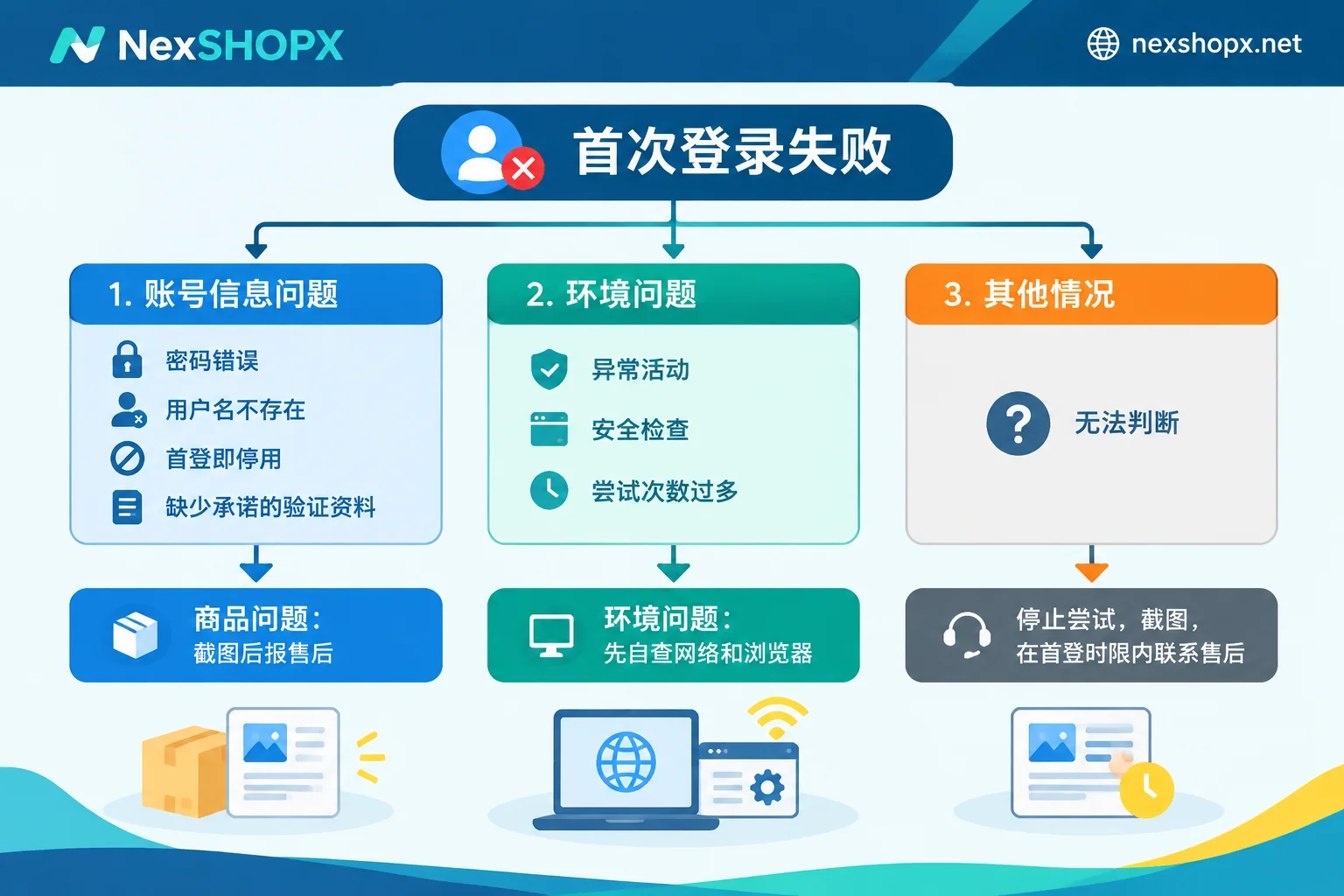
When you receive an account and can't log in, don't rush to switch nodes and retry. The most reliable way to determine whether it's a product issue or your environment is the error message from the platform:
- More likely a product issue: First login shows incorrect password or username does not exist; immediately shows account disabled or suspended (Disabled / Suspended); when verification is required, the 2FA key or backup email promised on the product page is missing from the delivery. These are initial delivery anomalies, usually covered by the first-login warranty.
- More likely an environment or operation issue: Prompts about unusual activity detected, security check required, or too many attempts. These indicate that the platform's security mechanisms have been triggered; the account itself may be fine, so check your network and browser environment first.
- When unsure: Stop trying, take screenshots as evidence, and contact after-sales within the first-login time limit.
The following sections are arranged in the actual order of handling.
Step 1: Stop first, preserve the scene
The most common mistake after a login failure is to keep trying hard. These actions will complicate the situation:
- Repeatedly entering the password. After consecutive Google failures, a "too many attempts" prompt appears; Meta accounts easily trigger a security checkpoint (Checkpoint), turning a manageable problem into a temporary lockout.
- Frequently switching node regions after failure. One moment the US, the next Japan—this looks more like an abnormal login to the platform.
- Changing account details just to log in. Changing the password, swapping the backup email, or binding your own phone is prohibited during the warranty period for many products; doing so may void the warranty.
Take a full-screen screenshot the first time you see the error; this image will be useful for after-sales later.
Step 2: Determine responsibility by the error message
First rule out low-level mistakes: check for extra spaces when copying the account and password, incorrect capitalization, or swapped account and password. After confirming they are correct, refer to the table below:
| What you see on first login | More likely cause | What to do |
|---|---|---|
| Incorrect password / username does not exist | Delivery information error | After verifying, contact after-sales directly |
| Immediately shows disabled or suspended | Account was already abnormal before shipping | Contact after-sales with a screenshot of the first login |
| Requires 2FA or backup email verification, but the promised data is missing from delivery | Incomplete delivery | Contact after-sales referring to the product page |
| Requires 2FA or backup email verification, and the data is included | Normal login verification | Complete verification using the delivered data |
| Unusual activity detected / security checkpoint / too many attempts | Network, environment, or operation triggered security mechanisms | Pause login attempts, self-check environment first |
The same prompt may not always have the same cause. For example, "disabled" appearing after you've already logged in and used the account for a while cannot be directly attributed to a shipping issue. So the screenshot at the moment of first login is the most telling. For whether the delivery is complete and what 2FA and backup email are each for, see Account Delivery Acceptance Checklist.
Step 3: Environment self-check
When the error points to a security check, troubleshoot these three items one by one:
Network
- Are you using a data center or hosting proxy IP? These IPs are often flagged by platforms.
- Did the node switch regions during login?
- Prefer a stable, exclusive network; don't share an exit with others.
Browser environment
- Are device characteristics contradictory, e.g., browser user agent says mobile but the exit is a data center IP?
- Are multiple accounts crammed into the same browser, with cookies mixing? When managing multiple self-owned business accounts, each account should have its own independent browser environment; tools like NexBrowser can provide isolation.
- When using a 2FA key to generate codes, inaccurate device time can cause codes to always fail; remember to sync system time.
Operation method
- Are you logging in as instructed on the product page, e.g., account-password login, importing cookies, or logging in via the app?
- Have you already tried many times in a short period?
After adjusting your environment, wait a while and try again using the correct method. If it still fails, contact after-sales directly; don't keep trying.
Step 4: What to provide for after-sales
Complete materials help after-sales quickly determine responsibility. It's best to provide all at once:
- Order number and purchase time.
- A complete screenshot of the first login: Full screen, uncropped, showing system time, the full URL in the browser address bar, and the original error message. If logging in via an app, take a full screenshot including the status bar time.
- Login environment description: Network node region and type (local broadband, residential IP, or data center IP), whether cookies were imported, which browser or fingerprint browser was used, and the login method.
- What actions you took: How many attempts, whether you changed the password, backup email, or bound a phone.
You can use this template directly:
订单号:
购买时间:
首次登录时间:
报错原文:
登录方式:网页账密 / 导入 Cookie / App
网络:地区 + 类型(本地宽带 / 住宅 / 机房)
浏览器:普通浏览器 / 指纹浏览器(名称)
尝试次数:
是否改过资料:是 / 否
附件:全屏截图 X 张
The system time in the screenshot proves you attempted within the first-login time limit; the address bar and error text identify the type of problem; the environment description helps after-sales rule out environmental factors. Even if it's ultimately confirmed to be an environment issue, after-sales can provide next-step advice based on this.
For the warranty to be valid, meet two prerequisites
- Complete the first login attempt within the first-login time limit. Reporting after the deadline makes it hard to prove the problem existed at delivery. To know when the time limit starts, see When must you complete the first login for a purchased account.
- Do not change account details without authorization during the warranty period. If the product page prohibits modifications, do not touch the password, backup email, or bound phone without customer service permission. For which changes affect the warranty, see What does it mean that details cannot be changed during the warranty period.
The first-login time limit, warranty duration, and replacement method are subject to the product page; they vary significantly by category, and some categories only have a few days of after-sales support. If AI accounts or streaming family groups have specific evidence requirements, follow their respective product pages. Before ordering on NexSHOPX, read the first-login and warranty instructions on the product page; general rules can be found in Terms of Service and Warranty Rules.


Comments(0)