 NexSHOPX-官方新闻
The moment you receive the card key, the acceptance clock starts ticking. Most disputes are not because the account itself has problems, but because the buyer logs in once, then changes the password, and only thinks to report the issue two days later—by then the first login time limit has passed and the profile has been modified, making it difficult to handle after-sales according to the warranty.
So the order matters. After receiving the delivery information, follow these four steps: verify fields → prepare environment → first login via platform channel → check entitlement specifications. If any step gets stuck, stop and keep evidence; do not try to "test it out" yourself.

Step 1: Verify Delivery Fields, Don't Rush to Click Login
Delivery content is usually separated by a delimiter (commonly ----) into a single line of fields. First split it apart to see if it's complete:
- Basic fields: account name or UID, login password.
- Security-protected specifications: recovery email (sometimes with the recovery email password, or POP3/IMAP authorization code), 2FA TOTP secret key, one-time recovery backup codes.
- Session-based or developer specifications: may include cookies or API tokens.
Focus on two things: whether any required fields are missing and whether any are truncated. Long strings like TOTP secret keys and backup codes are most likely to lose trailing characters during copy-paste. If the secret key is missing one character, it will never generate the correct verification code, yet it's easy to misjudge as "key invalid". If you find missing fields, submit a ticket before logging in; that's much clearer than explaining after a failed login.
Also check whether the specification you bought matches the delivered content: if you bought a spec with 2FA but only received account credentials, that's incomplete delivery, not a problem with your operation.
Step 2: Prepare the Login Environment Before Entering the Password
Do not open a new account in your everyday browser, and do not repeatedly switch between multiple accounts in the same browser. When a new account logs in for the first time, the platform looks at the combination of device fingerprint, IP location, and historical behavior. A dirty environment can cause the first login to be flagged as abnormal.
A viable approach is:
- Open an independent isolated browser environment (multi-account environment configuration and isolation are NexBrowser's domain, not covered here);
- Configure a high-purity proxy matching the account's region, avoiding data center IPs;
- In the environment, first visit a few ordinary web pages normally, then open the login page.
Keep time zone, language, and IP location as consistent as possible. The few minutes spent on this step save much more trouble than appealing later.
Step 3: Complete First Login Through the Platform's Established Channel
The most common first-login failure is choosing the wrong verification method.
Google / Gmail: If a security challenge pops up, prioritize options like "Confirm recovery email address" and enter the full address of the recovery email from the card key; do not choose "Send verification code to recovery email"—that path requires you to actually receive emails, and if the delivery didn't include login access to the recovery email, it won't work. If the account has a 2FA secret key, import it into Google Authenticator or any TOTP-supporting tool, and use the generated 6-digit dynamic code to pass verification. Note that dynamic codes expire; check the remaining seconds before entering.
Meta / Facebook: For accounts with two-factor authentication enabled, you can use the 2FA dynamic code or the one-time recovery backup code provided in the delivery. Backup codes are invalid after one use, so don't use them for repeated tests; if multiple were provided, note how many remain after successful login.
Other platforms have different verification options, and platform risk control rules may change. Follow the first login instructions stated on the product page. Do not try verification methods not listed on the product page on your own; repeated trial and error itself will worsen the blocking.
Step 4: Verify Entitlement Specifications, Not Just "Can Log In"
Being able to log in does not mean acceptance passed. Check one item for each category you purchased:
- Social media aged accounts / unlocked accounts: Check whether the homepage displays normally, and whether there are functional restrictions or historical violation notices. For advertising, go to the ad manager to see if the account is usable and whether there is a restricted status.
- AI accounts and membership subscriptions: Go to settings or billing page to verify the package level (e.g., Plus, Team, Pro), expiration date, and auto-renewal status match the purchase description.
- Email and platform accounts: Confirm sending and receiving work normally, and the binding status of recovery email and verification methods matches the description.
If you bought membership activation on your behalf, the logic is different: it activates or renews on your own account, so acceptance looks at the package status and expiration date in your own account, not a new set of login credentials. Take a screenshot before and after renewal.
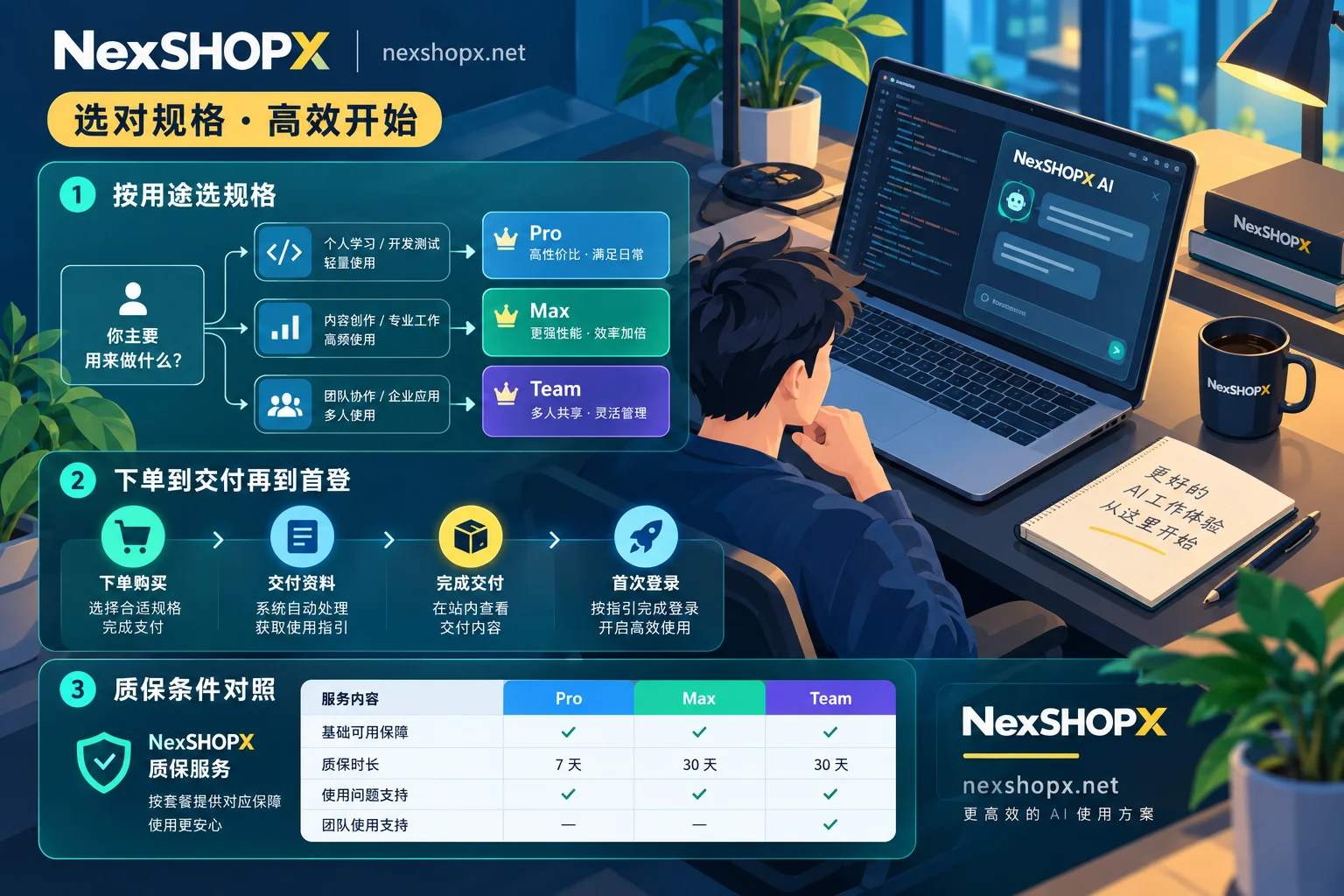
It's easier to set acceptance criteria when choosing specifications—whether to include recovery email, whether to include 2FA, new or aged account, ad permissions—these are clearly stated in the product descriptions on each category page. First login time limits and warranty durations also follow the product page. General rules can be reviewed in Terms and Warranty Statement. In-stock items are automatically delivered after self-service ordering in the mall; pre-order items are delivered after customer service confirmation. Delivery pace differs, so the acceptance timer start also differs.
Two Red Lines That Most Easily Void After-Sales
One is the first login time limit. Most categories require first login within a specified time after ordering. Exceeding the time without logging in usually falls outside the first login warranty. In other words, don't stockpile accounts waiting for free time; if you really don't have time to set up the environment that day, better to order later.
Two is no profile changes during the warranty period. Common rules prohibit changing password, rebinding recovery email, changing phone number, or adding verification methods during the warranty. There are two reasons: changing password immediately after first login on a new device is itself a high-risk action in the platform's account theft model, easily triggering a lock; and unauthorized changes prevent the mall from verifying the original delivery state, thus voiding the warranty. The safe approach is to let the account rest in the current environment, use it lightly and normally, and after the warranty period ends and the state is stable, change to your own credentials step by step, leaving intervals between each change.
Which categories have specific prohibitions and which don't still depends on the product page. Don't apply one category's rules to all products.
How to Keep Evidence and Submit Tickets When Problems Arise
For situations like wrong password, account disabled, 2FA key failing to generate valid codes, or specifications not matching description, within the first login time limit, gather evidence before submitting:
- Original text of the delivered card key (keep as is, do not delete, modify, or mask);
- Full error screenshots of failed login, including platform prompt text;
- Screenshots of login environment and IP location, showing you logged in from an isolated environment in the matching region;
- Operation timeline: when ordered, when first logged in, which verification methods tried.
With these four items, customer service can directly verify according to warranty terms for replacement or other handling; without environment and timeline, it often takes several rounds of back-and-forth. Conversely, if you have already changed the password or rebinding, the persuasiveness of this evidence is greatly reduced—this is why the previous red line matters.
This acceptance routine feels cumbersome the first time, but after two or three times it's a ten-minute task. What's truly valuable is not the checklist itself, but that it keeps the initiative of "whether you can claim" in your hands.
Further reading: Account Purchase Precautions: Complete Checklist from Selection to First Login, What to Do First When Logging into Overseas Accounts? How to Handle Passkeys and Active Sessions, What Does After-Sales Service for Account Purchases Include? Responsibility Boundaries for 3 Types of Issues.


Comments(0)