 NexSHOPX-官方新闻
Possibly yes. Changing your password only blocks the path of "logging in again with the old password." If your ex still has any of the following, they might still get in after you change your password, or take back the account a few days later:
- A phone, computer, or TV that is still logged in
- A passkey stored on their device
- An old recovery email or phone number that can receive verification codes
- A third-party app that was previously authorized to log in with your account
To completely cut off access, you need to close all these entry points at once.
First, confirm: Is your recovery information still in your hands?
Log into your account and check whether the linked phone number and recovery email are yours.
- You can log in normally and receive verification codes: Just follow the cleanup steps below.
- The other person has changed the recovery information, and you can't log in or receive codes: The steps below won't help for now. First go through the platform's account recovery process to regain control, then come back here to clean up.
General approach: Six steps to close all entry points
It's best to complete these steps all at once, not over several days. Doing only half is like giving the other person time to change your recovery information.
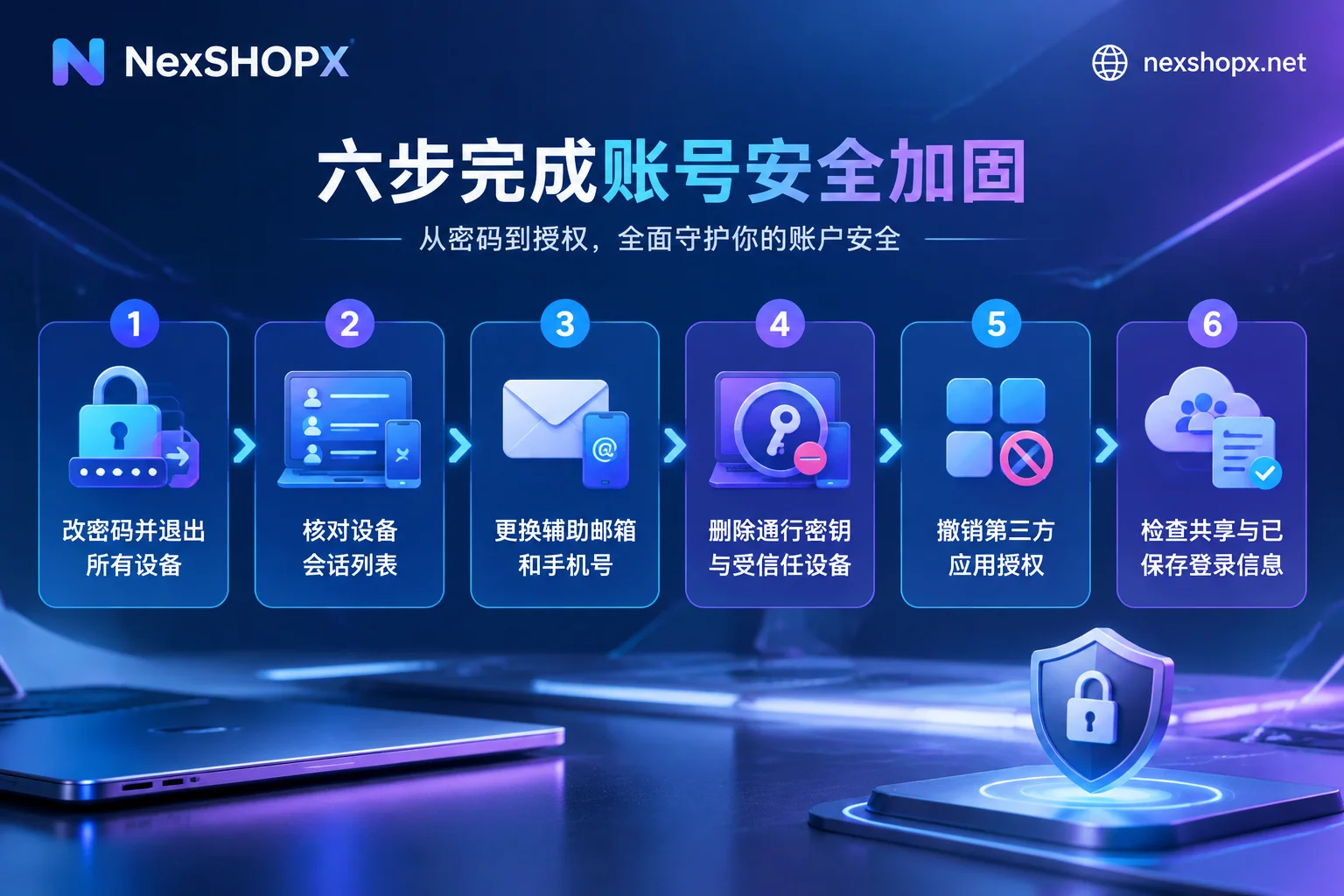
1. Change your password and choose to log out all devices.
Many platform clients and TV apps cache login tokens. When changing your password, if you don't check "log out other devices," already logged-in sessions may persist for a while, sometimes until the token naturally expires. When you see options like "log out all devices" or "require all devices to log in again," be sure to check them.
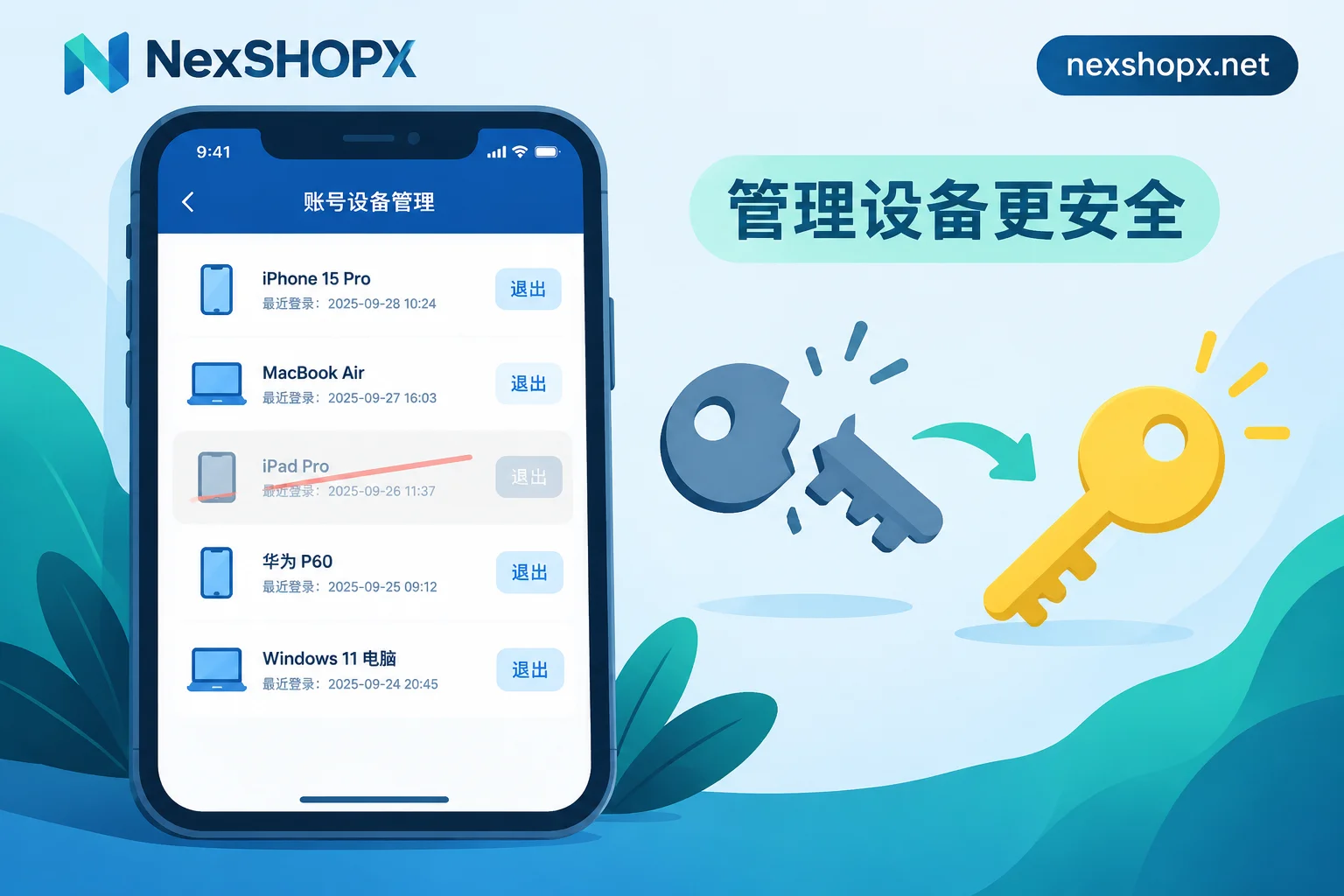
2. Go to the device or session list and review.
After changing, open the platform's device management page. If there are unrecognized devices or devices belonging to your ex, manually log out each one.
3. Change your recovery email and phone number.
As long as the other person still controls any of these, they can use "forgot password" to reset the password you just changed. Note that some platforms may still send notifications or verification codes to the old recovery method for a period after you change it. So in the days after changing, pay attention to security alerts.
4. Delete passkeys, trusted devices, and app-specific passwords.
Passkeys and trusted devices are login methods independent of your password, and changing your password won't automatically remove them. The same goes for app-specific passwords, which are often used for email clients, calendar syncing, etc.
5. Revoke third-party app authorizations.
Check the list of apps that use "Sign in with Google / Apple / Facebook." If your ex authorized any games, tools, or calendar syncing with your account, those apps may still have data access. Revoke any you don't recognize or no longer use.
6. Check sharing and auto-login.
There are three categories to check:
- Family sharing, location sharing
- The other person's dedicated profile on streaming services
- Saved login information in browsers or apps
You can't control whether your password is saved on their device. But you can clean up saved records and sharing relationships on your own devices in this step.
Where to do it on each platform
Google Account
- View and log out devices: Go to Google Account → Security → Your devices → Manage all devices, or visit google.com/devices directly. Here you can see all active sessions and click "Sign out" on each.
- Change password: This will trigger sign-out on other devices. But passkeys and trusted two-step verification devices won't disappear; you need to manually remove them in the Passkeys and 2-Step Verification settings on the Security page.
- Recovery information: Change the recovery email and phone number on the same page. According to Google Help Center, for a period after changing (up to 7 days), the old recovery method may still receive security notifications. If you see abnormal login alerts during this time, handle them promptly.
- Third-party authorizations: Check linked third-party apps on the Security page and revoke any unnecessary authorizations.
Apple ID (iPhone)
If you have an iPhone with iOS 16 or later, the easiest way is to use "Safety Check": Settings → Privacy & Security → Safety Check.
Emergency Reset will do the following at once:
- Stop information sharing with others
- Sign out of all associated devices except the current iPhone
- Guide you to reset your Apple ID password
- Revoke all app-specific passwords
- If you only want to stop sharing with one person, you can choose to manage each item individually instead of resetting everything.
After that, check the trusted phone numbers in Apple ID settings to confirm they are all yours.
Netflix
- Go to Account → Manage access and devices. Here you can see recently played devices and which profile each device used. You can sign out a specific device or choose to sign out all devices.
- Also change your password and check the option to require all devices to sign in again.
- Delete your ex's dedicated profile. Otherwise, their viewing history and preferences remain in your account, and they may continue to use or change settings.
Instagram / Facebook
- Go to Accounts Center → Password and security → Where you're logged in. Check all unfamiliar devices and your ex's devices, and log them out in bulk.
- When changing your password, confirm you choose to log out other devices.
- Check "Saved login info" to avoid browsers or apps auto-filling old credentials.
Account handovers for teams: Check warranty terms before changing data
"Ex" doesn't necessarily mean an ex-boyfriend or ex-girlfriend; it could be a former colleague or an outsourced operator you've replaced. The cleanup approach for business accounts is the same as above: log out sessions, change password, change recovery info, revoke authorizations.
But if this account was purchased and is still within the warranty period, pause first. Some categories do not allow modifying data during the warranty period. Changing the recovery email, phone number, or password may void the warranty. For accounts purchased on NexSHOPX, refer to the specific product page and terms and warranty rules. If you're unsure what can be changed, ask customer service before making changes. For what can be changed, refer to What does it mean that data cannot be changed during the warranty period?.
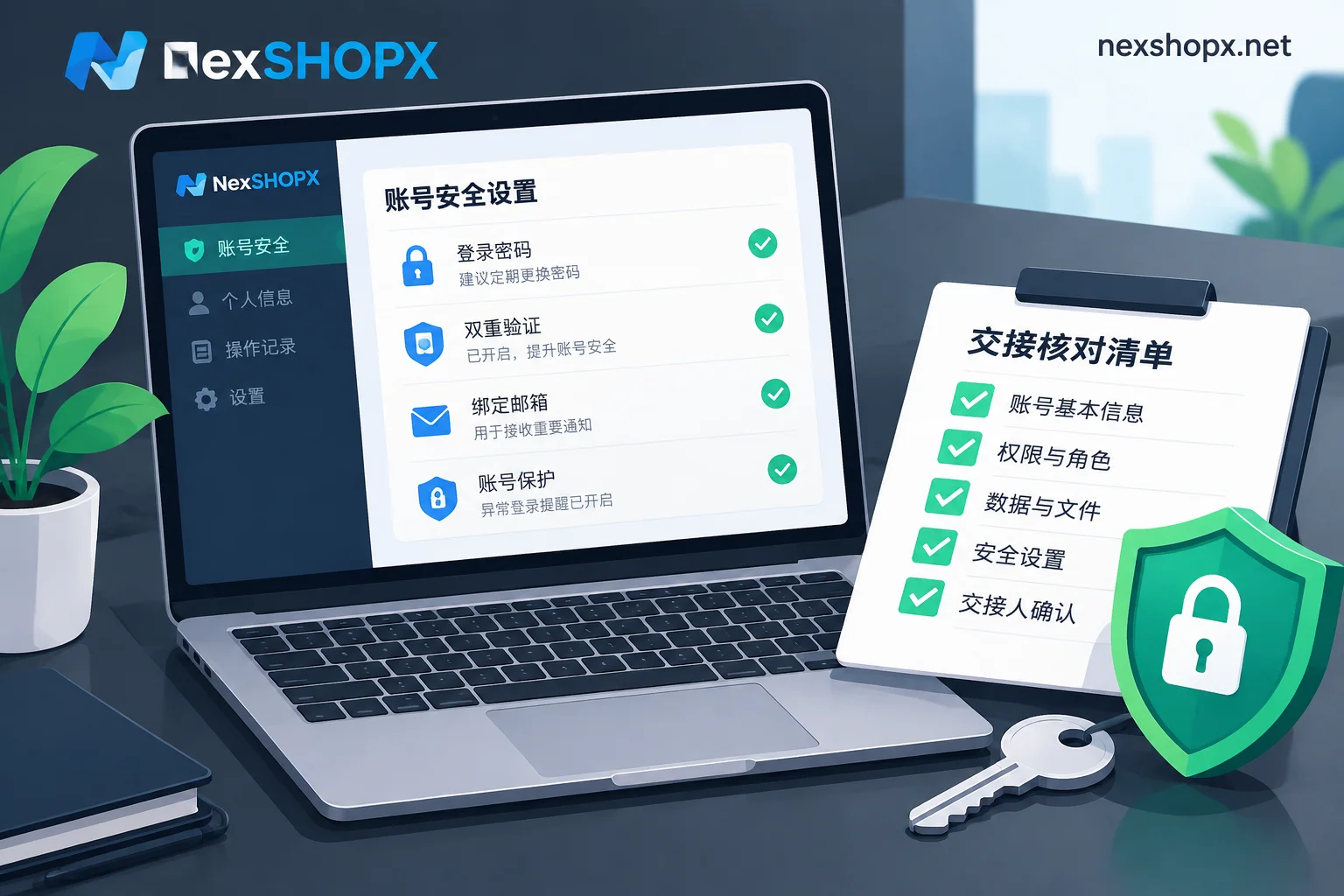
For team handovers, also verify that delivery materials and permission transfers are complete. You can go through the six-step account handover checklist item by item.
Shared memberships with an ex: If the main account isn't yours, get your own
When sharing Netflix or other streaming memberships, first check who holds the main account.
- The main account is yours: Just follow the steps above to log out devices, delete profiles, and change the password.
- The main account is theirs: All you can do is delete your own profile. The other person can see your viewing history at any time and can kick you out.
The cleaner approach for the second case is to open a membership on your own account. Membership setup service means opening and renewing on your own account, without sharing login with anyone. There are differences between setup service and directly buying a ready-made account in terms of renewal method and who controls the login information. You can first read What's the difference between Netflix membership setup service and buying a ready-made account? and choose according to your viewing habits. After choosing the specifications, you can order from the membership and streaming subscription group in NexSHOPX all categories. Prices, stock, and renewal rules are subject to the product page.


Comments(0)