 NexSHOPX-官方新闻
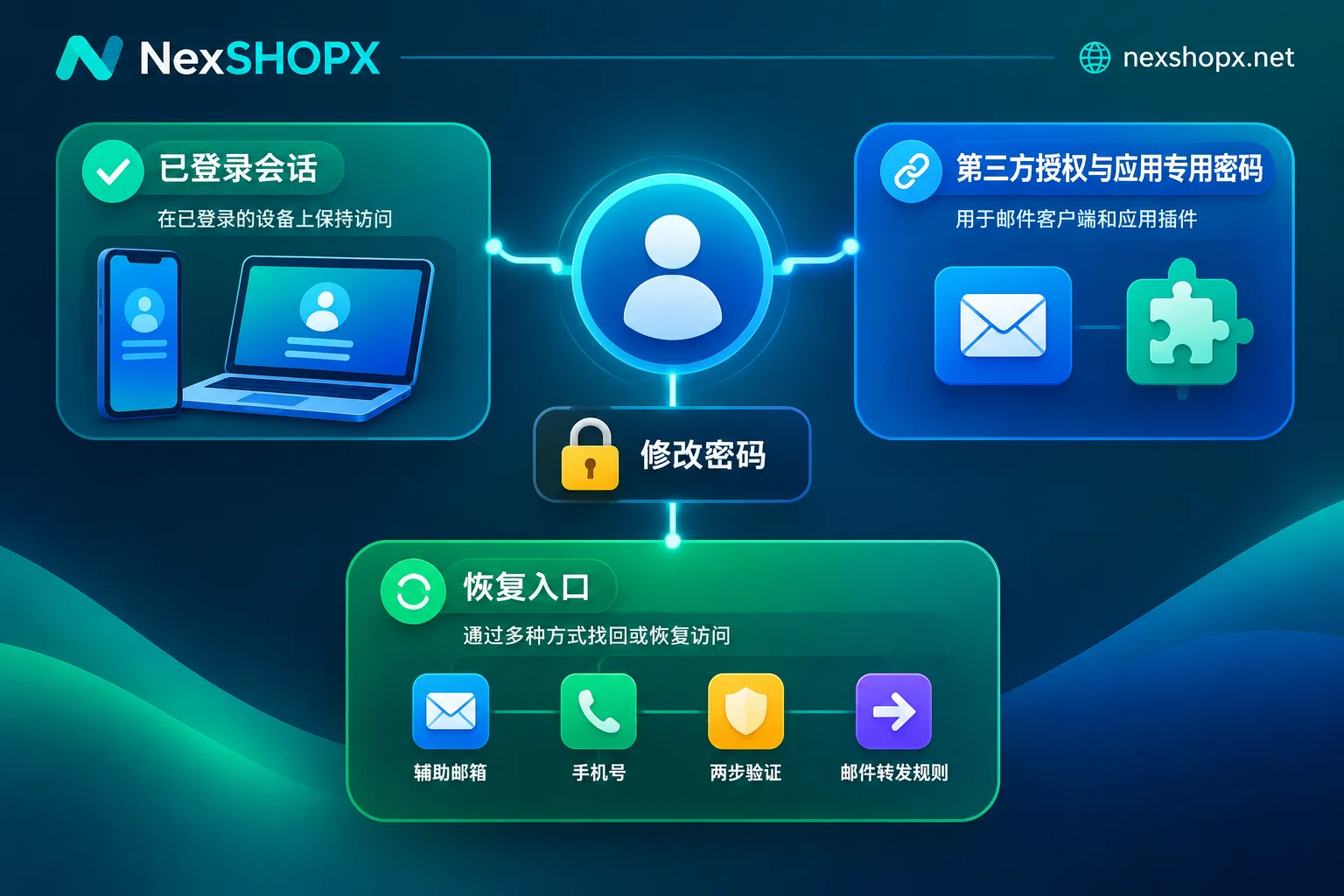
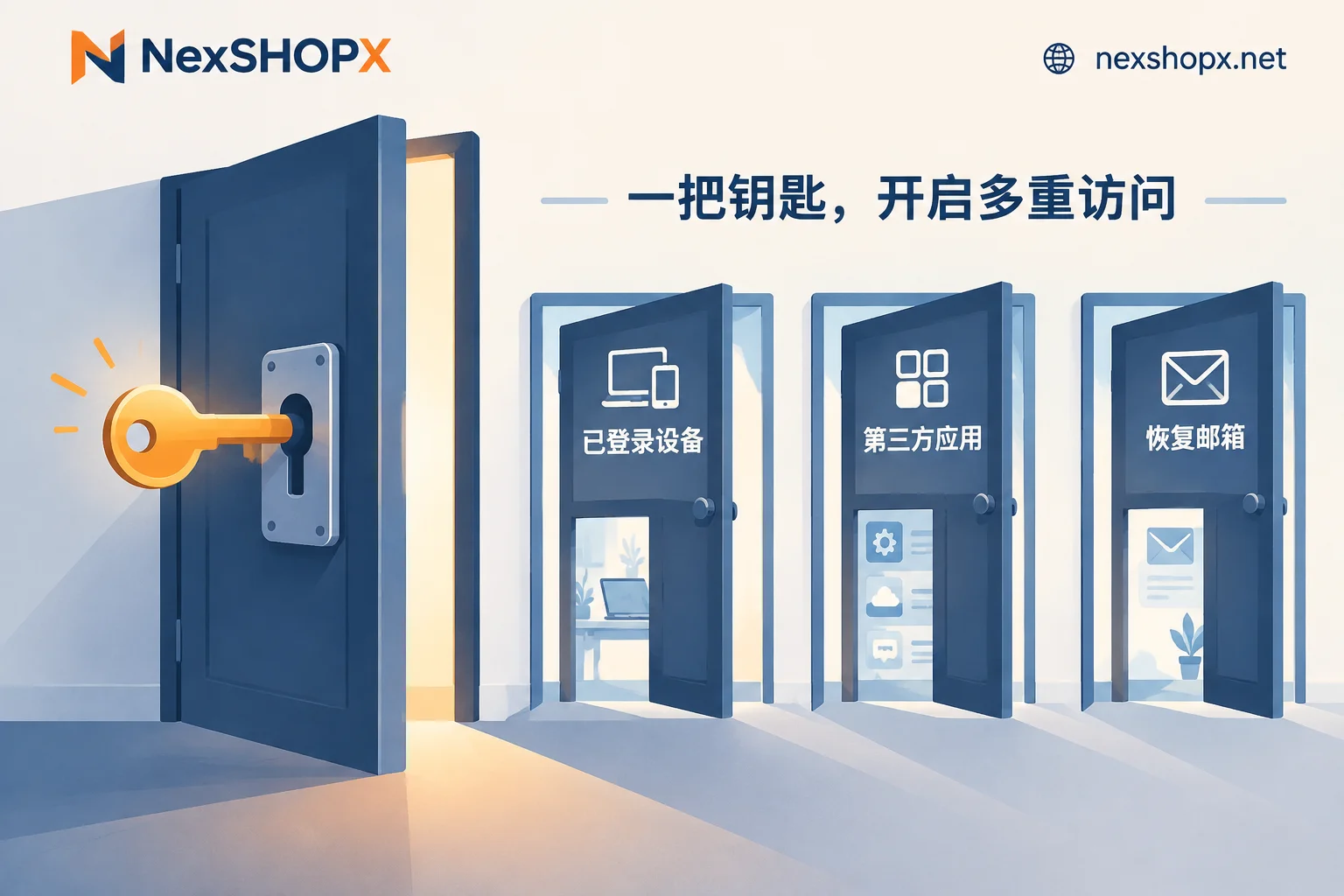
Changing your password only replaces the string you type the next time you log in with a password. The other party may still be logged in on some device, may have granted access to a third-party app, or may have left their own recovery email and phone number in the account. On many platforms, these channels do not automatically close just because you changed your password. So changing the password is only the first step; afterward, you need to close sessions, authorizations, and recovery entry points one by one.
First Look at the Symptoms to Determine Which Path the Other Party Used
- The other party stays online and never gets disconnected: Most likely, the old login session is still valid. They are using credentials left over from a previous login and do not need to enter the new password.
- You have kicked them off on the web, but emails are still being synced and third-party tools are still posting content: This means app authorizations or app-specific passwords have not been revoked. This type of access is managed separately from the web login password.
- Shortly after you change the password, it gets changed again, or you get pushed offline: This means the account still contains recovery methods the other party can use, such as an alternate email or phone number they added, a two-step verification method, or email rules that forward verification codes to them.
These three situations may exist at the same time. During troubleshooting, it is best to go through all of them, not just handle the one you noticed.
Why Logged-In Devices Don't Get Kicked Out After a Password Change
On most platforms today, after a successful login, the device receives a session credential (cookie or token). The device then stays logged in using that credential and does not re-verify the password every time. A common approach is to use a short-term access token together with a long-term refresh token or persistent cookie. If the server does not actively revoke these sessions when the password is changed, existing clients can keep using them until the credentials expire.
Platforms handle this differently:
- Meta products like Facebook and Instagram: When you change your password, they usually ask whether you want to log out of other devices. If you skip this or do not confirm, logins on other phones and computers remain as they were.
- Telegram: Multiple clients sync independently. Changing the two-step verification password (Cloud Password) will not kick other online clients. You need to go to Settings → Devices and tap "Terminate All Other Sessions."
- Google: When you change your password, it automatically revokes some third-party access to email, but you should not assume that all devices and authorizations are cleared. You still need to check the device and third-party access lists item by item.
- Enterprise Microsoft 365 and Google Workspace accounts: Administrators can revoke all sessions for that user in the admin console. However, short-term access tokens already issued may not expire until they time out. In urgent cases, administrators typically reset the password at the same time and, if necessary, disable the account first.
Close Entry Points in This Order
- Choose to log out other devices when changing your password. If this option is available, check it. This step clears most logged-in sessions.
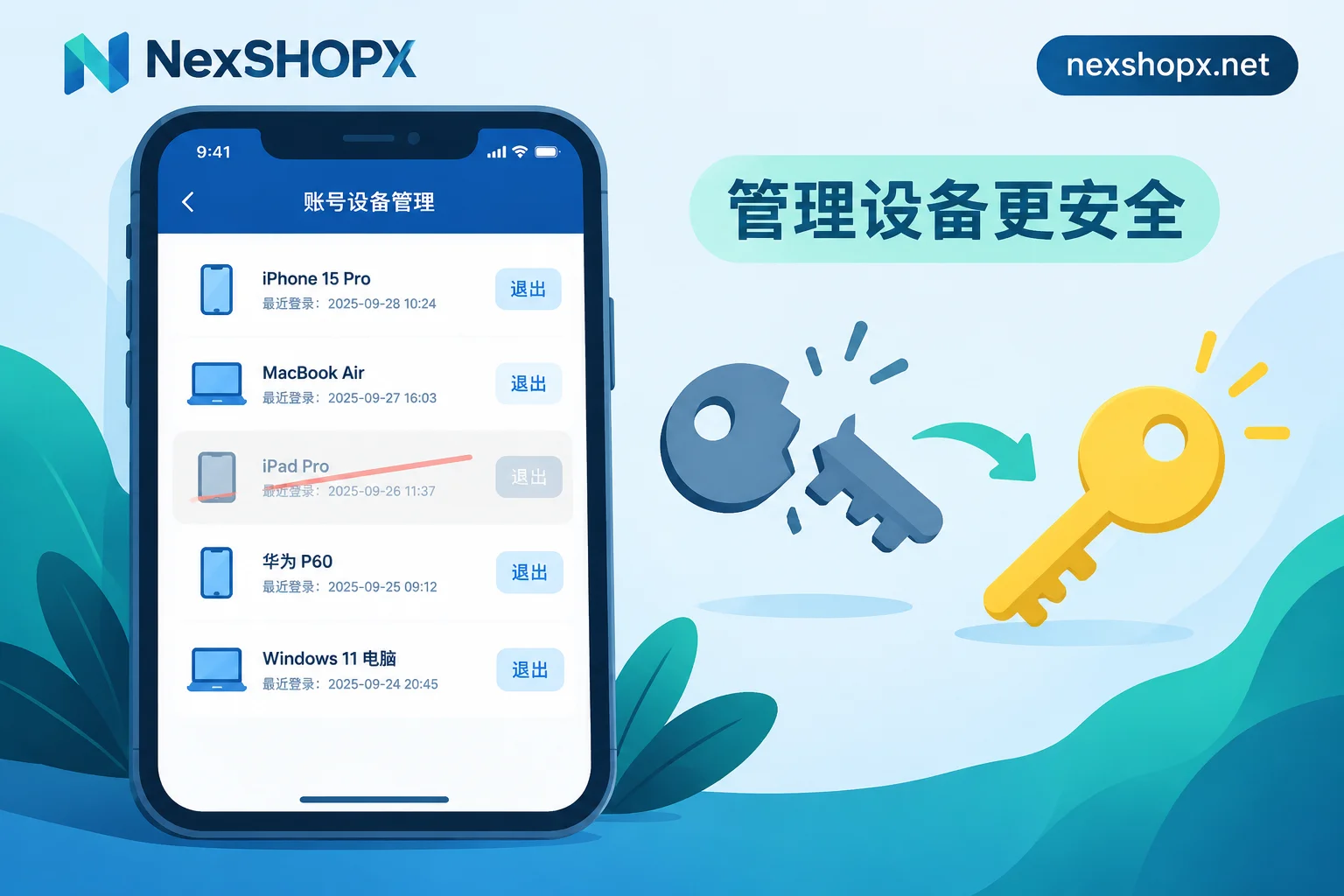
- Check each logged-in device on the devices page. For Google accounts, manage all devices under Security → Your devices. For Telegram, go to Settings → Devices. For Meta products, check login locations in the account's password and security settings. Log out any device that is not yours, and log out any you cannot identify.
- Revoke third-party apps and app-specific passwords. In security settings, find linked third-party apps and app-specific passwords, and delete any you do not recognize or no longer use. If an email client is connected via IMAP/SMTP with an app-specific password, kicking it off the web does not stop it from continuing to receive mail.
- Verify recovery methods and two-step verification. Check the alternate email, linked phone number, authenticator app, backup codes, and security keys one by one to confirm they are all yours. If even one belongs to the other party, they can use the account recovery process to take the account back.
- Check email forwarding and filter rules. Look for rules that automatically forward to unfamiliar addresses, and filters that automatically delete or archive security alerts and verification code emails. The other party often uses such rules to silently receive your reset emails while you cannot see them.
- Check again afterward. After some time, return to the device list and login history to confirm that only your devices remain and that recent logins are all yours.
Steps 4 and 5 are the easiest to miss. Sessions and authorizations only determine whether the other party can use the account now, while recovery entry points determine whether they can come back later.
For Bought or Handover Accounts, Check Warranty Rules Before Taking Action
When a team takes over a colleague's account or purchases a ready-made account, they often worry that the original holder or provider can still log in. In this case, the steps above basically still apply, but before changing profile information, pay attention to one thing: some categories do not allow profile changes during the warranty period. Changing the recovery email, phone number, or two-step verification may void the warranty.
For accounts bought on NexSHOPX, the warranty duration, first-login time limit, and what can be changed during the warranty period are all subject to the product page description. For general rules, see Terms and Warranty Rules. For what changes affect the warranty, see What Does It Mean That Profile Information Cannot Be Changed During the Warranty Period?.
If you suspect someone else is still logging in after delivery, it is advisable not to rush into major profile changes:
- First, take screenshots of the device list and login history, keeping information such as time, location, and device model;
- Log out unfamiliar sessions and revoke unfamiliar authorizations; such operations generally do not involve changing profile information;
- Before changing the linked email or phone number, contact customer service to confirm whether it will affect the warranty. When you need to request after-sales support, see What Information to Provide to the Seller for Login Issues.
For internal team handovers, besides changing the password, you should also transfer the recovery email, two-step verification, and third-party authorizations together. For a step-by-step checklist, see Six-Step Account Handover Checklist.


Comments(0)