 NexSHOPX-官方新闻
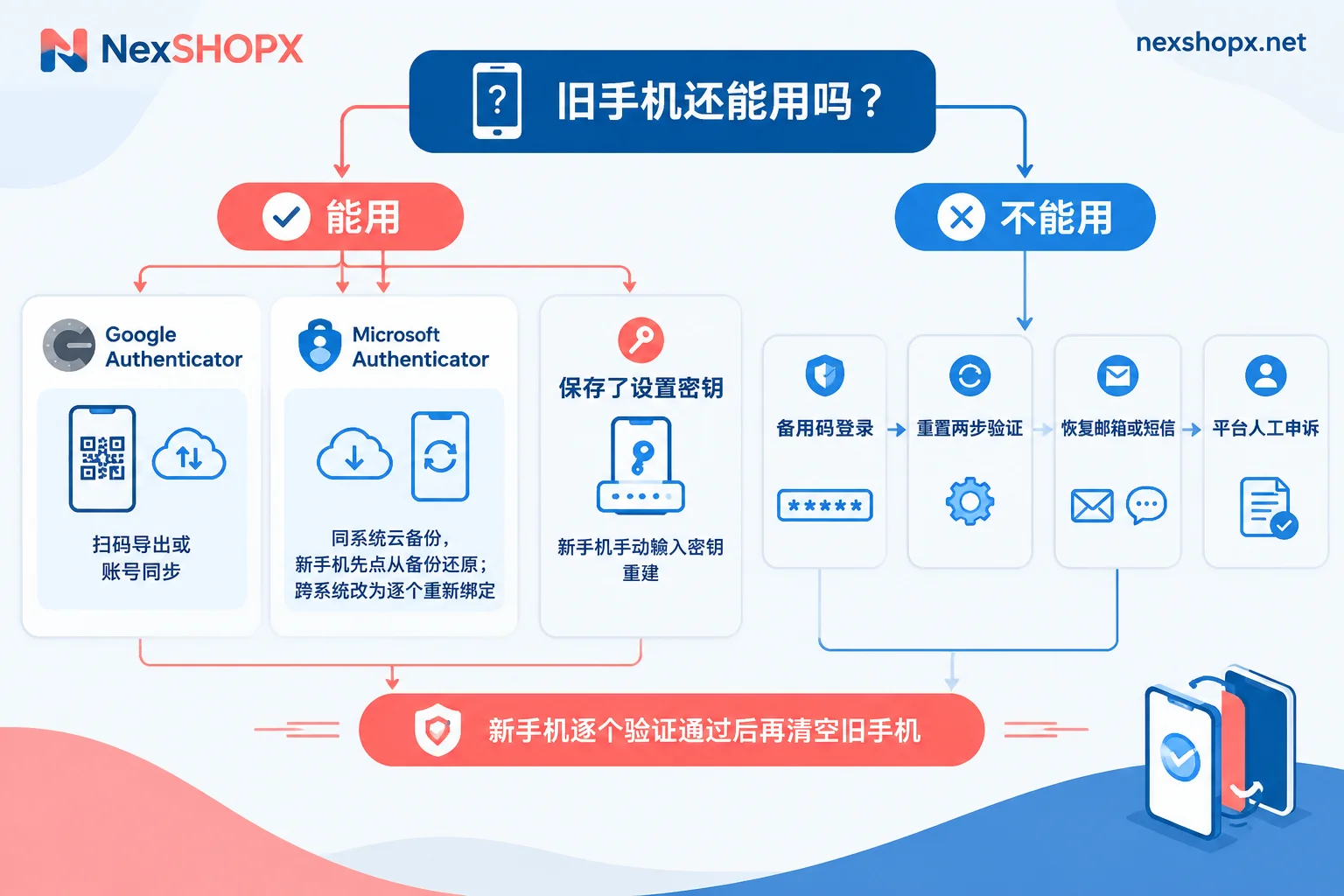
Before migrating, remember one thing: Do not delete the authenticator entries on your old phone, and do not factory reset it, until you have verified each entry works on the new phone. Most accounts get stuck at the login page because the old phone was wiped first.
The specific method depends on your authenticator and the operating systems of your old and new phones:
- Google Authenticator: You can export QR codes on the old phone and scan them with the new phone; this works between Android and iOS. If you previously signed in with a Google account and enabled sync, signing into the same account on the new phone restores all entries.
- Microsoft Authenticator: Relies on cloud backup restore, which only works within the same OS. iOS to iOS uses iCloud, Android to Android uses a Microsoft personal account. Cloud backup restore does not work between iOS and Android.
- Accounts with a saved 2FA secret key: Any standard authenticator can rebuild by manually entering the secret key, independent of the old phone.
- Old phone lost and no backup: First log in using the platform's backup codes, then rebind the authenticator. If you don't have backup codes, use the recovery email, SMS, or platform appeal process.
First, inventory your entries
Start by listing all entries in the authenticator on your old phone, noting which platform and which account each one corresponds to. For teams with many accounts, it's best to also mark which ones have saved secret keys and which have backup codes. After migration, verify each one; only with this list can you know if any were missed. If you already have an account handover sheet, you can use the account handover checklist field template to fill in the 2FA column.
Google Authenticator: QR export or account sync
Method 1: In-person QR scan (most reliable when both phones are at hand)
- Install Google Authenticator on the new phone.
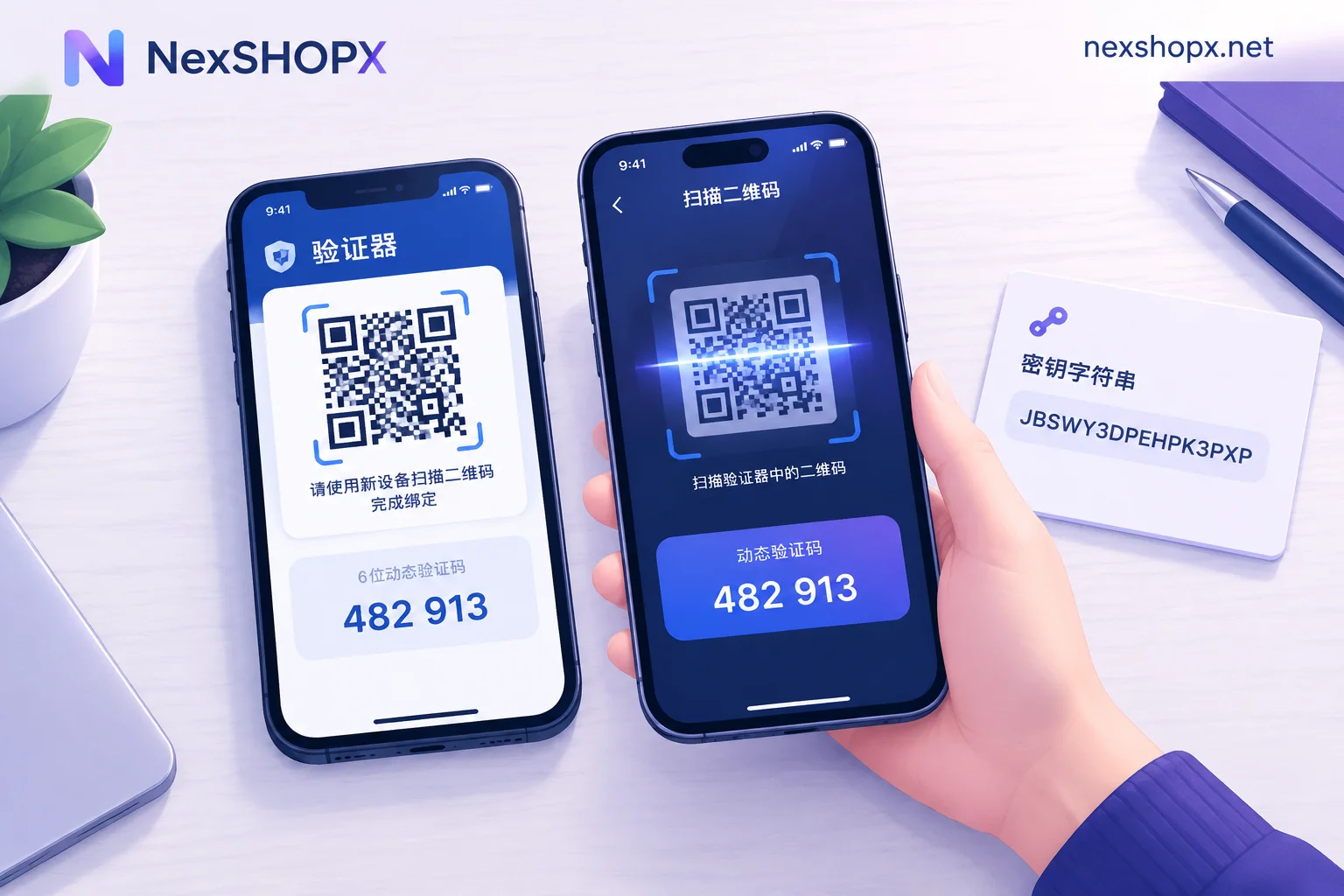
- On the old phone, open the app, tap the menu, select "Transfer accounts," then "Export accounts."
- Complete the old phone's lock screen verification and select the accounts to export. The old phone generates one or more QR codes; if there are many entries, they will be split across several codes.
- On the new phone, select "Transfer accounts," then "Import accounts," and scan each QR code from the old phone in sequence.
This method does not go through the cloud and can migrate from Android to iOS or vice versa.
Method 2: Google account cloud sync
If the authenticator on the old phone is already signed into a Google account and sync is enabled, installing the app on the new phone and signing into the same Google account will automatically sync the entries. Before using this method, confirm on the old phone that sync is indeed turned on. If you never signed in and have been using it that way, use QR export instead.
Microsoft Authenticator: Same-OS backup, tap restore first on new phone
First confirm backup is enabled on the old phone. Android backups are stored in your Microsoft personal account, iOS backups in iCloud. Cloud backups can only be restored within the same OS; an iOS backup cannot be used on Android, and vice versa.
The order of steps on the new phone is critical:
- Install Microsoft Authenticator, and do not sign in to an account when you first open it.
- On the main screen, tap "Restore from backup" at the bottom (it may also appear as "Start recovery").
- Then sign in to the account you used for backup and wait for entries to restore.
If you sign in directly first, or re-enable cloud backup on the new phone, it may create an empty backup that overwrites the old cloud backup, and your previous credentials will be lost.
After restore, different types of entries have different statuses:
- Third-party accounts like Amazon, Facebook, and Google, as well as other standard 30-second code entries, can generate codes immediately after restore.
- Microsoft personal accounts with passwordless sign-in enabled, and work or school accounts, will only have the account name after restore. You need to re-enter the password and complete identity verification before they can be used again.
When switching between iOS and Android: Cloud backup won't help. If both phones are at hand, while the old phone can still generate codes, log in to each platform's security settings one by one and rebind two-factor authentication to the new phone. For accounts with saved secret keys, use the method in the next section to rebuild directly.
Accounts with a secret key: manually rebuild in any authenticator
Standard TOTP authenticators all use the same algorithm; the dynamic code is computed from a seed secret, typically a 16- to 32-character alphanumeric string. As long as you saved this secret when you first enabled two-factor authentication, or it's in the delivery materials, you can rebuild like this:
- In the authenticator on the new phone (Google Authenticator, Microsoft Authenticator, 2FAS, etc.), select "Enter a setup key."
- Enter a recognizable account name and paste the secret key string.
- The generated 6-digit code should match the one displayed on the old phone at the same time.
This method is independent of the authenticator brand and phone OS, making it the easiest for cross-platform migration. If the codes don't match, first check that the new phone's time is set to automatic sync. Also, the secret key is equivalent to the authenticator itself; anyone who has it can generate codes. Store it separately from passwords and don't casually send it in chat groups.
After migration, verify one by one, then handle the old phone
- Use the codes generated by the new phone to log in to each account on your list, confirming they all work.
- For platforms that support it, regenerate a set of backup codes in security settings and save them separately.
- After confirming everything works, delete the entries on the old phone or wipe it.
If you're still deciding whether to use SMS or an authenticator app for team accounts, you can refer to SMS or authenticator app for two-factor authentication.
Old phone lost or broken, and no backup
- Have backup codes (Backup Codes / Recovery Codes): Use a backup code to log in to the account backend, reset or unbind two-factor authentication in security settings, then bind the new phone.
- No backup codes: Use the recovery email or phone number linked to the account to go through the recovery process. This requires that the recovery email and phone number are in your control; you can check in advance using five types of entry points to confirm recovery channels belong to you.
- None of the above: You can only contact platform customer service for manual identity appeal. Review requirements and processing times vary by platform; there is no unified timeline. Prepare materials according to the platform's instructions.
Purchased accounts: check the product page terms before migrating
If a purchased email or social media account has two-factor authentication enabled, the delivery materials usually specify the verification method. If a 2FA secret key is included, store the key in your team's password management tool as soon as you receive it. Then when you change phones, you can rebuild directly using the method above without depending on a specific device.
Note that simply rebuilding the same secret key on a new phone does not change the account's security settings. However, resetting or unbinding two-factor authentication in the platform backend and rebinding a new authenticator constitutes modifying account security information. For accounts purchased on NexSHOPX, some categories prohibit changing information during the warranty period. The warranty duration and specific restrictions are subject to the product page; for general rules, see Terms and Warranty Explanation. To understand which changes affect the warranty, refer to What does it mean that information cannot be changed during the warranty period?. If after migration the dynamic code does not work and account login fails, do not retry repeatedly. First organize the order number, error screenshots, and operation time according to information to provide when seeking after-sales support from the seller, then contact customer service.


Comments(0)