 NexSHOPX-官方新闻
Conclusion first: if an account is shared by multiple people, frequently logs in across borders, or is a purchased business account, prioritize an authenticator app (TOTP) for two-factor authentication. SMS is suitable for a phone number you own long-term as a recovery channel, not for everyday login.
Below we explain why this choice makes sense in practice and what to watch out for during purchase and first login.
Differences between the two methods
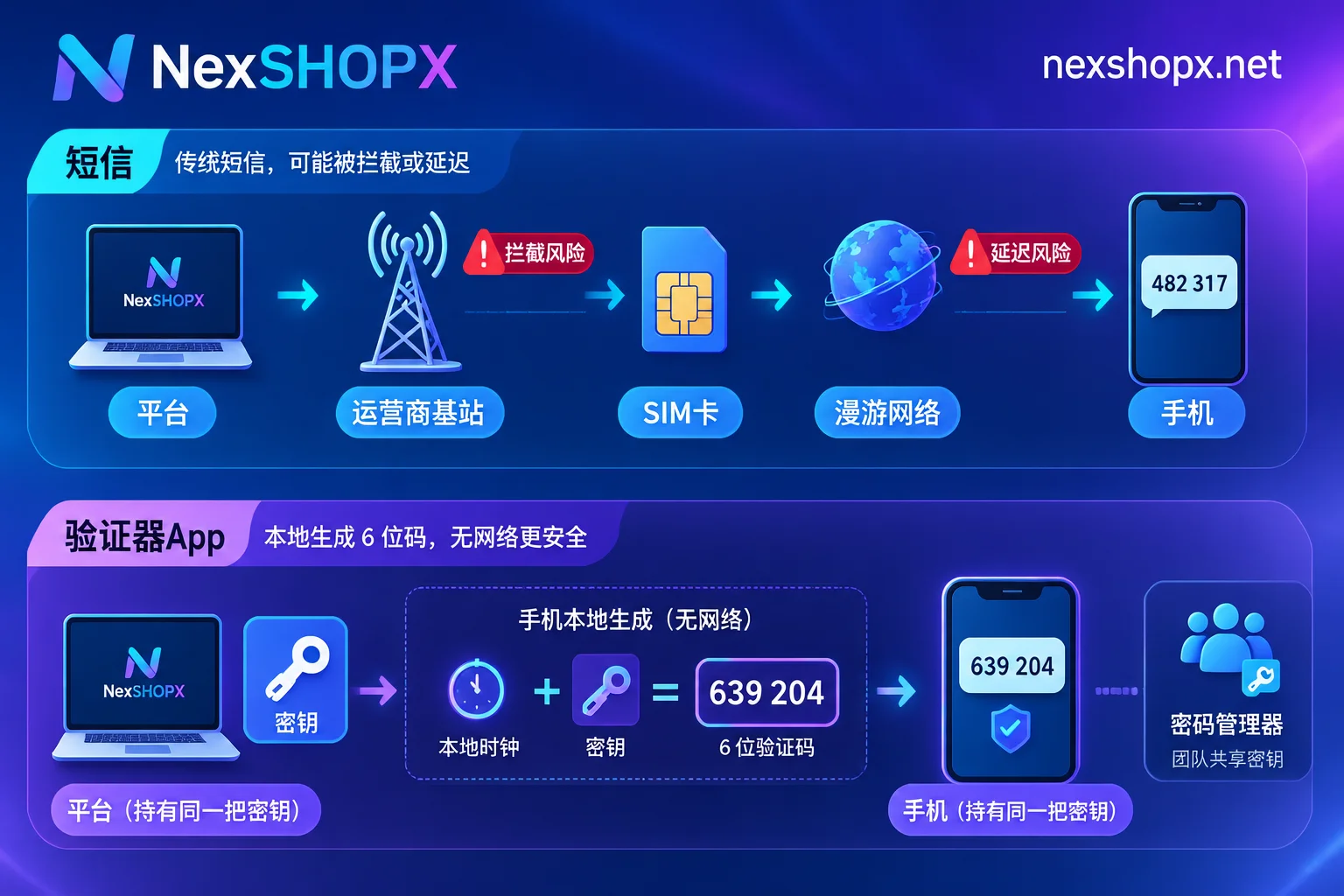
SMS verification codes are sent by the platform over the carrier network to a specific SIM card. It depends on that card and the current signal, and common issues include:
- SIM swap hijacking and SMS interception: If someone transfers your number to their card, they can receive your verification codes. The U.S. National Institute of Standards and Technology's digital identity guidelines (NIST SP 800-63B) classify SMS verification over the public telephone network as a "restricted" authentication method.
- Cross-border non-delivery or delay: SMS often arrives late while roaming, and sometimes not at all.
- The number itself is unstable: Some platforms do not send codes to certain number ranges. Once a temporary number expires, you can no longer receive codes if the platform requires verification again.
Authenticator apps (Google Authenticator, Microsoft Authenticator, etc.) run on the TOTP standard. The platform and the app share the same secret, and the app locally computes a 6-digit code about every 30 seconds without going through the network or relying on a SIM card.
| Comparison | SMS | Authenticator app |
|---|---|---|
| What it depends on | SIM card and carrier signal | A secret and accurate phone time |
| Cross-border, roaming | May be delayed or not received | Generates codes even offline |
| Multi-person use | Codes go to only one card, requiring forwarding | The secret can be stored in a team password manager, and each person generates codes independently |
| Main risks | SIM swap, interception, number expiry or recycling | Anyone with the secret can generate codes; losing your phone without a backup locks you out |
The authenticator app only handles the code step at login. If the platform detects an unusual login location or device, it may still require additional verification, so it does not guarantee smooth cross-region logins.
When SMS is still appropriate
- The platform only supports SMS, or requires binding a phone number before enabling an authenticator.
- The number is a card you own long-term, and you use it as a recovery channel.
- You have only one personal account, log in on one device, and rarely travel abroad.
Temporary numbers and one-time code-receiving services are not suitable for two-factor authentication. Once the number expires, you will not receive the code the next time verification is triggered.
How to manage the secret when multiple people share one account
The key to using an authenticator app in a team is storing that secret properly. The secret is usually a 16- or 32-character alphanumeric string, possibly provided as a QR code.
- Save the original secret: If you only scan it into one person's phone, others cannot generate codes after that person changes phones or leaves.
- Put it in a team password manager that supports TOTP: For example, Bitwarden allows per-person permissions. Everyone who needs to log in generates codes independently without forwarding them.
- Do not send screenshots in group chats: Anyone who gets the secret can generate codes at any time.
- Rotate the secret after personnel changes: Rebinding two-factor authentication will generate a new secret. For purchased accounts, confirm the warranty rules before making changes—see the reasons below.
When buying accounts, choose specifications based on the verification method
For the same type of account, there are usually two specifications: one with a 2FA secret and one bound only to a phone number.
- With 2FA secret: After delivery, you can generate codes in your own authenticator to complete the first login without waiting for someone else to receive SMS. If the platform requires verification later, you can pass as long as you still have the secret. This specification is more reliable for long-term use.
- Phone-number-only verification: If the number is not yours, you may be locked out when the platform later requires SMS verification. This specification can be considered for short-term, one-off tasks.
On NexSHOPX, after choosing a specific product from all categories based on use case, first check the delivery materials listed on the product page: whether there is a 2FA secret, backup codes, a secondary email, and what the first-login deadline and warranty terms are. These are written differently for different products, so refer to each product page. In-stock products are automatically delivered after self-service ordering, while pre-order products are delivered after customer service confirmation.
For accounts with a secret, follow this order for first login
- Mind the deadline: Complete the first login within the first-login deadline stated on the product page. For when the clock starts, see When must a purchased account complete its first login.
- Save the secret first: Store the original secret in your password manager, then import it into the authenticator app. When importing, choose manual secret entry and select "time-based".
- Calibrate phone time: Set your phone time to automatic sync. If codes always fail, it is often due to time drift.
- Log in: Enter the account, password, and the current 6-digit code in sequence. If the code is about to expire, wait for the next one before entering it.
- Save backup codes: If the product includes backup recovery codes, store them in the same place as the secret.
- Use it normally first: After a successful login, use it normally and do not change settings immediately.
During the warranty period, do not touch security settings yet
Some categories prohibit modifying information during the warranty period, and changing two-factor authentication or rebinding a phone number or email usually counts as modification. Refer to the product page and terms and warranty rules. For which changes affect the warranty, see What does it mean that information cannot be changed during the warranty period.
Platforms often have a cooldown period for newly added verification methods and phone number rebinding. The length varies by platform and may change, so refer to the actual platform pop-up. A safer approach is to keep the original verification method during the warranty period, and after the warranty ends, switch the recovery channel and two-factor authentication to your own. For how to verify this, see How to confirm the account recovery channel is already yours.
When verification fails, tell support these points clearly
- Screenshot of the error page
- The verification method used (authenticator or SMS)
- Whether the secret was entered exactly as provided
- Whether phone time is set to automatic sync
- Order time and first login time
Providing all of these at once makes it faster for support to diagnose. For the full checklist, see What information should you provide to the seller's support when account login fails so it can be explained in one go.


Comments(0)