 NexSHOPX-官方新闻
When logging into platforms like Google or Facebook from a new device or unfamiliar network, extra verification is common. If the code doesn't arrive after a long wait, don't rush to click "Resend" repeatedly, and don't switch nodes and retry. In most cases, the code isn't sent via SMS—it needs to be generated by you or retrieved from another channel. First identify which type of verification the page requires, then find the corresponding item in your materials. Most problems can be solved within minutes.
If your account was purchased, remember one more thing: complete all troubleshooting within the first-login time limit stated on the product page. After the deadline, after-sales conditions may differ.
Step 1: Identify Which Verification the Page Requires
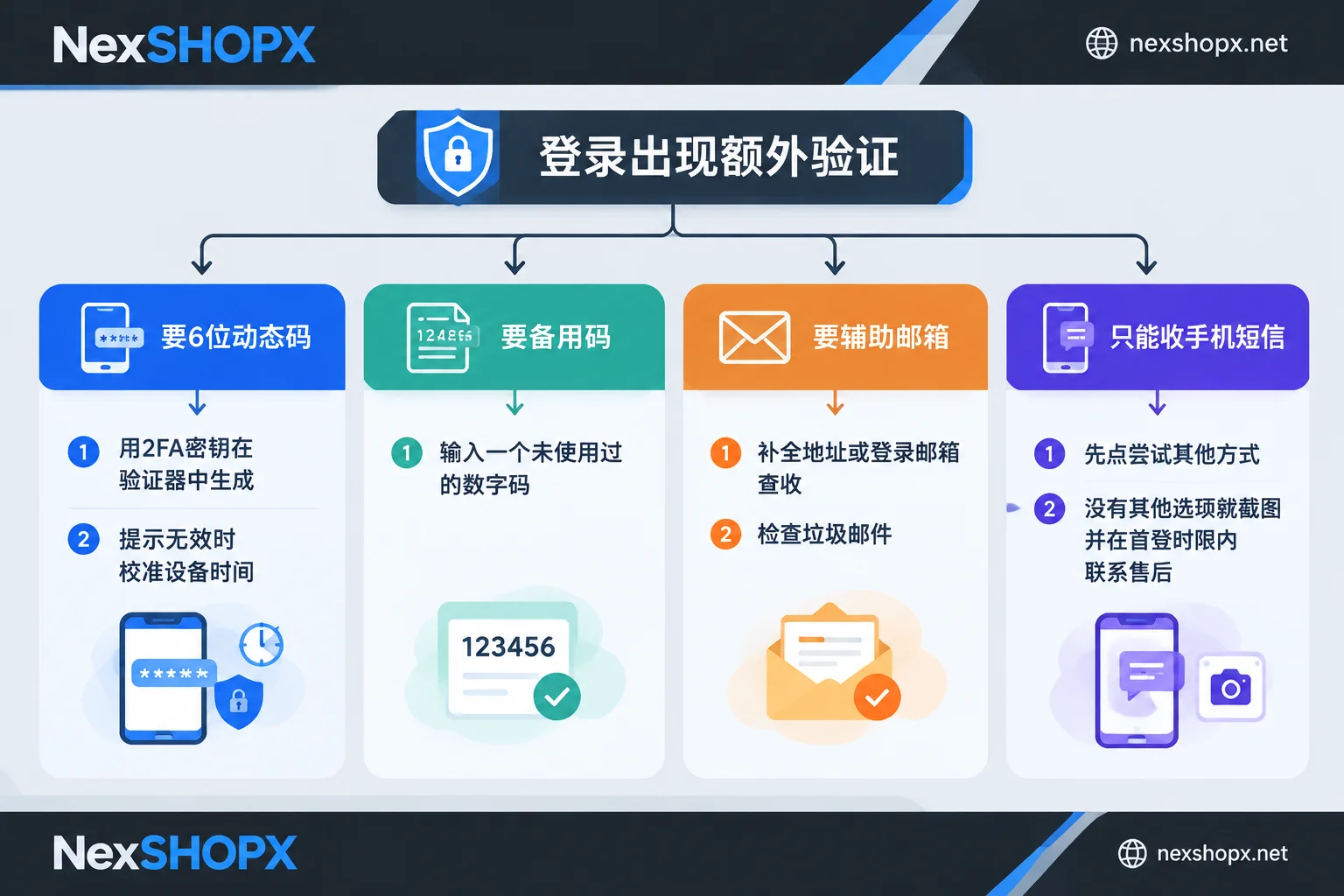
The prompt on the extra verification page determines what to do next. There are four common types:
| Page prompt | What it actually needs | Where to get it |
|---|---|---|
| Enter the code from your authenticator app | A 6-digit code that rotates every 30 seconds | Generate it in an authenticator using the 2FA secret from the card |
| Enter a backup code / recovery code | A set of single-use numeric codes | The card or your own saved backup code list |
| Confirm recovery email / Send code to x@ | The full recovery email address, or the code sent to that email | The recovery email and its login credentials from the card |
| Send SMS to phone ending in ×× | An SMS sent to the bound phone number | Only someone with access to that number can receive it |
The first three do not require waiting for an SMS. Only the fourth requires an SMS, and waiting only makes sense if you actually control that number.
SMS Verification by Default? First Click "Try Another Way"
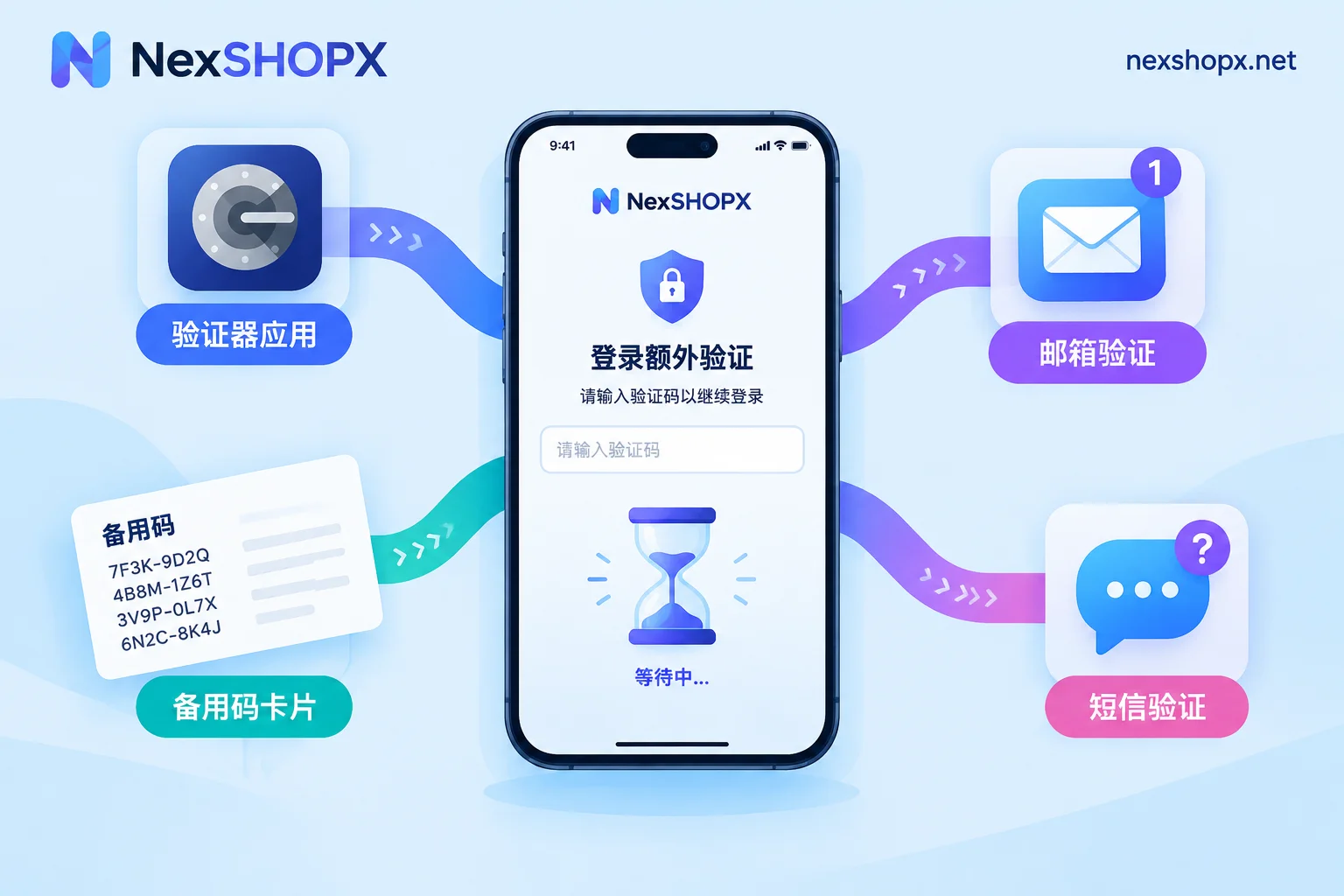
The verification method shown by default may not be suitable for you. Google's login page has "Try another way," and Facebook's two-factor page also offers other verification options. After clicking, you'll usually see channels like authenticator, backup codes, and recovery email. The available options depend on what the account has enabled.
Many people get stuck in the fourth scenario simply because they didn't scroll down. When you see the SMS page, review all available verification methods first, then decide which to use.
Scenario 1: It Asks for a 6-Digit Code, but You Only Have a String of Letters
Delivery information for purchased accounts often includes a 16- to 32-character string of letters and numbers, usually labeled as 2FA or secret. This string is not a verification code—it's a TOTP secret. Entering it directly into the code field will definitely fail.
The correct way to use it:
- Open an authenticator app like Google Authenticator or 1Password, and choose "Enter a setup key" or "Add manually."
- You can fill in any account name; paste the string into the key field. If there are spaces in the string, most authenticators can handle them; if not, remove the spaces and try again.
- The authenticator will generate a 6-digit number that updates every 30 seconds. Enter it on the login page while there's still plenty of time left on the countdown.
There are also web-based 2FA generators online that can temporarily generate codes. But this means handing the secret to a third-party website. For accounts in regular use, it's better to import the secret into your own authenticator or password manager. For how to manage secrets when multiple team members share an account, see Two-Factor Authentication Setup for Teams Sharing an Account.
Code Says "Invalid"? Check Your Device Time First
If the secret imported successfully but the generated code keeps showing an error, the most common cause is not an invalid secret but inaccurate device time. TOTP codes are calculated based on the current time. If your phone or computer clock is off by even a few dozen seconds, the generated code won't match the platform's.
The fix: turn on "Set time automatically / Use network time" in your system settings. Some authenticators have built-in time calibration; you can use that too. After calibrating, wait for the next new code before entering it—don't reuse the previous one.
Scenario 2: Use a Backup Code to Pass Directly
If the account has two-factor authentication enabled and your card or your own records include a set of 8-digit or 10-digit numeric codes, those are backup codes (recovery codes). Both Google and Facebook support selecting "Use a backup code" on the verification page. Enter any unused code to pass that verification directly.
Each backup code can only be used once. It's a good idea to cross out or delete used codes so you don't enter an already-invalid code next time and mistakenly think the whole account is broken.
Scenario 3: No Email Received at the Recovery Email
When logging into a Google account, you're often asked to verify the recovery email. There are two cases:
- Only asked to complete the email address: The page shows a partially masked address. Enter the full address and the system will let you through—no need to receive a code.
- Asked to enter a code sent to the email: Log into that email using the recovery email credentials provided on the card and check for the message. If it's not in the inbox, check spam, promotions, and other folders.
Email may be delayed by a few minutes. Don't click "Resend" repeatedly in a short period. After multiple requests, the code you finally enter may not match the last email you received, and some platforms temporarily limit sending. Waiting a few minutes and refreshing the mailbox once is more effective than repeated requests. If you can't log into the recovery email itself, report that along with the main account issue to after-sales support.
Scenario 4: Only SMS Is Available, and You Don't Have That Number
If there are no other options under "Try another way" and the platform only lets you send an SMS to a phone number you don't control, buyers generally cannot solve this themselves. Waiting indefinitely or repeatedly switching networks to retry usually won't help.
When this happens, a common cause is that the platform's risk control flagged the login as abnormal and upgraded the previously available recovery email or 2FA verification to phone verification. Login environments that easily trigger this upgrade include: public proxies with frequently switched nodes, data center IPs, and multiple accounts mixed in the same browser environment. These are common triggers, not the only causes. But this also shows that you should use a stable, clean network environment for first login, log in successfully in one go, and not repeatedly try different IPs after a failed login.
For a purchased account, you should:
- Stop trying and take a screenshot of the current verification page. The screenshot should show the verification method the platform requires and the masked last digits of the phone number.
- Do not bind a phone number or modify profile information on your own. Many categories prohibit changing passwords and security information during the warranty period. Risk control triggered by your own changes is usually not covered by after-sales. If you really need to bind a phone number, ask customer service first.
- Contact customer service within the first-login time limit, providing the order number, login time, network environment used, and screenshots. If you followed the delivery materials and operated in a normal environment, but the page still requires a phone number not provided on the card, this is generally a first-login verification abnormality. You can request handling or replacement according to the product page rules. Whether replacement is possible and the time limit depend on the specific product page.
For what information to provide to explain the problem clearly in one go, see What Information to Provide to the Seller for After-Sales When Login Fails. If the page shows something other than verification, such as "Account disabled" or "Appeal required," it's not a verification code issue. For how to tell, see Is Login Failure Due to a Ban or an Environment Issue?.
If this is your own account, your phone number is no longer active, and you can't find backup codes, you'll need to go through the platform's account recovery process. First confirm which verification channels you still have: Can I Still Recover My Account If I Lost the Recovery Key?
Before Buying Next Time, Check Which Verification Channels the Delivery Includes
Not receiving a code can often be prevented before ordering. When choosing email or social media accounts, besides registration date and purpose, check the delivery fields listed on the product page: Is there a 2FA secret? Is there a recovery email and its login credentials? Are there backup codes? If the materials include an authenticator secret or a login-able recovery email, you have an extra verification channel that doesn't rely on SMS for first login. For accounts that need cross-border login or are shared by multiple people, prioritize specifications that include an authenticator secret—it's more convenient. For which scenarios SMS and authenticators each suit, see Two-Factor Authentication: SMS or Authenticator App?
When shopping on NexSHOPX, you can start from All Categories and go to the relevant email, platform, or social media account category. On the product page, check the delivery fields, first-login time limit, and whether profile changes are allowed during the warranty period. General after-sales rules are in Terms and Warranty. After receiving the account, first complete the first login in a stable network environment following the delivery materials. Confirm you can log in, then proceed to regular use.


Comments(0)