 NexSHOPX-官方新闻
Here's the bottom line: when a team shares one account, choose a standard authenticator app (TOTP) for two-factor authentication. When setting it up, save the secret key provided by the platform, store it in the shared vault of a team password manager, and let the manager generate codes for authorized members. Archive backup recovery codes encrypted, and change the account's notification email to a team shared address. Do not rely on SMS or app push notifications tied to one person's phone.
Also, if the platform supports multiple member seats, prioritize giving each person their own seat over sharing a main account.
First, confirm: does this account really need to be shared?
Google Workspace's delegated administration, Meta Business Suite's member roles, and X's team features all support each person logging in with their own identity and binding their own 2FA. When someone leaves, just remove their seat without affecting others.
Consider sharing one account with a shared 2FA setup only in these two cases:
- The platform does not support multiple members;
- The account itself is the main store or ad account entity and can only have one login identity.
Why SMS and push notifications are not suitable for teams
SMS verification codes are only sent to one SIM card and one phone. If the cardholder is on leave, changes the SIM, or has roaming issues, the whole team cannot log in. App one-tap confirmation push notifications are the same—they only recognize that one device. When personnel change, you also need to rebind the phone number, which is troublesome. For a detailed comparison, see SMS vs. authenticator app for 2FA.
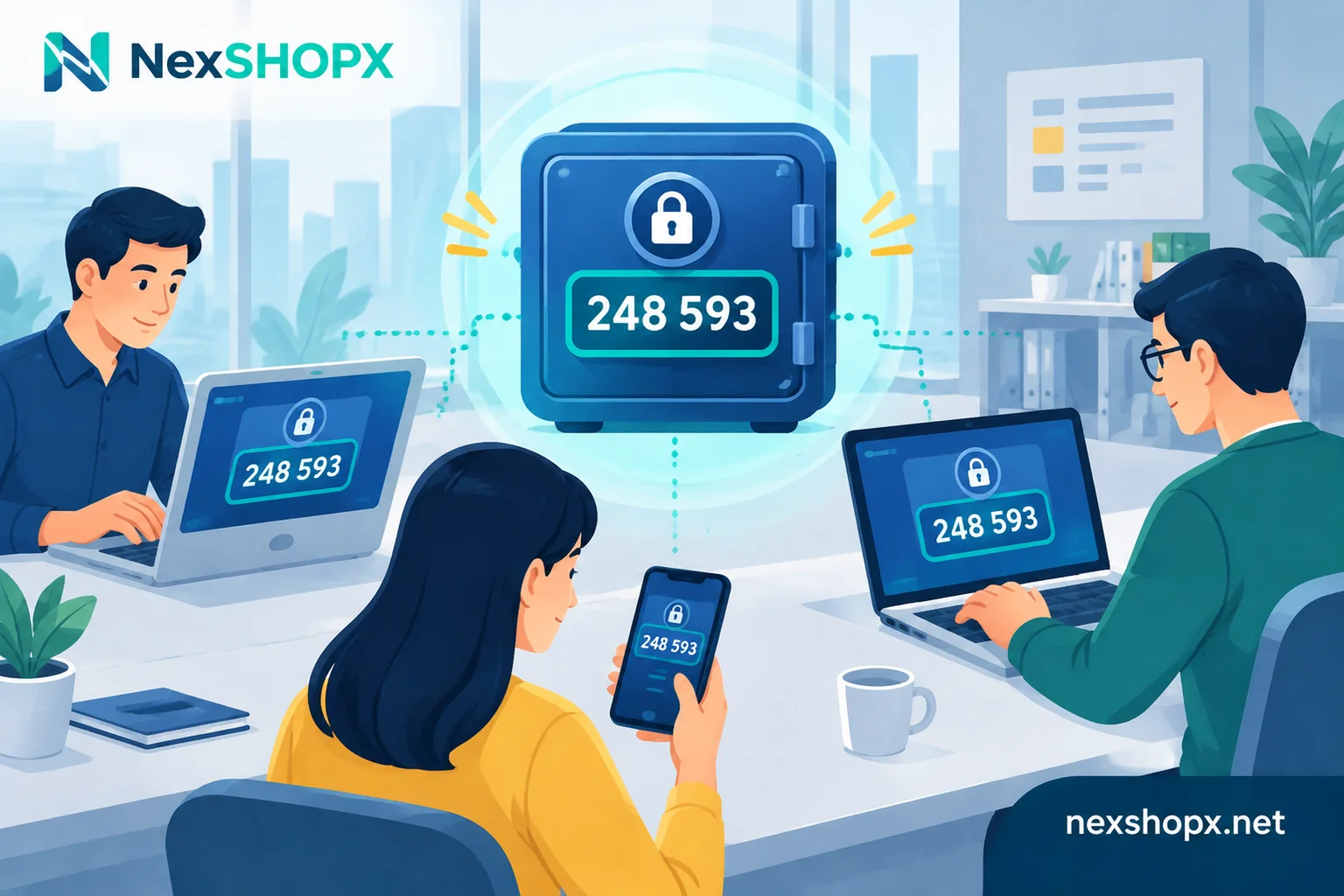
TOTP codes are calculated from a secret key plus the current time. Anyone with the same secret key can generate the same 6-digit code, so it is suitable for sharing among multiple people.
Setup steps
It is recommended that an administrator complete this on a computer in one go, with a team password manager open throughout, such as Bitwarden organizations and collections, or 1Password shared vaults.
- Choose the verification method: Go to the platform's security settings. When enabling two-factor authentication, choose "Authenticator app" and not SMS.
- Copy the secret key; don't rush to scan the QR code: When a QR code appears, look for an entry like "Can't scan" or "Show secret key" and copy the Base32 text key. The QR code and this key are the same thing; if you only scan with your phone, you won't get the plaintext.
- Store it in the vault: In the password manager, create an entry for this account and paste the key into the TOTP (one-time password) field. After saving, the entry will start displaying a 6-digit code that refreshes every 30 seconds.
- Use the vault's code to complete binding: Return to the platform and enter the code generated by the manager to complete verification. This step also confirms that the key was not copied incorrectly.
- Archive backup codes: The platform usually provides 8 to 10 one-time backup codes. Store them in the encrypted notes of the same entry, or create a separate entry viewable only by administrators.
- Change the notification email: Replace the account's notification and recovery email with a team shared mailbox or email alias, not an employee's personal email. GitHub's official recommendation for shared service accounts is the same.
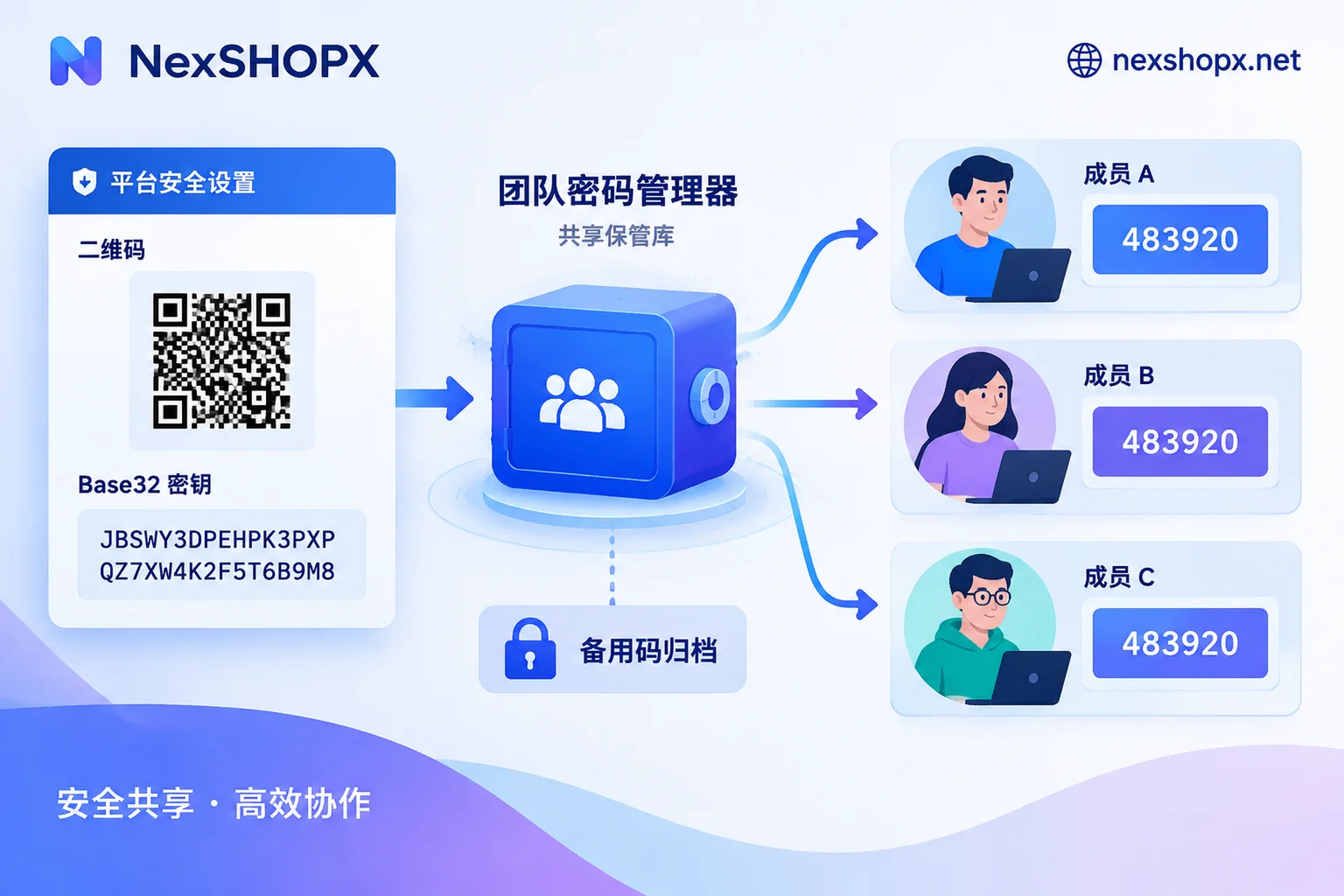
If the team does not have a password manager yet, you can first manually enter the same key into the authenticator apps of 2 to 3 designated devices; the generated codes will be identical. The downside is that the key is scattered across several devices, and when someone leaves it is hard to confirm it has been recovered, so this is only suitable as a transitional measure.
How to distribute permissions and what to do when someone leaves
- Group by collection: The operations team should only see the accounts they are responsible for, and the advertising team likewise; do not let everyone see all accounts.
- Differentiate view and edit: If your tool can distinguish "use" and "edit or export" permissions, only open the plaintext key to administrators.
- Offboarding recovery: Remove the member from the manager, and they can no longer get verification codes. Usually you do not need to reset the platform's 2FA. But there are exceptions: if the person has seen or exported the plaintext key, or has manually added it on their own phone, the safer approach is to regenerate 2FA on the platform, update the vault, and clean up login sessions and authorizations. For details, see Why can the other party still get in after changing the password.
For each shared account, it is recommended to document the key storage location, remaining number of backup codes, and binding email in a handover document. For fields, see How to write an account handover checklist.
If the verification code doesn't match, troubleshoot in this order
- Check device time: TOTP depends on time; device time drift can make codes invalid. First check whether the device generating the code has automatic time synchronization enabled.
- Use a backup code: If time is fine and it still fails, log in with a backup code and then rebind 2FA.
- Replenish backup codes: Each backup code can only be used once. After using one, update the remaining count in the entry, and regenerate a new set when they are almost used up.
If both the key and backup codes are lost, first see Can an account be recovered if the recovery key is lost and take stock of which verification channels remain.
What if the platform does not support standard TOTP?
Some platforms only support their own app push notifications (e.g., Steam Guard), or only recognize a specific local phone number. In this case, the above method cannot be used.
First check whether the platform has team or sub-account features. If not, at least designate a primary vault keeper and a backup vault keeper, and write "whose device this account depends on" into the handover checklist to avoid the whole team being stuck when one person is unavailable.
How to onboard purchased accounts into the team
If the delivery materials for the product include a 2FA key, import the key directly into the team vault on first login and use the code generated by the manager to log in. Do not scan with someone's phone first, otherwise you will have to migrate again later.
Before proceeding, confirm two things:
- First-login deadline: Many products require completing the first login within a limited time after ordering. For when the clock starts, see When must a purchased account complete its first login.
- Whether materials can be changed during the warranty period: Some categories prohibit modifying materials during the warranty period. Regenerating 2FA or changing the recovery email may count as "modifying materials." It is recommended to keep the original binding first, share it in the vault, and change it after the warranty period. For what changes affect the warranty, see What does it mean that materials cannot be changed during the warranty period.
When selecting an account on NexSHOPX, first find the corresponding category by purpose in All Categories, then check three things on the product page: whether the delivery materials include a 2FA key, how long the first-login deadline is, and whether materials can be changed during the warranty period. Rules vary by product; refer to the product page and Terms and Warranty Rules.


Comments(0)