 NexSHOPX-官方新闻
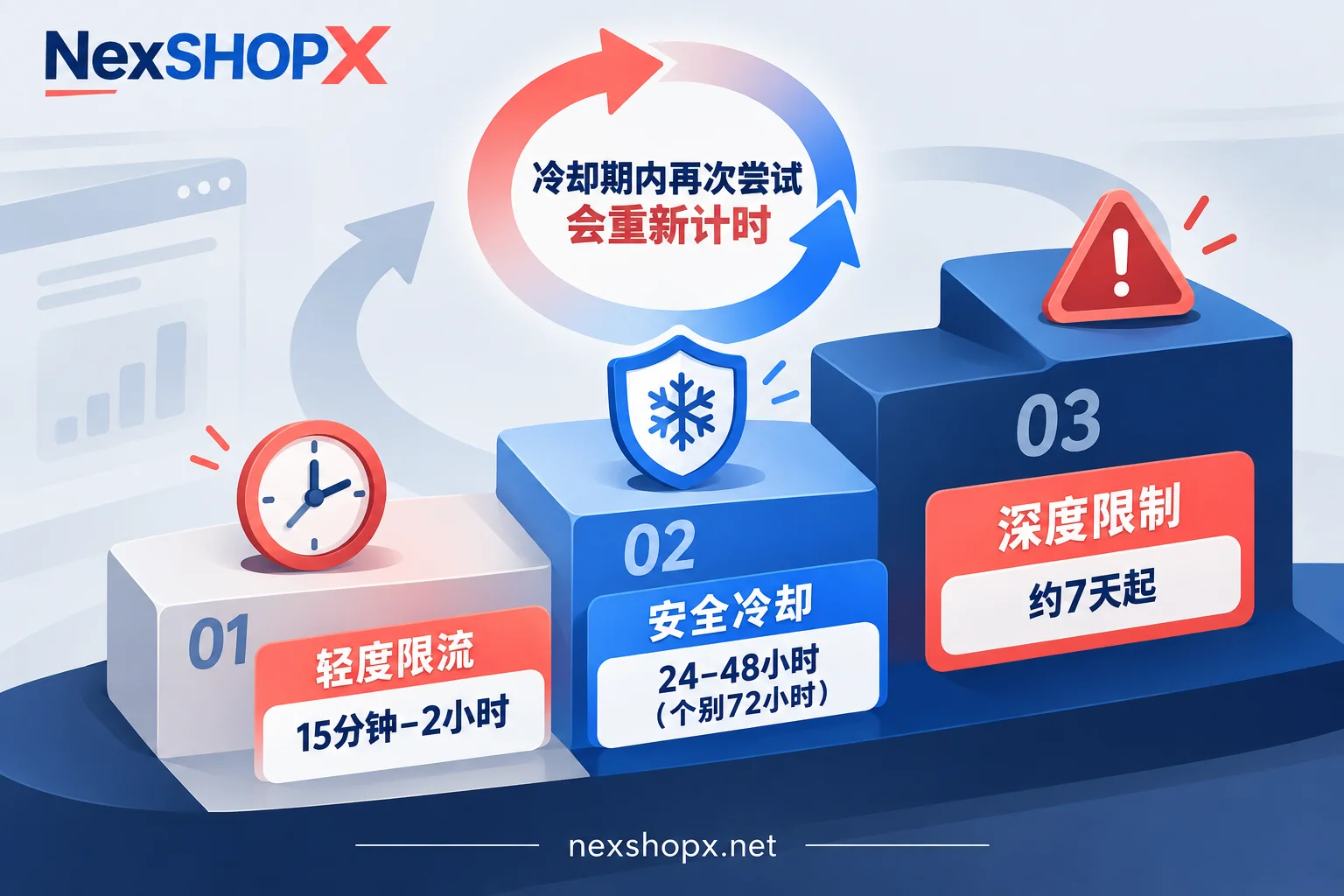
After seeing "too many attempts" or "try again later," in most cases you can estimate the wait time in three tiers:
- Mild rate limiting: 15 minutes to 2 hours.
- Platform flags a security risk: Plan for 24 to 48 hours; some cases extend to 72 hours.
- Repeated Google account recovery or two-step verification failures: Commonly requires a 7-day rest, and some stretch beyond two weeks.
More important than the exact number: do not try again during the wait. Most platforms start the timer from your last failed action. Every tap on "resend code" or incorrect password entry during the cooldown can restart the clock, making the wait longer.
These durations come from general patterns in platform help centers and user communities. Platforms don't disclose specific rules, and accounts with different histories—new vs. old—may be treated differently after the same number of triggers. Treat this as an estimate, not a promise.
First, determine which lockout level you're at
| Level | Common triggers | Typical wait time |
|---|---|---|
| Mild rate limiting | Consecutive wrong passwords in a short time, or frequent code requests | X's help states it usually clears automatically in about 1 hour; Instagram's mild limits are mostly 15 minutes to 2 hours |
| Security cooldown | Multiple password failures combined with unusual network (data center proxy, frequent IP changes), or simultaneous logins from multiple devices | Google and Instagram commonly 24 to 48 hours, sometimes extended to 72 hours |
| Deep restriction | Repeated failures on Google's account recovery page or two-step SMS verification, showing "too many failed attempts" | Commonly requires a full 7-day rest; if still failing, it may take two weeks or more |
When assessing, look at what you did before the lock:
- Just a few wrong passwords—likely mild.
- Failures happened alongside network changes, device changes, or multiple devices logged in—wait as a security cooldown.
- Repeated failures on the recovery flow or two-step verification page—wait as a deep restriction.
If unsure, wait according to the longer level. The cost of waiting a few extra hours is far less than resetting the cooldown.
During the wait: what not to do
- Don't repeatedly log in, don't click "resend code." These count as new attempts.
- Don't try on multiple devices or browsers in turn. To the platform, it's still another failure for the same account.
- Don't switch proxies or IPs back and forth. Security cooldowns are often tied to network anomalies, and frequent changes only make the login behavior look more suspicious.
- Don't expect clearing cache or switching browsers to fix it. The block happens on the platform's servers; local cleanup usually has no effect.
During the wait: what to prepare
Use this time to ensure a successful attempt once the cooldown ends:
- Verify your login credentials. Check password capitalization and full-width/half-width characters, confirm if it was changed recently, and confirm whether the login name is an email, phone number, or username.
- Confirm the verification channel works. Can you currently receive the code sent to your phone number or email? If using an authenticator app, check that your phone's time is set to auto-sync. If you can't receive codes, refer to Four ways to handle extra verification when you can't receive the code.
- Stabilize your login environment. Choose a commonly used device and a stable network, and log in from there after the cooldown—don't switch temporarily.
How to try again after the cooldown
- Add a buffer beyond the estimated time. For example, if estimated 24 hours, wait until the same time the next day or later.
- Try only once. Double-check your information before entering.
- Prioritize a verified working method. If the platform offers email links, backup codes, or confirmation from a logged-in device, choose the one you're sure you can complete.
If the same error persists, stop. Treat it as a new cooldown and wait at a higher level. Also consider that the issue may not be about attempts:
- If the password is correct but login keeps failing, troubleshoot using Five reasons why a correct password still fails to log in.
- If every device change requires re-verification, see Why switching devices requires re-verification and what documents to prepare.
Newly purchased account locked on first login: report first, don't keep trying
Purchased platform or social media accounts are most vulnerable at this step. Product pages usually specify a time-limited first login and warranty period. Some worry about missing the deadline and try repeatedly, turning a short-term lock of a few hours into a deep restriction starting at 7 days, making it harder to resolve later.
Follow this order:
- Stop and screenshot at the first prompt. The screenshot must include the full error message and the current time.
- Check the product page conditions. Including first login deadline, warranty duration, and whether profile changes are prohibited.
Contact customer service to report. Provide the following:
- Order number and product name
- Error screenshot and time of occurrence
- Number of previous attempts
- Login method used (password, SMS code, or authenticator)
- Device and network conditions at the time
- Follow the customer service instructions. Confirm before logging in again—don't keep trying on your own.
A safer approach is to prepare the device and network for login, as well as the email or phone that can receive verification, before receiving the account, then complete the first login within the deadline in one go.
For accounts purchased on NexSHOPX, the first login deadline and warranty period are per product page and vary significantly by category: some categories only offer a few days of after-sales support, and some prohibit profile changes during the warranty. General after-sales rules can be found in the Terms and Warranty Rules. Leaving a report record within the deadline provides a basis for follow-up; whether a replacement is possible still depends on the specific product page conditions.



Comments(0)