 NexSHOPX-官方新闻
Yes, this is normal. You may have switched phones or computers, changed browsers, or just changed networks, and being asked to verify again when logging in falls into this category. Major platforms like Google and Meta record which devices are "trusted devices." Entering the correct password only means someone knows the password; the platform still cannot be sure it's you. If the current device is not in the trusted record, the platform will ask for something else to confirm your identity.
So there are two things to care about. First, do you have the thing the platform is asking for? Second, after verification passes, don't immediately do operations that easily trigger risk control.
What Changes Are Treated as a "New Device"
It's not just switching phones or computers. The platform may treat any of the following as an unfamiliar login:
- Logging in on a phone or computer for the first time;
- Switching browsers on the same computer, or creating a new browser profile;
- Clearing cookies and browsing data, so the original login record is gone;
- A noticeable change in IP address, such as switching networks or logging in while traveling.
Some people ask: "I've always used this computer, why am I being asked to verify?" Common reasons are clearing browsing data or a changed network environment. How much weight each factor carries in the judgment is not disclosed by the platforms, and practices vary across platforms.
What the Platform Will Ask For, and What You Should Prepare in Advance
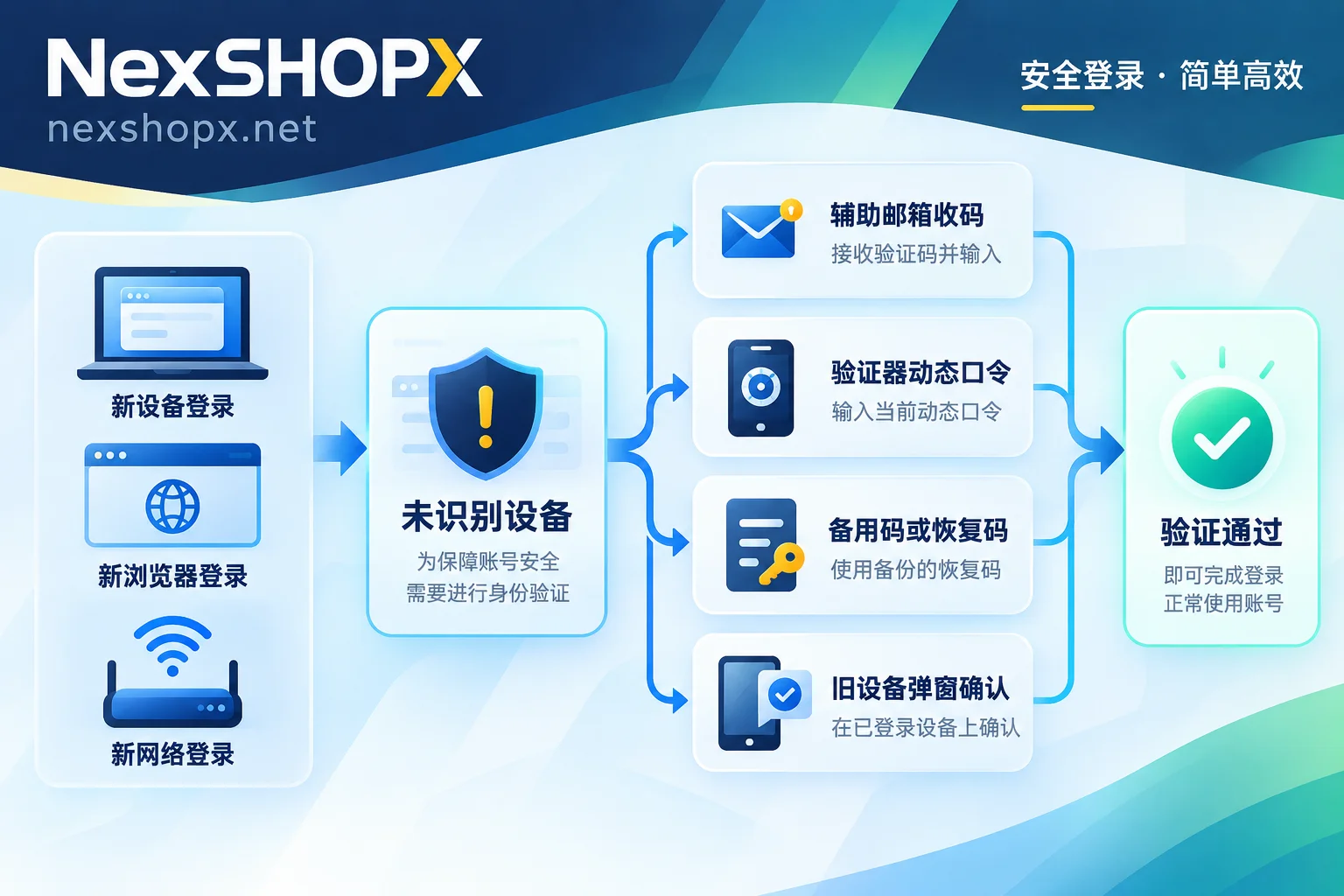
Google Account common verification methods:
- Enter the full recovery email address, or go to the recovery email to receive a verification code;
- Enter the dynamic code from an authenticator app;
- Enter a previously saved backup code;
- Receive a prompt on an already logged-in Android phone and tap confirm.
Facebook / Meta common verification methods:
- Enter a two-factor authentication code from an authenticator app or SMS;
- Use the recovery codes generated when enabling two-factor authentication; there are 10 in total, each usable only once;
- Receive a notification on an already logged-in old device to confirm it's you.
The "old device confirmation" option is easily overlooked, and it requires that you still have access to the old device. If you've already wiped or sold the old phone after switching, or the account was transferred to you by someone else, this path is not available, and you can only rely on the recovery email, authenticator, or backup codes. Before logging in on a new device, confirm that at least one of these is in your hands. If you're switching phones, the authenticator must be migrated before wiping the old phone; for specific steps, see How to migrate authenticator codes after switching phones.
When It's Not Normal
- You receive a verification code, login alert, or confirmation popup even though you didn't log in on a new device. This indicates someone may be trying to log in with your password. Do not tap confirm; change your password as soon as possible and check the list of logged-in devices.
- You have all the materials and entered them correctly, but keep returning to the verification page, or see "unable to verify your identity" or don't receive the verification code. This is no longer just a "new device requires verification" issue; you need to troubleshoot based on the specific prompt. See Login requires extra verification but no code is received and Password is correct but login keeps failing.
After Verification Passes, Don't Rush to Change Security Info
When a new device has just logged in successfully, it has no usage history on the platform. If you immediately change the login password, recovery email, or linked phone number, you may be blocked with a message like "We can't verify your identity," and the change gets stuck.
Google's help documentation also notes: within 7 days after changing the recovery phone or recovery email, verification codes may still be sent to the previous contact method. If the old contact method is no longer under your control, you may not receive codes during this period.
A safer order is:
- Log in using a fixed device, browser, and network, and use it normally for a few days;
- During this time, don't clear cookies or frequently switch networks;
- After confirming you can log in smoothly every time, change security information. Change only one item at a time, confirm it works, then change the next.
When a team shares one account across multiple devices, a common problem is that the authenticator is installed only on one person's phone, and others have to ask for codes when they switch devices. Putting the TOTP secret key into a shared team vault solves this; see How to set up two-factor authentication for a team sharing an account.
For Purchased Accounts, First Login Most Easily Stalls at Verification
The first login to a purchased account is definitely a new device login. You don't have access to the seller's device or the original phone number, so "old device confirmation" and "original phone SMS" are basically unavailable. After receiving the account, besides the username and password, check the following delivery documents:
- Recovery email: Are both the account and password provided? Can you log in separately and receive emails?
- 2FA secret key: After importing into an authenticator, can it generate usable codes?
- Backup codes or recovery codes: Are they provided? Have they already been used?
Different products come with different materials; refer to the product page. If the platform asks for something not included in the delivery, contact customer service to supplement it before logging in.
Three things to note for first login:
- Complete the first login test within the first-login time limit specified on the product page; exceeding the limit may affect after-sales service;
- Use the same device and network for first login that you will use long-term; don't first log in in one environment and then switch to another for daily use;
- Some categories do not allow modifying information during the warranty period. Even if allowed, it's advisable to follow the order in the previous section and wait a while before making changes.
When choosing accounts on NexSHOPX, you can go to the corresponding category page to compare what verification materials are included with each product for your use case, as well as first-login time limits and warranty terms. For example, for Google accounts, see Google Account category; for other platforms, start from All categories. Warranty duration and after-sales conditions are subject to each product page; general rules are in Terms and Warranty Statement.
If first-login verification fails, when contacting after-sales, explain the situation clearly in one go: order number, login time, device and network used, the platform's original message or screenshot, and which verification methods you have tried. For a complete information checklist, see What information to provide to the seller for after-sales when account login fails.


Comments(0)