 NexSHOPX-官方新闻
When you see messages like "cannot log in with a password" or "this account cannot use password login," in most cases the account is not banned; rather, the platform does not accept password-only authentication. There are three common reasons: the account never had a password; the platform requires a different verification method; or the client you're using does not allow the primary password. First determine which case applies, then use the correct entry point, and you should be able to log in.
First, check where the prompt appears
The same message can have different causes depending on where it appears:
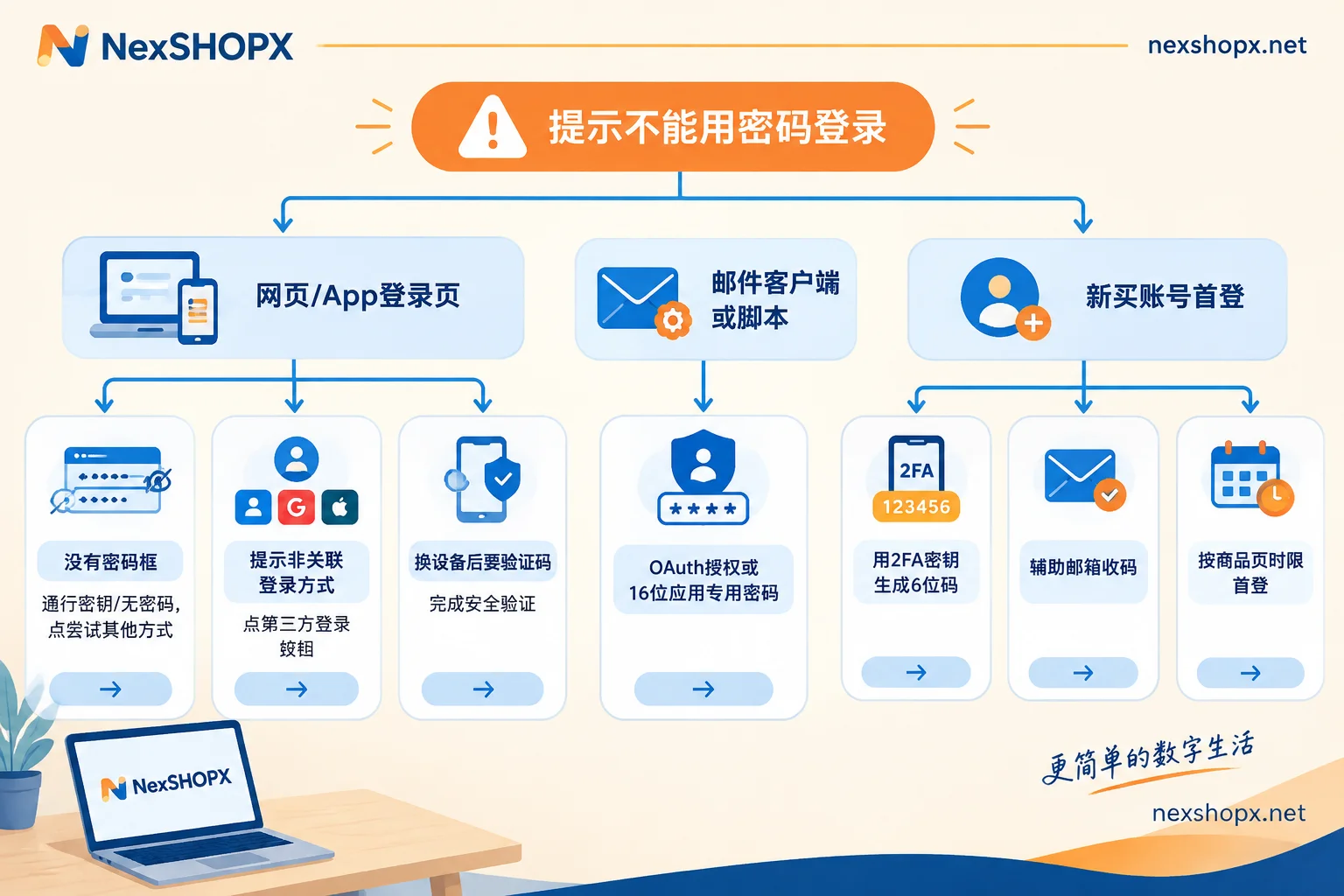
- On a web or app login page, after entering your email there is no password field and you're asked to confirm on your phone, use a fingerprint, or insert a security key: this is likely passkey or passwordless login at work.
- On a web login page, after entering your password you see "this isn't a login method associated with your account": the account was probably originally registered using third-party login like Google or Apple, and has no independent password.
- Authentication fails in email clients like Outlook, Foxmail, Thunderbird, or in scripts (Gmail often shows error 534 5.7.9): these scenarios no longer accept the primary password.
- First login after changing devices or networks, after entering the password you still need a verification code, phone confirmation, or the password option is directly unavailable: this triggers the platform's security verification.
- First login for a newly purchased account, where the credentials include not only username and password but also a 2FA key and backup email: such accounts require verification to log in; the password alone won't work.
Scenario 1: The account has passkey or passwordless login enabled
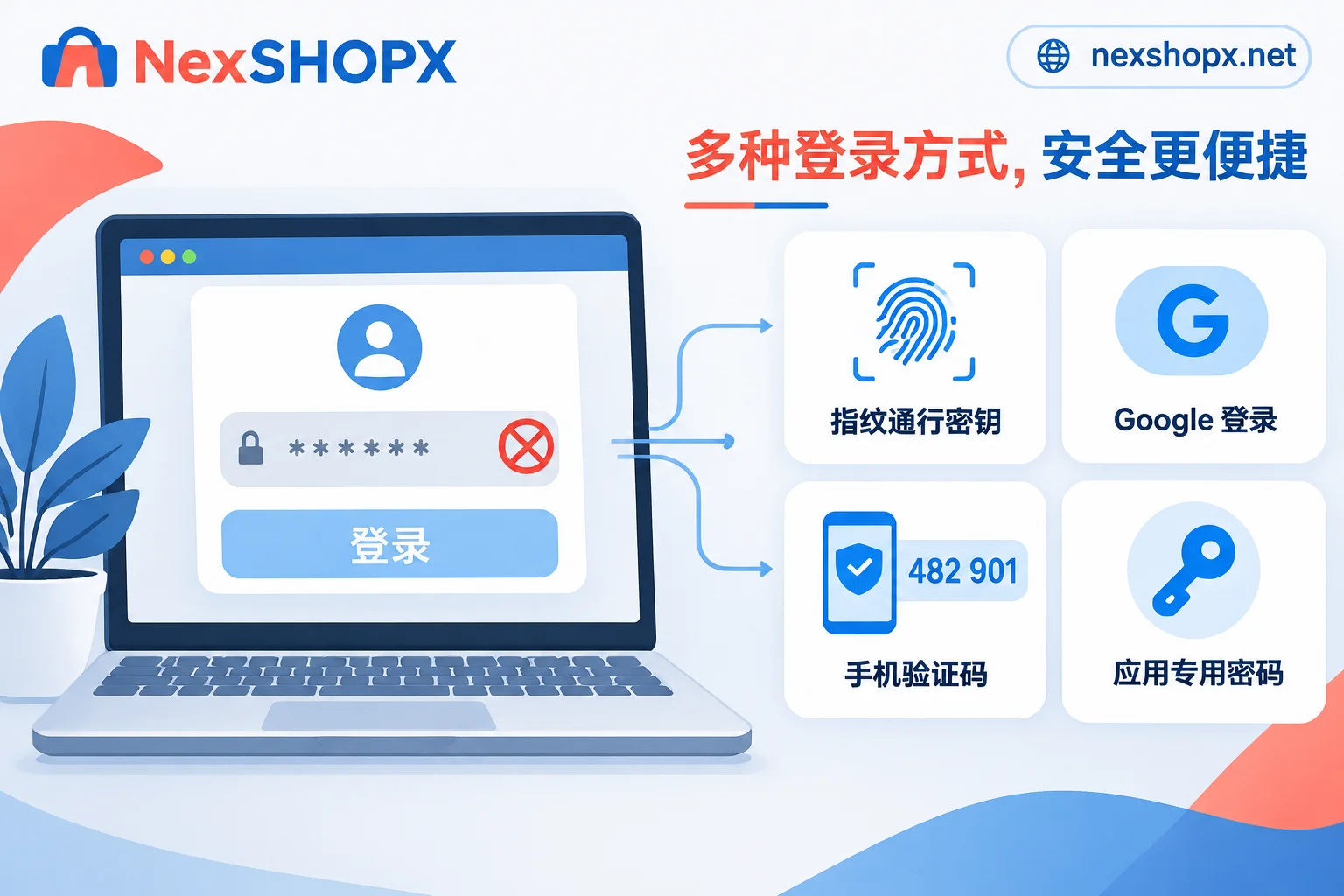
Google, Microsoft, and other service providers are pushing "passwordless first." Once an account is linked to a phone lock screen, fingerprint, or authenticator app, the login page will first invoke the passkey and may not show a password field.
- Google: On the page asking for a passkey or phone confirmation, click "Try another way" at the bottom, then select to enter your password from the list. The page sometimes asks for a passkey you don't remember creating; you can also switch from here.
- Microsoft account: If "passwordless account" is enabled, the primary password is removed from the account, so entering the old password won't work. You can use Microsoft Authenticator push, Windows Hello, a security key, or a one-time code sent to your email or phone. If you really need a password, after logging in, turn off passwordless in account security settings and set a new password.
For guidance on when passkeys vs. authenticators are more suitable, see Which is more secure, Passkey or authenticator.
Scenario 2: The account was registered with third-party login
When registering for ChatGPT, Claude, cross-border platforms, or various SaaS tools, if you chose "Continue with Google" or "Sign in with Apple," the platform only recognizes that authorization method, and the account has no local password. Entering anything in the email+password fields will fail. The correct approach is to return to the login page and click the third-party button you used during registration.
Two things to note:
- Third-party login depends on your Google or Apple account. If that account can't log in, you can't get in here either; handle that account first.
- If an organization or enterprise account administrator has disabled "Sign in with Google," this method will also fail; contact your admin or platform support.
If you don't remember which method you originally used, check the welcome email you received at registration; it usually reveals the method.
Scenario 3: Email clients, scripts, or developer tools don't accept the primary password
Google has permanently removed the "Allow less secure apps" switch. Using your Gmail primary password for IMAP/SMTP in third-party clients will be rejected by the server, as will sending mail via Python scripts. GitHub, GitLab, and other platforms no longer accept username/password for basic Git push authentication.
There are two solutions:
- Use OAuth authorization login: When adding a Gmail account in a client that supports OAuth, a Google authorization page will pop up; log in and authorize as prompted, without manually entering a password.
- Use an app-specific password: First enable two-step verification in your account security settings, then generate a 16-character app-specific password and enter it in the client or script's password field instead of the primary password. If you later change your primary password, the app-specific password may become invalid; just generate a new one.
For code hosting platforms, switch to personal access tokens or SSH keys.
Scenario 4: Security verification triggered by a new device or network
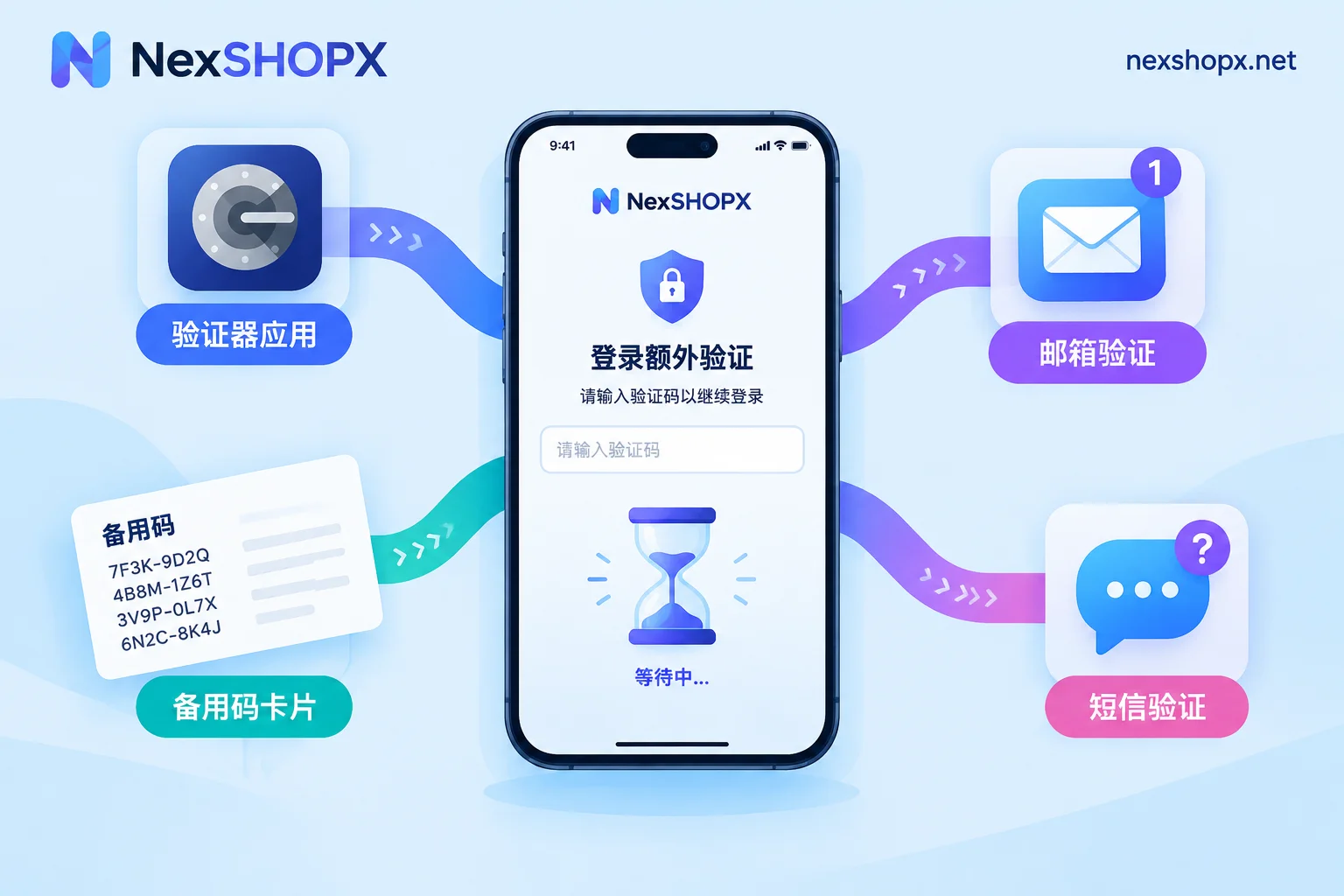
When logging in for the first time on a device, browser environment, or data center proxy IP the platform hasn't seen, the platform will treat the session as low trust and won't allow password-only access; instead, it requires a backup email code, a confirmation prompt on a bound phone, or a TOTP code. If the risk is judged higher, the password option will be hidden or a message will say the method is currently unavailable.
What to do:
- Complete the verification as required. Do not repeatedly refresh or enter the password; multiple failures in a short time will make verification stricter.
- Try to log in from a fixed device and network. After verification, the platform usually remembers this device, so you won't need to verify every time.
- If your bound phone number is deactivated or you can't access the backup email to receive codes, see Login requires extra verification but no code arrives.
- If you're unsure whether the account is restricted or it's an environment issue, see Is login failure due to a ban or environment.
Scenario 5: Newly purchased accounts require initial login using delivered credentials
For cross-border store operations, social media management, and ad teams purchasing aged Google accounts, X unrestricted accounts, or overseas platform accounts, the delivered credentials often include more than just username+password:
- 2FA key (TOTP Secret): A string of letters and numbers. When the platform asks for a dynamic code, import it into an authenticator app like Google Authenticator (choose "Enter setup key") and use the generated 6-digit code to verify. This code refreshes about every 30 seconds. If your phone time is inaccurate, the code won't match; make sure automatic time sync is on.
- Backup email: When the platform asks to verify the backup email, log into that email as per the credentials to receive the code, or enter the backup email address as prompted for confirmation.
- Cookie / Token: These are not entered in the login form. Import and use them according to the product page or customer service instructions; do not enter them as a password.
Before the first login, read all the credentials thoroughly. The following points are subject to each product page's rules:
- Many products require you to complete the first login within a limited time after purchase; exceeding the time may affect the warranty.
- Some categories do not allow modifying credentials during the warranty period. Before changing the password, rebinding, enabling two-step verification, or generating an app-specific password, check the product page rules or ask customer service.
- If the first login fails, do not retry continuously. Take a screenshot of the error message first, then contact after-sales; see What information to provide when contacting the seller for after-sales after a login failure. For more complete first-login troubleshooting steps, see Password is correct but login keeps failing.
Consider the login method when purchasing
If you're about to purchase accounts, choose based on the actual login method; it's easier than dealing with issues later:
- Need to send/receive email in a client or script: Prefer accounts delivered with a 2FA key, and confirm in advance whether generating an app-specific password is allowed during the warranty period.
- Multiple team members share one account: Accounts with a TOTP key are more convenient; the key can be stored in a shared team password vault, not tied to one person's phone.
- Only using it yourself on the web: Standard delivery is sufficient; focus on the first-login time limit.
At NexSHOPX, you can browse by use case from All Categories to choose email and platform accounts, social media accounts, or AI accounts. What the delivered credentials include, the first-login time limit, and the warranty period are all subject to the specific product page. If unclear, ask customer service first; for general after-sales and warranty terms, see Terms and Warranty Rules.


Comments(0)