 NexSHOPX-官方新闻
Ensuring overseas account login security hinges on understanding that passwords aren't the only credentials: passkeys and refresh tokens don't automatically expire when you change your password. In May 2026, an official Google documentation update noted that changing your password does not delete passkeys bound to your devices. This highlights a core pain point in modern digital identity management.
In current authentication systems, platforms issue a passkey private key to physical devices, maintain login sessions for browsers, and grant third-party apps long-lived access tokens. If you only change your password, other credential types remain valid, allowing former employees or original sellers to bypass the new password and still access the system. To truly control your account, you must understand the layered credential issuance and revocation mechanisms, and clean up residual credentials one by one.
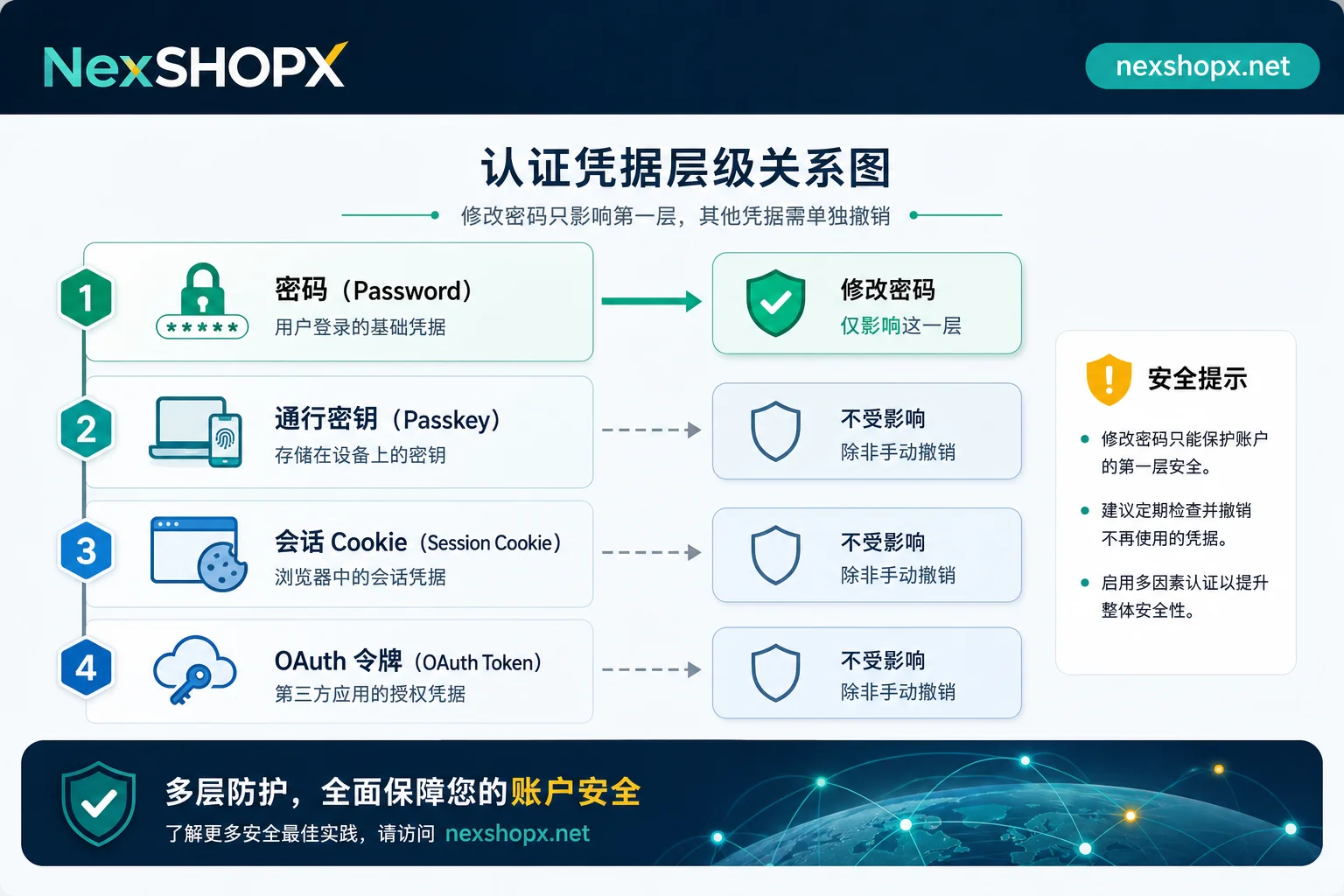
Layered Credential Mechanisms: Issuance and Revocation
Different credentials are issued by different parties and stored in different places, so their revocation logic also differs entirely. Static passwords are stored as hashes on the server side and take effect immediately when changed; passkeys rely on local hardware, while refresh tokens depend on cloud authorization state. If you blur these boundaries, you risk leaving security gaps.
Passkey Private Keys Stay on Original Devices: Why Changing Passwords Can't Remove Them
Passkeys are a passwordless login method based on public-key cryptography. The private key is strictly stored on the user's registered physical device. When you enable the "skip passwords when possible" option, anyone holding that trusted device can log in directly via biometrics or a lock-screen PIN, without typing any characters.
According to Google's official documentation, creating a passkey for your account and enabling related features does not trigger the revocation or deletion of passkey credentials on bound devices when you change your overseas account password. This means that as long as the original holder still has the device registered to the account, they can continue to log in without a password. Therefore, the key to solving this issue is not resetting your password, but auditing registered devices and deleting historical passkeys one by one. Users should visit myaccount.google.com/signinoptions/passkeys to review all bound keys and remove device entries no longer under your control.
offline_access Refresh Tokens: Silent Renewal Unless Authorization Is Withdrawn
Beyond local device credentials, cloud authorization is another common source of security risks. Third-party apps and API clients obtain access tokens rather than your original password. In particular, OAuth Refresh Tokens with the offline_access scope are designed to allow apps to silently obtain new access tokens even when you're offline.
Microsoft Entra ID documentation states that such refresh tokens can last up to 90 days and support silent renewal. Simply changing a user password or disabling the account state doesn't immediately cut off these issued token connections. If explicit global session revocation isn't performed, former employees or unauthorized parties can use authorized third-party clients to continuously sync data or read information in the background. Administrators must perform Revoke sessions in the admin console, or use the PowerShell command Revoke-EntraUserAllRefreshToken to force-revoke all sessions and tokens, and also review and revoke unnecessary application permissions.
Comparison of Expiration and Revocation Conditions for Passwords, Passkeys, Sessions, and Third-Party Tokens
To better clarify management boundaries for different credentials, the table below compares the characteristics and handling methods for four main types of login credentials. NexSHOPX only verifies account category and credential information during delivery, and provides post-sale support for login failures; passkey deletion and token revocation must be performed by the account owner in official admin panels.
| Credential Type | Issuer / Storage Location | Becomes Invalid After Password Change? | Official Management / Revocation Location | Requires Original Holder's Cooperation? |
|---|---|---|---|---|
| Static Password | Server-side hashed storage | Yes | Account Settings > Password | No |
| Passkey | User's physical device hardware | No | Google: signinoptions/passkeys | No (but you must delete old keys in settings) |
| Browser Session | Browser cookies / local storage | Depends on platform policy | Activity Log > Sign out of all devices | No |
| OAuth Token | Third-party app / server side | No | Entra ID: Revoke sessions | No (requires admin action) |
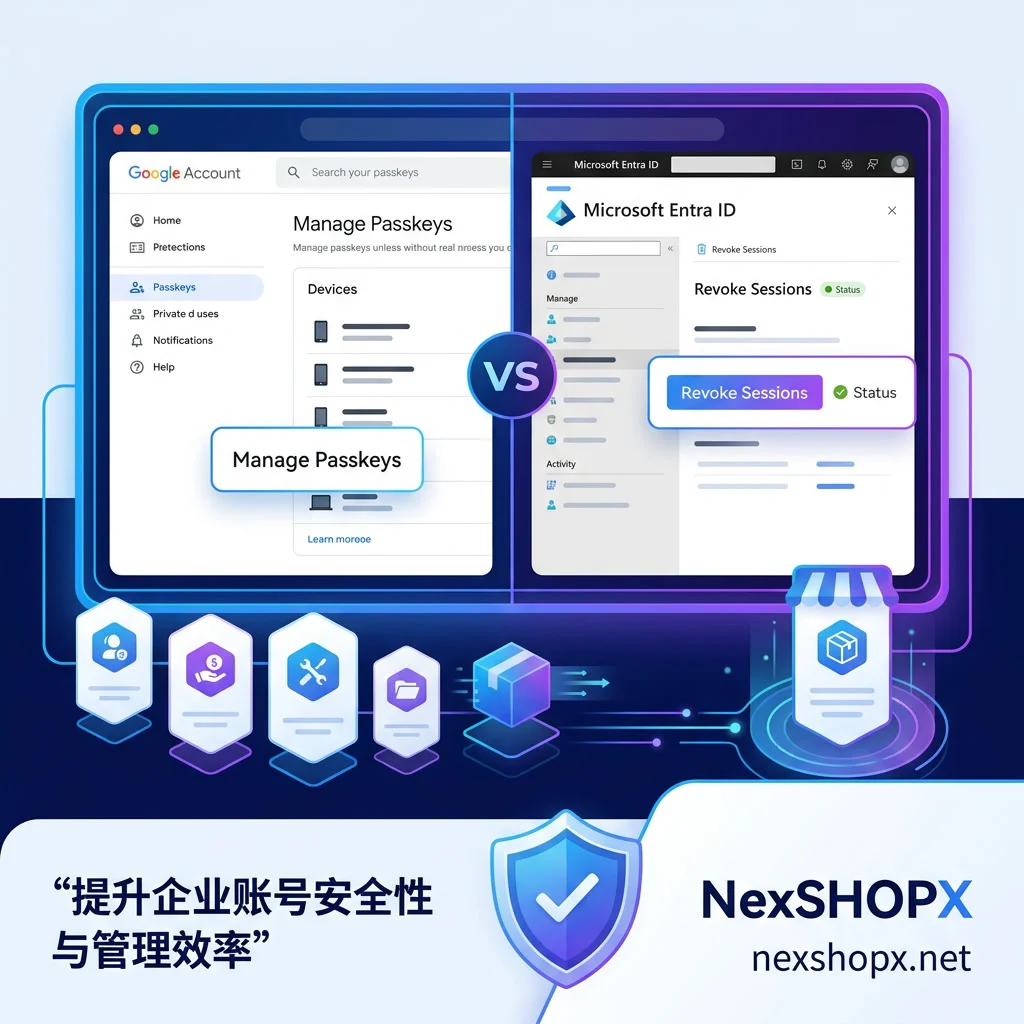
Why First Establish Your Own Login Entry, Then Revoke the Other Party's Credentials
When handling overseas account permission transfers or security hardening, the sequence of operations is crucial. The wrong approach is to first delete all existing credentials, which can lock you out during the process. The correct logic is "build first, then break": first, register your own passkey on a device you control, and confirm that recovery email, phone number, and other verification methods are fully in your hands.
After establishing your own security anchor, go to official admin panels to delete historical passkeys, revoke active browser sessions, and revoke third-party app authorization tokens. Note that after revoking OAuth tokens, legitimate apps relying on them (such as email sync clients) will disconnect and require users to re-authorize—this is an expected side effect. Signs that your actions took effect include: the registered passkey list contains only your own device, the active session list is cleared, and unfamiliar client names no longer appear in the third-party app authorization list.
Scenario-Based Approach: Transferring Accounts, Employee Departure, Detecting Unknown Device Logins
Different business scenarios involve different risk priorities and processing focuses. Below are recommendations for three typical situations, to be executed in line with the target platform's latest terms and applicable local laws.
| Scenario | Priority Credentials | Key Operation Location | Roles Involved | Notes |
|---|---|---|---|---|
| Account Transfer | Passkeys, recovery methods | Google Passkey management page | Original seller (provides verification codes to change recovery methods) | Be sure to bind your own device before deleting old keys |
| Employee Departure | OAuth tokens, global sessions | Microsoft Entra ID admin console | IT administrator | Check for any unrevoked third-party API permissions |
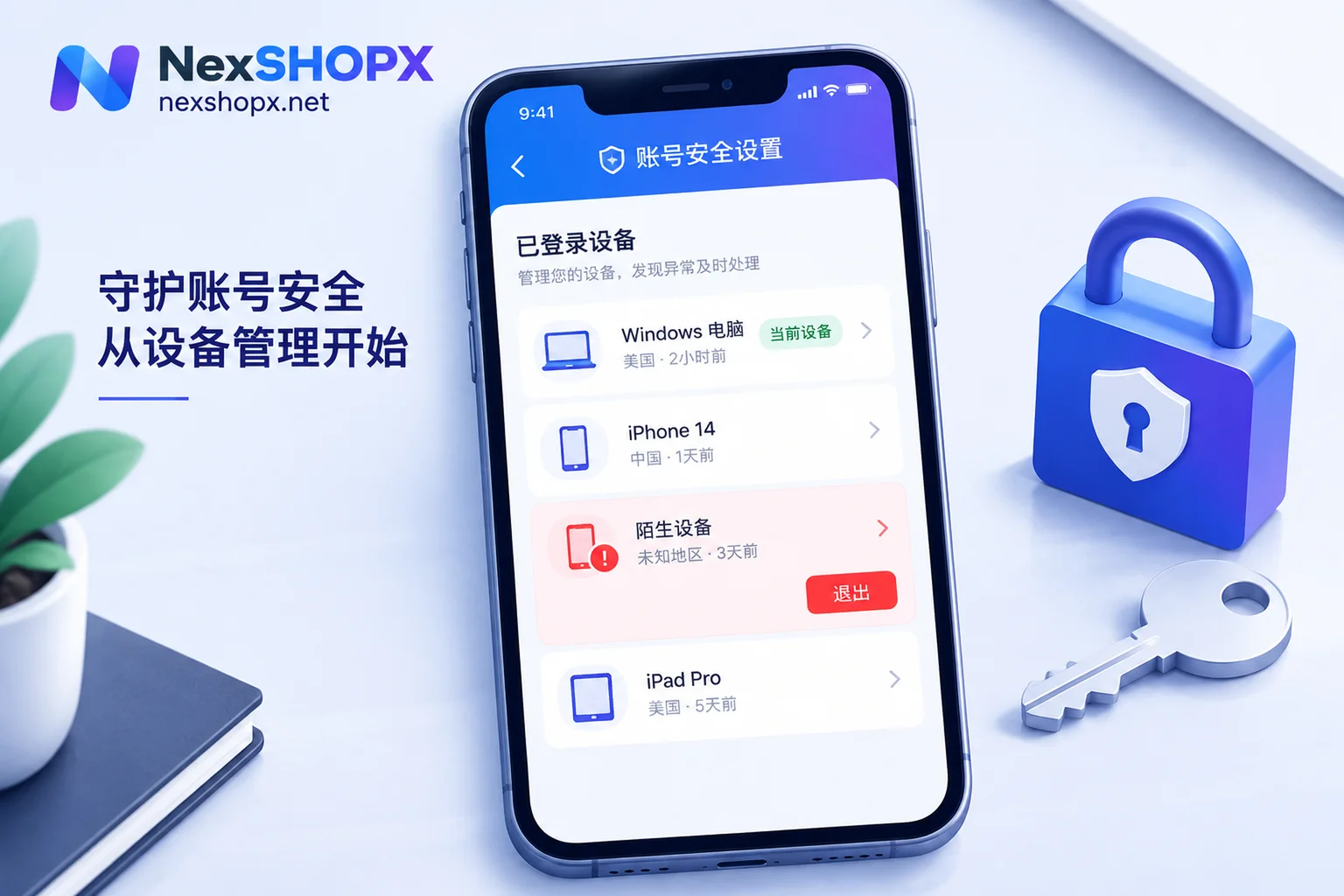
| Unknown Device Login | Browser sessions, password | Account activity log | None (self-service) | First confirm your own entry, then sign out all devices and review permissions |
For users who obtained accounts through legitimate channels, it's recommended to perform the above checks on the day you receive the account. If you encounter login failures or credential anomalies, promptly contact the service provider's after-sales window with records; however, final account control recovery still requires you to perform operations in the platform's official admin panel.
Frequently Asked Questions
Can the original seller still access the account after I take over?
Yes. As long as the passkey on their device hasn't been deleted, they can still log in without a password via biometrics even after you change the password. You must manually delete passkeys for non-your-devices in Google account settings to block this path.
How do I see which passkeys are bound to my Google account?
Visit myaccount.google.com/signinoptions/passkeys. This page lists all registered passkeys and their associated device names. You can review them one by one, deleting any device keys you don't recognize or no longer use. It's recommended to clean up regularly to ensure the list only contains devices you currently use.
What happens to sync tools after an enterprise revokes tokens?
If an admin revokes OAuth tokens in Entra ID, third-party sync tools relying on those tokens (such as email clients) will immediately disconnect. Users will need to re-authorize to restore data sync—this is the expected outcome of cutting off unauthorized access.
How long until a refresh token expires?
According to Microsoft Entra ID documentation, refresh tokens with offline_access permission have a default maximum lifetime of up to 90 days. During this period, even after a password change, tokens may still be valid. To invalidate them immediately, you must perform "Revoke sessions" in the admin console or use PowerShell to force-revoke all active tokens.
I see an unknown device record—which layer should I address first?
Step one: ensure your own login entry and recovery methods are in hand. Step two: force sign out of all known device sessions and change your password. Step three: review and revoke third-party app authorizations and clean up passkeys. For enterprise accounts, also notify IT to review user permissions and session states in Entra ID.



Comments(0)