 NexSHOPX-官方新闻
Getting the account password does not mean the seller can no longer get in. As long as any of the following three channels remain in the seller's hands, they may still log in or take back the account:
- Active login sessions: Devices and browsers the seller logged into before delivery may retain their login state, allowing access without re-entering the password.
- Recovery credentials: Backup email, security phone number, old two-factor authentication (2FA) keys, or backup verification codes. Even if you change the password, the other party can use these to go through "forgot password".
- Third-party authorized apps: Once an account is authorized to a tool or website, this authorization is separate from the password and remains valid until manually revoked.
To confirm, check each of these three items: view the list of logged-in devices, check recovery information and 2FA, and review authorized apps. Only when all three show only your own devices and information can you consider the seller excluded. Before making changes, check the warranty rules on the product page. Some categories do not allow profile changes during the warranty period; changing them may void the replacement eligibility.
Before You Start: Confirm What the Product Page Allows You to Change
Rules vary greatly by category. There are three common types:
- Password and rebinding allowed: You can follow the full process below.
- Profile changes prohibited during warranty: On first login, only view and take screenshots; do not change bindings. See details below.
- First-login time limit: You must log in within the specified time to confirm the account is usable; after the deadline, after-sales service may no longer be available.
For products purchased on NexSHOPX, the first-login time limit, warranty duration, and whether profile changes are allowed are all stated on each product page. For general rules, see Terms and Warranty Description. If you are still choosing an account, it is advisable to read these items clearly before placing an order. You can enter the corresponding product from All Categories. If you are unsure whether an action counts as "changing profile information", such as logging out other devices, ask customer service first.
Step 1: Check Logged-in Devices and Sessions
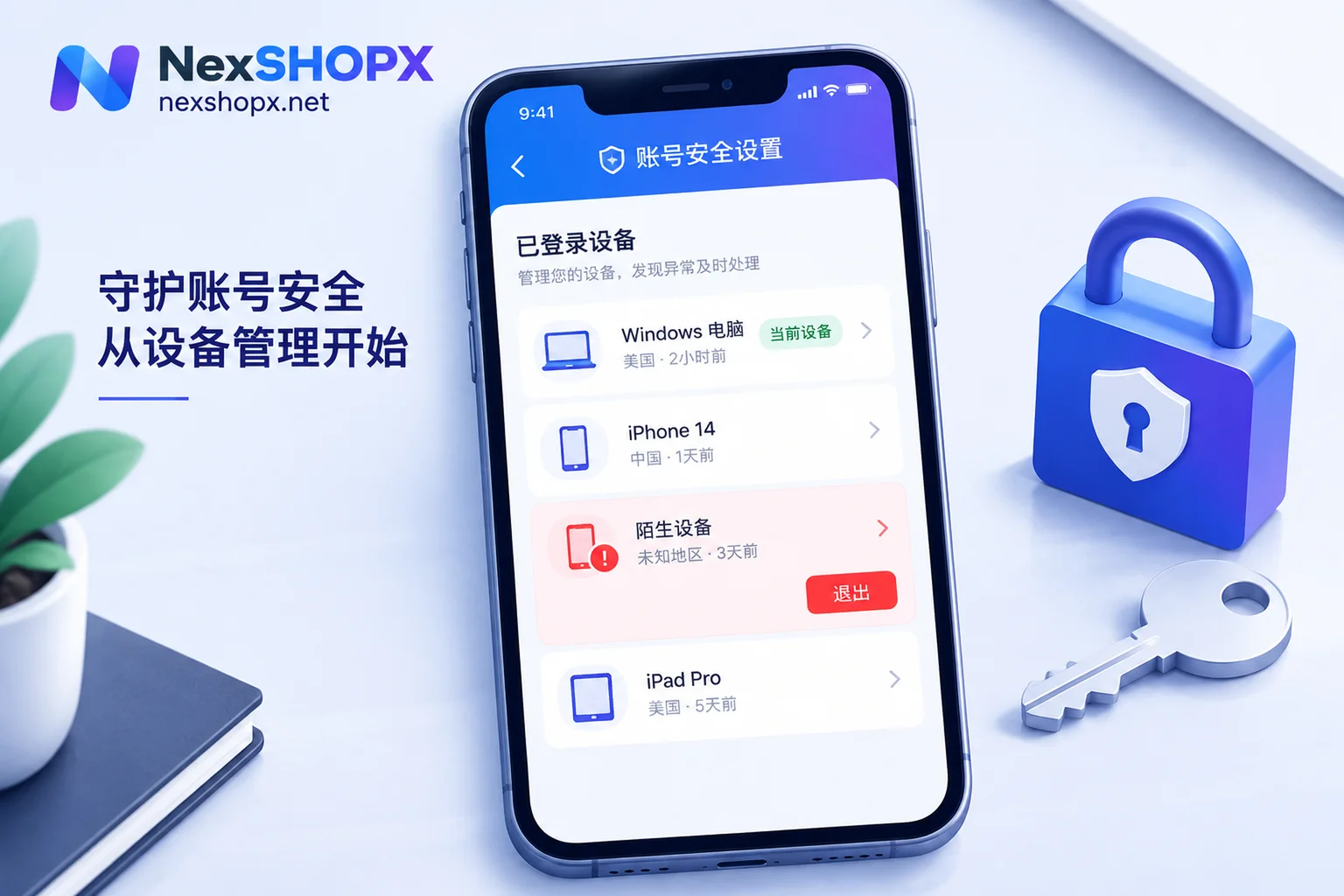
The most direct way to know if the seller is still online is to check the logged-in device list. Entry points for common platforms are as follows; names may vary by version:
- Google: Google Account → Security → "Your devices". Click "Manage all devices" to see each device and recent activity time, and you can sign out individually.
- Facebook: Settings → Account Center → Password and Security → "Where you're logged in".
- X: Settings → Security and account access → "Apps and sessions", where "Sessions" lists logged-in devices.
When viewing the list, judge as follows:
- If there are other devices or other regions besides the one you just logged in from, and the recent activity time is later than your receipt time: it is basically certain that someone else is still using it.
- If there are only records from before receipt: most likely left by the seller when preparing and delivering the account. These should also be cleared, but no need to panic.
- In any case, take screenshots first, including device name, location, and time. When contacting after-sales later, screenshots are much more useful than text descriptions.
Step 2: Verify Recovery Information and Two-Factor Authentication
Go to security settings and check each item:
- Backup email and recovery email: Are they email addresses you can log into yourself? If an email was provided at delivery, the seller also knows the password for that email, so it must also be checked according to this article.
- Linked phone number: Who currently holds this number?
- 2FA: If the account already had an authenticator enabled at delivery, the seller likely still has the same key. Delete the old authenticator, rebind with your own authenticator, and regenerate backup codes; old codes will then be invalidated.
- Security keys and passkeys: Remove any you don't recognize from the list.
Step 3: Check Third-Party Authorized Apps
On pages like "Connected apps" or "Apps and sessions", revoke all unrecognized authorizations. This step is most easily skipped. Changing the password and logging out devices alone cannot stop already authorized apps from continuing to access the account.
Revocation Order: Change Entry Points First, Then Kick Out
After confirming residual access, if the product allows profile changes, it is recommended to proceed in the following order:
- Change the password; do not reuse the new password elsewhere.
- Replace the recovery email and phone number, rebind 2FA, and regenerate backup codes.
- Log out all other devices and sessions.
- Revoke unrecognized third-party authorizations.
- Return to the device list after some time to recheck.
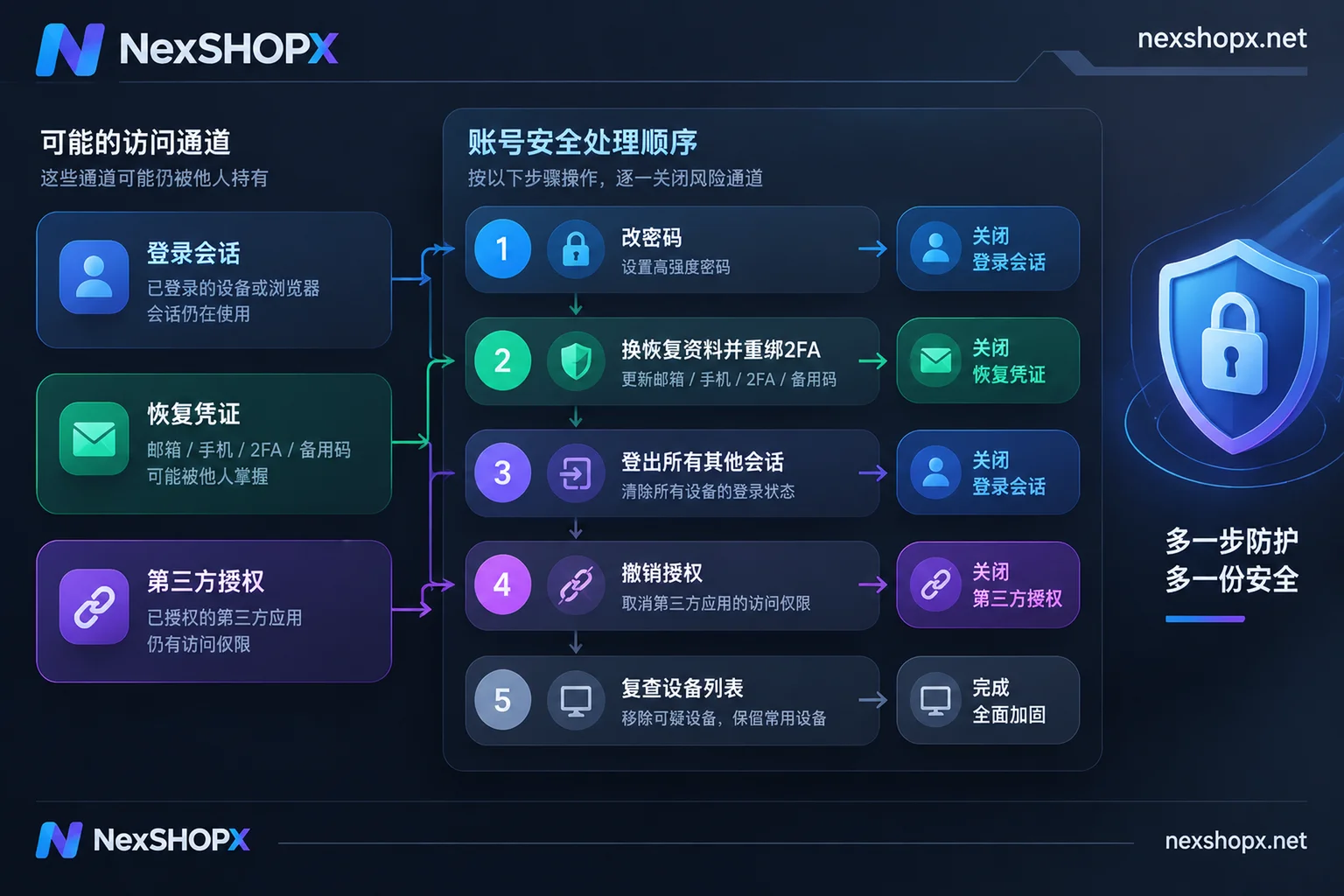
Why change the password and recovery information before logging out? If you kick the person offline first, the seller's password or backup codes are still valid, and they can immediately log back in. First replace all entry points with yours, then perform the logout; the party being kicked out cannot return. For a detailed explanation of the principle, see Why the other party can still get in after changing the password.
Some platforms require additional verification when changing sensitive settings after logging in on a new device, or temporarily disallow changes; follow the platform's prompts. If this happens, do not keep trying forcefully; you can first read What to do when logging in on a new device requires re-verification.
What to Do If Profile Changes Are Not Allowed During Warranty
Not being able to change profile information does not mean doing nothing:
- On first login, still check the device list and recovery information, and take screenshots.
- If after receipt there are still unfamiliar devices active, or information has been changed by someone else, submit the screenshots and order number to customer service. Do not force rebinding yourself. Rebinding may trigger platform verification or risk control, and issues arising from this are not covered by the warranty.
- Before handover is complete, do not put important business assets into the account, such as binding payment methods or importing customer data.
- After the warranty period ends, perform the full process in the order above.
Membership Top-Up: Finalize After Benefits Are Credited
Membership top-up means activating or renewing a membership on your own account; the process requires someone to log into your account. After delivery is complete, finalize as follows:
- Confirm that the membership benefits have been credited and the expiration date is correct.
- Change the password.
- In the device list, log out all sessions except your own devices.
- Also check whether 2FA and recovery information have been altered.
Do not change the password before delivery is complete, otherwise the top-up may be interrupted.
How to Know It's Fully Confirmed
After processing, come back to check again after a day or two. If all of the following are met, you can basically consider that the seller can no longer log in:
- Only your own devices are in the device list.
- Recovery email, phone number, and 2FA are all in your hands.
- No unrecognized authorized apps.
- No security alerts you did not initiate.
For a step-by-step method to verify recovery channels, refer to How to confirm that account recovery channels belong to you. If a team purchases multiple accounts at once, it is recommended to record each account's new password, 2FA key, and recovery information in a handover checklist. For how to write it, see How to write an account handover checklist.
Prepare These When Contacting After-Sales
- Order number
- Screenshots of the device list with timestamps
- A clear chronological list of what actions you have taken
- The time when anomalies were discovered
Whether a replacement is possible and how to handle it are subject to the warranty rules on the product page and terms.


Comments(0)