 NexSHOPX-官方新闻
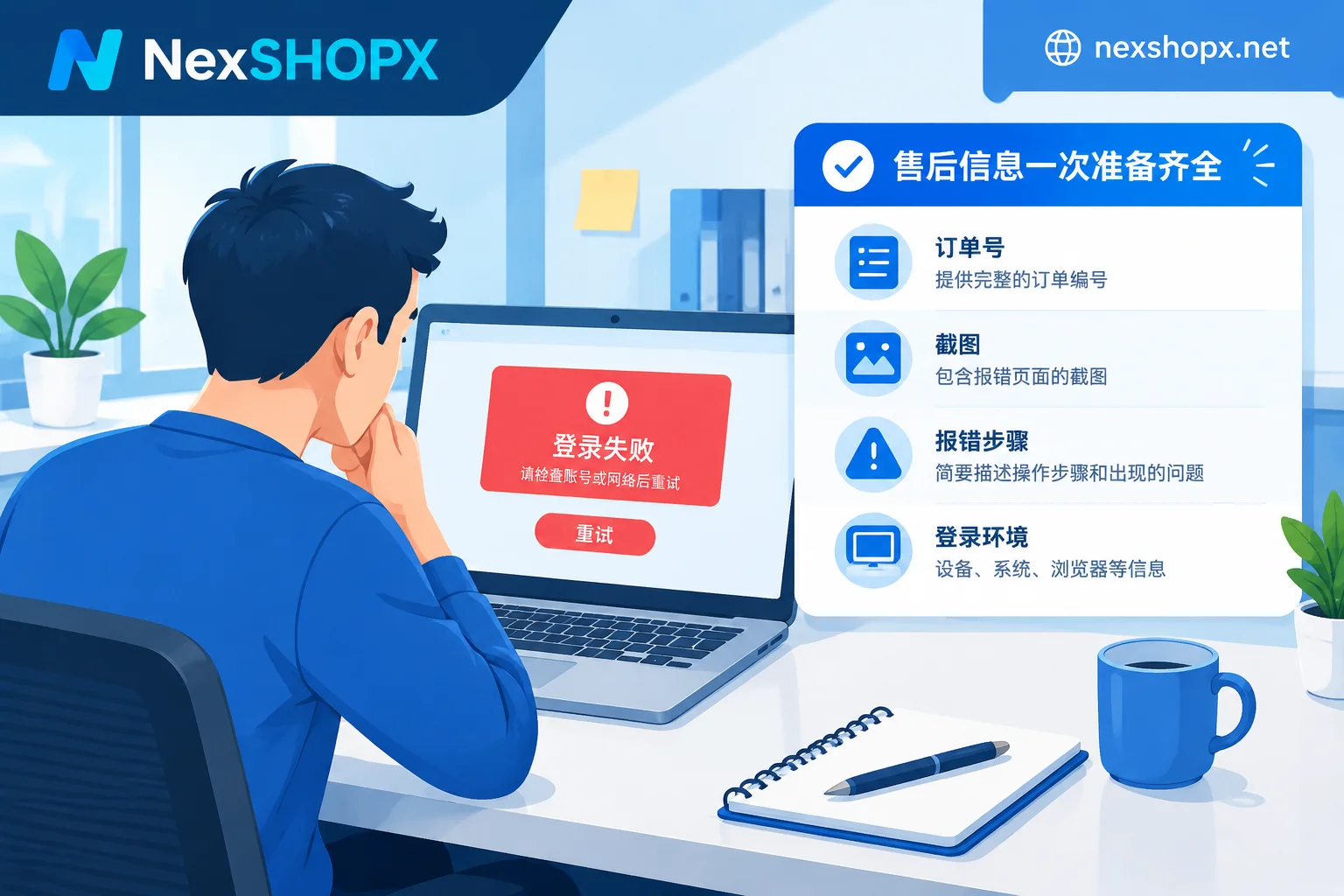
When reporting a login failure for after-sales support, a useful message usually contains six things: the order number and order time, the original delivery content, an uncropped full-screen error screenshot, the step where you got stuck, your login environment at the time, and what actions you took before and after logging in. Providing all information at once allows the support agent to directly locate the order in the delivery records, check the warranty period, and determine whether a replacement is possible without repeated back-and-forth questions.
The following sections explain in order: first confirm the after-sales conditions, then prepare materials item by item, then add materials based on the error type, and finally provide a ready-to-use template.
Confirm Two Things Before Sending a Message
1. Whether you are still within the first-login deadline and warranty period. The first-login deadline, warranty days, and replacement conditions for deactivated accounts are all subject to the product page of the item you purchased, and they vary significantly by category. Common rules are: you must complete the first login within a limited time after ordering, and if the account is deactivated during the warranty period, it can be replaced; some categories only offer a few days of after-sales service. For when the deadline starts counting, see When Do You Need to Complete the First Login for a Purchased Account.
2. Whether you have changed any profile information. Some categories do not allow changing the password, rebinding the recovery email, or deleting security information during the warranty period. If you change the information, the seller cannot verify the original state of the account, and the warranty may be voided. If you have already made changes, state exactly what you changed and when in your message; concealing it will only slow down the assessment. For which changes affect the warranty, see What Does It Mean That You Cannot Change Profile Information During the Warranty Period.
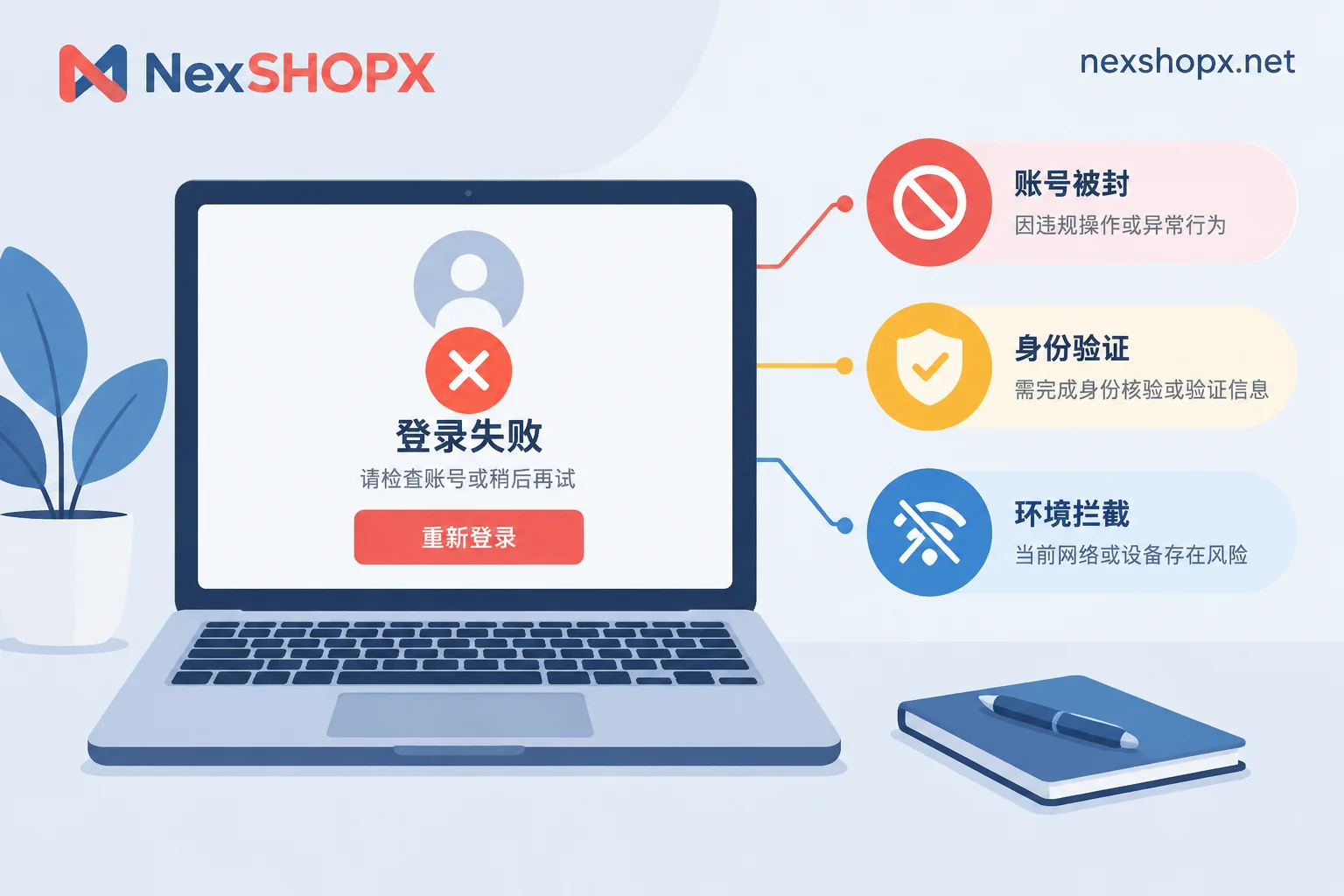
If you are still unsure whether the problem is with the account itself or your own environment, you can first self-check according to the error categories in Account Login Failure: Banned or Environment Issue, and you will be able to describe it more accurately when reporting.
Prepare Item by Item: What Each Piece of Information Solves
Order Number and Order Time
The support agent uses the order number to locate the delivery batch and the order time to calculate the first-login deadline and warranty period. If you only send an account name, the agent often has to trace back the order, causing an extra round of communication. For pre-ordered items, the agent delivers after confirmation; when reporting, attach the delivery message the agent sent at that time.
Original Delivery Content: Copy the Text, Don't Just Send a Screenshot
Copy the entire delivery content you received as is, such as the format "account----password----recovery email----2FA key or backup code", keeping the original separators and order. This has two benefits:
- The agent can directly compare it with the record in the delivery system to confirm that you are using exactly this one;
- Many "password errors" are actually caused by extra spaces when copying or incorrect separator positions, which can be quickly spotted by looking at the original text.
Send this content only through the mall's official customer service channel, not to unknown group chats or private accounts.
Uncropped Full-Screen Error Screenshot
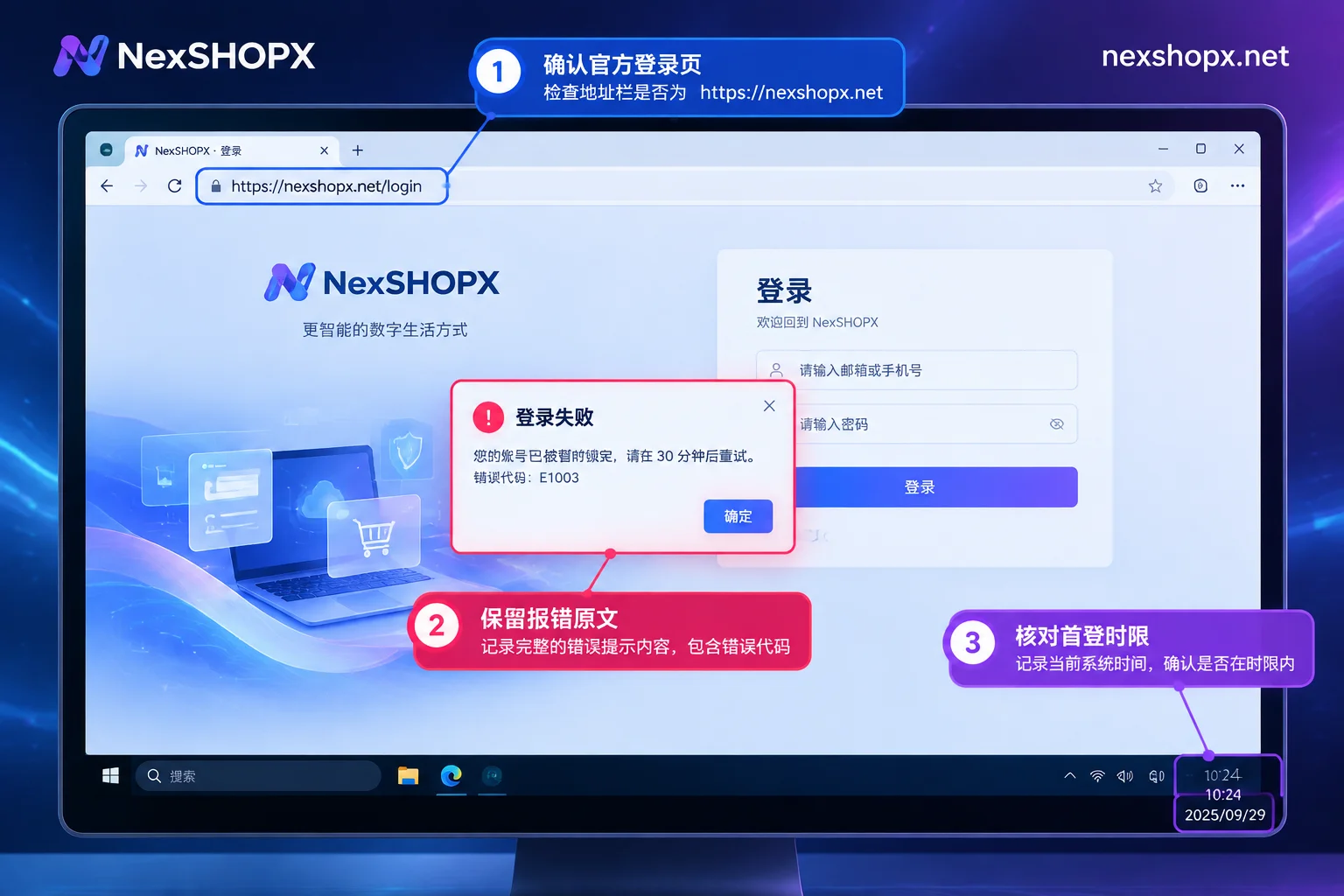
Capture the entire screen, not just a sentence in the pop-up. A useful screenshot should show all of the following:
- The full URL in the browser address bar: to confirm you are on the official login page, not a fake page or wrong entry;
- The error message itself: keep the original language, don't just send a translation;
- The time on the system taskbar or status bar: to verify whether the operation occurred within the first-login deadline.
If logging in on a mobile app, keep the time in the top status bar when taking the screenshot.
Where You Got Stuck
Clearly state at which step you were blocked; this is much more useful than saying "can't log in". Common scenarios:
- After entering the password, it says the password is incorrect or credentials are invalid;
- It says the account is disabled or suspended (Account disabled / suspended, etc.);
- It requires phone verification and cannot be skipped;
- It requires sending a verification code to the recovery email, but the recovery email doesn't receive it;
- It requires entering a two-factor authentication (2FA) code, and an error occurs after entering it.
The handling directions for these are completely different: suspension usually involves whether a replacement is possible, phone verification and recovery email involve the materials provided at delivery, and 2FA errors are sometimes a local device issue.
Your Login Environment at the Time
Briefly state three points: whether you used a regular browser, the official app, or a browser for multi-account management; whether you used a proxy and which region the node was in; and how many times you tried on the same device. Some platforms directly block abnormal network environments or require additional verification, and the agent needs this information to determine whether the problem is with the account itself or the environment.
What You Have Already Done
List the actions taken after the error: whether you tried switching networks and retrying, whether you clicked "Forgot Password", whether you used a backup code. This way the agent won't ask you to repeat ineffective actions and can grasp the current true state of the account.
Additional Materials by Error Type
2FA code error. First check whether the device generating the verification code has the correct time. For example, for Google accounts, its help center mentions that if the time on the device with the authenticator app is not synchronized, the verification code will be invalid. If it still doesn't work after self-checking, note which authenticator app you used and whether you have calibrated the time when reporting.
Used a backup code. Also for Google, each backup verification code can only be used once. Tell the agent which ones you used so that both sides don't repeatedly try with invalid codes.
Recovery email doesn't receive the verification code. Explain whether you can log into the recovery email itself, whether you checked the spam folder, and how long you waited.
Account disabled prompt. Take a full screenshot of the prompt page and note the time you first saw this prompt. This is key evidence for determining whether it meets the replacement conditions for deactivation.
Phone verification cannot be skipped. Take a screenshot of the verification page and explain whether the page offers other verification methods.
Different Materials for Membership Top-Up After-Sales
Membership top-up is activating or renewing on your own account. When problems occur, the focus is not on whether you can log in, but whether the top-up took effect. You need to prepare:
- A screenshot of your account status before the top-up, such as the plan page at that time;
- A screenshot of the official subscription management page or payment record after submission;
- If the activation failed, the error code and original prompt returned by the platform.
Such after-sales generally do not require sending your account password again in the message. If it is truly needed, provide it only through the official customer service channel.
Copyable After-Sales Message Template
订单号:
下单时间:
商品名称/规格:
发货内容原文:(整段粘贴)
首次尝试登录时间:
卡在哪一步:(密码错误 / 提示停用 / 要求手机验证 / 辅助邮箱收不到码 / 2FA 报错 / 其他)
报错原文:
登录环境:(浏览器或 App;是否使用代理及节点地区;尝试次数)
已做过的操作:(是否改过资料、是否用过备用码、是否点过找回密码)
附件:全屏截图 X 张
These Practices Will Slow Down After-Sales
- Repeated retries after an error. Continuous attempts may trigger more platform verification and make the situation harder to assess. When you encounter an error, take a screenshot first, then contact support.
- Trying to recover the password or rebind information yourself. This may void the warranty and prevent the seller from verifying the original state.
- Sending only a cropped small screenshot, or just saying "can't log in".
- Waiting until the first-login deadline is almost over. Report as soon as you discover the problem; for specific deadlines, see the product page.
For items purchased at NexSHOPX, the warranty and replacement conditions are subject to the corresponding product page and the Terms and Warranty Rules. If you want to first distinguish whether it's a product issue or your own environment issue, see Bought an Account but Can't Log In: Product Issue or Your Environment Issue.


Comments(0)