 NexSHOPX-官方新闻
Many users think that having to re-verify when logging in on a new computer means their account has a problem, or even suspect it was stolen. In fact, in most cases, the platform's security mechanism is working normally: the session layer, credential layer, or policy layer triggers a re-check when the device changes. Only by identifying which layer is blocking you can you address the issue accordingly.
Why Do You Need to Re-Verify on a New Computer? First, Find Out Which Layer Is Blocking You
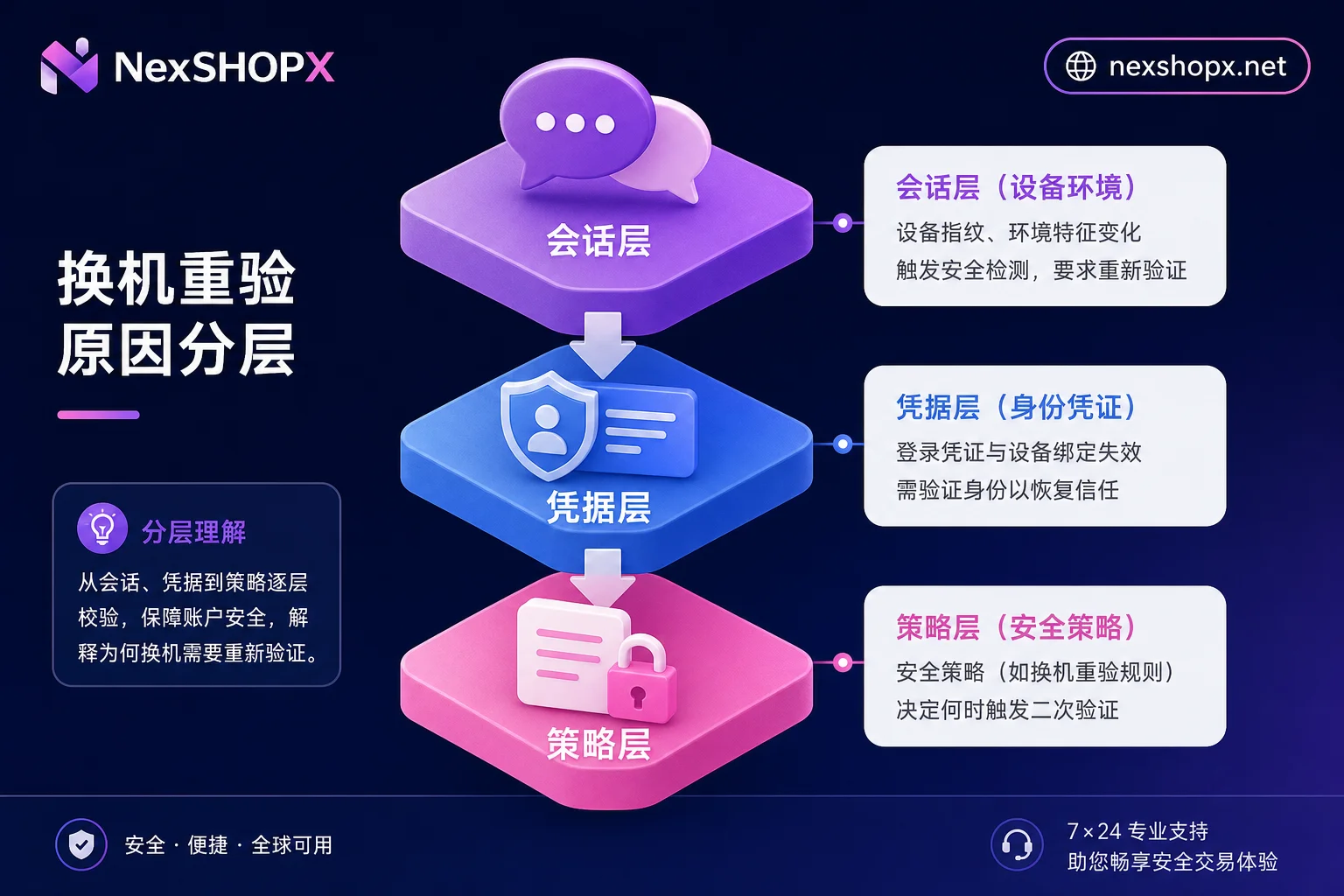
When you log in to an overseas account on a new device and are repeatedly asked for an SMS code, Passkey, or identity verification, it usually doesn't mean the account is damaged or abnormal, but rather the system is confirming whether you are still the account owner. Such prompts can generally be classified into three types:
- Session layer: You get logged out within minutes of logging in, or you are asked to verify again when opening a new page. This happens because the session credential did not pass the hardware signature of the current device.
- Credential layer: You have a Passkey or security key, but it prompts "unavailable" and you need to re-register, because the key is bound to the domain; if the device or domain changes, it becomes invalid.
- Policy layer: The platform adjusts the default verification method. For example, Microsoft sets Passkey as the default and gradually disables SMS codes, so the SMS verification channel you are used to is closed.
First, map your specific prompt to a layer, then read on.
Session Layer: Chrome Has Locked Session Keys into the Local Security Chip; Cookie Migration No Longer Works
If you are used to exporting cookies to log in on a new computer without a password, this trick no longer works on Chrome. In May 2026, Google officially announced that Chrome 146 enabled Device Bound Session Credentials (DBSC) by default on Windows devices with TPM 2.0. The login session key is encrypted and stored in the local security chip, and refreshing the session must be signed by the local hardware private key.
In other words, even if you export cookies completely and import them to a new computer, because the TPM signature of the original device is missing, session refresh is blocked at the protocol layer, and the system can only ask you to log in again and verify your identity. This is the most common underlying reason for "new computer prompts re-verification on open."
It should be noted that Google has not given a clear timeline whether DBSC is fully enabled by default on macOS and Linux. Currently, only Windows is confirmed. If you are re-verified on a Mac, the reason may lean more towards the credential or policy layers.
Credential Layer: Passkey and Security Keys Are Bound to Domain; Besides Changing Devices, There Is Another Way to Invalidate
Passkey and physical security keys (such as YubiKey) follow the WebAuthn protocol, and the public-private key pair is strictly bound to the Relying Party ID (RP ID), i.e., the domain. When the platform changes its domain, all keys under the old domain become invalid.
A typical case is X (formerly Twitter): In October 2025, X officially required all users using security keys or Passkeys to re-register credentials on x.com, because the keys under the old twitter.com domain could no longer be used for the new domain. Users who did not re-register were directly blocked from logging in.
This also explains why sometimes you might be on the original device but suddenly "Passkey doesn't work"—if the platform changed its domain, the old key becomes invalid. When switching computers, if your Passkey only exists on the old device or under the old domain, the new device naturally cannot access it, making re-verification inevitable.
Policy Layer: Accounts That Only Receive SMS Are Being Pushed by Platform Defaults
If you switch computers and log in to an overseas account and always get an SMS code, don't rush to find a code-receiving platform—it's likely that the platform is migrating verification methods from SMS to more secure Passkeys. Microsoft's official announcement shows that starting September 1, 2026, Passkey becomes the default authentication experience for Microsoft Entra ID, with a plan to completely retire native SMS and voice MFA by February 1, 2027. At that point, accounts that rely only on SMS will be directly blocked, forcing Passkey registration.
So, when you are repeatedly asked for an SMS code on a new computer, it might be that the platform is in a transition period: the system first requires you to register a Passkey, and SMS is only a temporary channel. Instead of ignoring the prompt, it's better to follow the guidance to upgrade your verification method; otherwise, one day you might be completely unable to log in.
Comparison Table: Which Can Be Resolved by Yourself, Which Need Original Owner Cooperation, and Which Are Irreversible
Putting the three layers together, you can use the table below to determine the handling path:
| Layer | Typical Performance | Difficulty | Resolution Path |
|---|---|---|---|
| Session | New device prompts re-login immediately | Can resolve yourself | Complete a verification on the new device and re-establish the local session |
| Credential | Passkey/security key invalid | Requires original owner cooperation | If the key is still on another person's device or recovery entry has not been handed over, need the original owner to cooperate in re-registering or authorizing |
| Policy | SMS code invalid or forced upgrade | Irreversible | Cannot be disabled; only migrate to new verification methods like Passkey in advance |
It should be clear: No method can permanently disable device-change verification. This is the bottom line of platform risk control and protocol design, and the foundation for protecting account security.
Pre-Change Preparation Checklist: Complete Your Own Verification Methods on the Old Device First
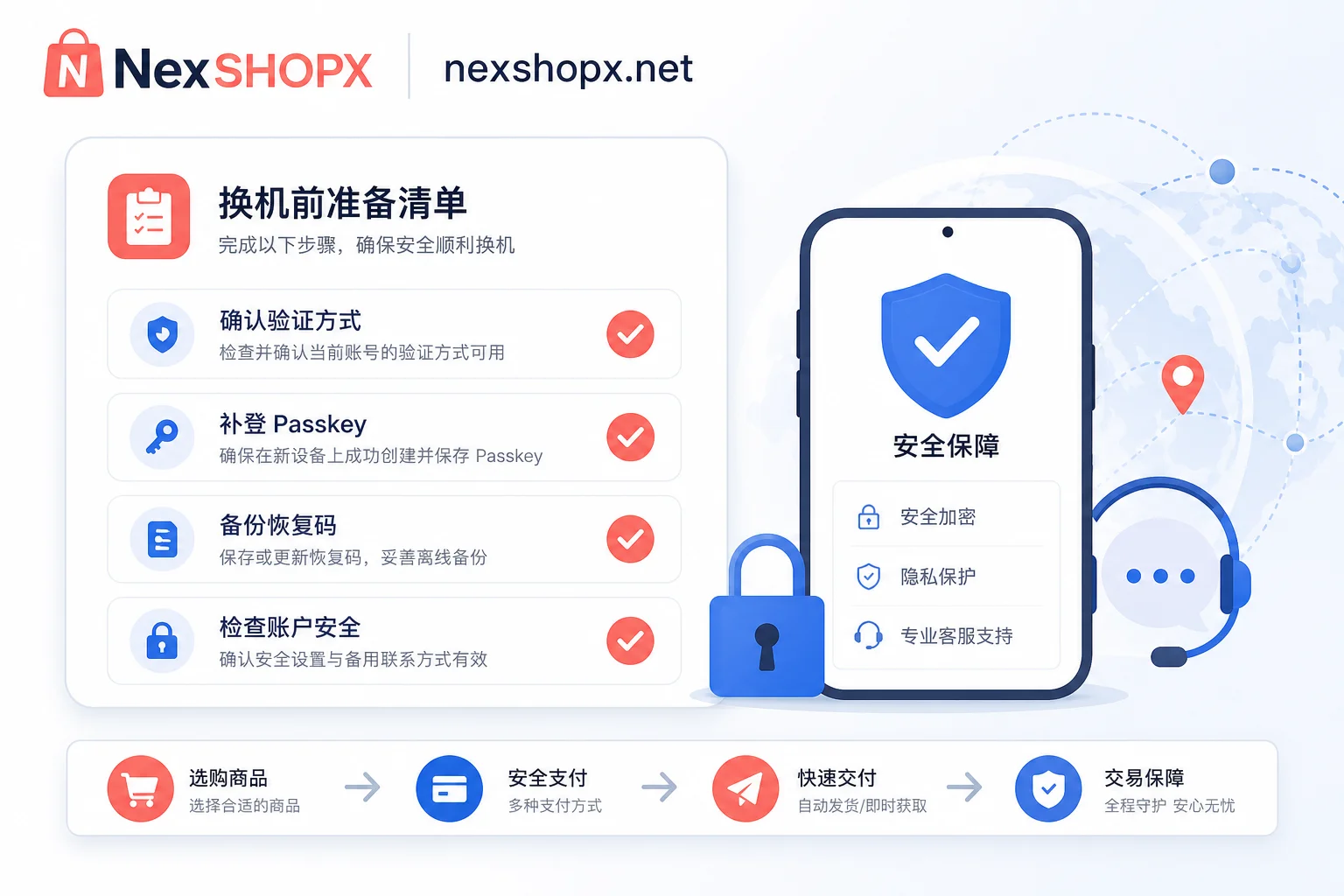
Many people only think about handing over verification methods after switching computers, and end up locked out. The correct order is to check and migrate on the old device first:
- Log in to the account you are using, and in security settings, view the bound verification methods.
- Register your own Passkey or authenticator app—this step must be done on the old device; otherwise, there is no entry on the new device.
- Back up recovery codes and confirm that the recovery email and phone number are under your name.
- After confirming all verification entries are in your hands, log in on the new device.
Remember: Add first, then remove. Don't rush to delete verification methods on the old device; wait until all verifications on the new device are completed before cleaning up. If you have just taken over an account, the original owner may not have handed over these yet, so make sure to confirm during the handover.
Account Takeover Scenario: How to Verify "Can Log In Independently on Another Device" on the Day You Receive It
If you purchase overseas accounts for operations or advertising, don't just confirm "can log in" in the seller's environment or with cookies on the day you receive it. That has no meaning—that environment might have been set to bypass verification. You should, on your own clean device, go through the complete login process:
- Open an incognito window, enter the account password or scan the QR code.
- Trigger the verification code or Passkey request, and see if the notification goes to your email or phone.
- Confirm that the Passkey registration is on your own device, not left on the seller's machine.
- If the login fails, pay attention to the platform's limited-time after-sales window and contact customer service to check the delivery content.
If you do this step thoroughly, you can truly control the account and avoid being left with no way to pass secondary verification later.
Where NexSHOPX Can Help and Its Limitations
The three-layer mechanisms above have direct and obvious impacts on purchasing overseas accounts: the session layer determines whether you can log in smoothly on multiple devices, the credential layer determines whether you can independently pass verification, and the policy layer determines how long your current verification methods will last.
NexSHOPX can help reduce information asymmetry in category search, self-service ordering in the mall, fast delivery, 24/7 Telegram customer service, and limited-time after-sales for login failures—for example, confirming the recovery entry and verification method ownership within the delivery window, and troubleshooting login anomalies promptly. However, it must be noted that the platform cannot bypass device binding, two-factor verification, or identity verification for you, and there is no such thing as a "permanent no-verification" account. To reduce device-change verification triggers, the fundamental way is to have your verification methods fully and independently in your own hands. For details, refer to the Overseas Account Delivery Process and Overseas Account Two-Factor Verification.
FAQ
Is it normal to always get an SMS code when logging in on a new device?
Yes, it's normal. This is a common manifestation of risk control, especially when the device fingerprint changes abruptly. But if you don't receive SMS or it happens too frequently, it may be that the platform is pushing verification method migration, such as Microsoft making Passkey the default from September 2026, with SMS channels gradually retiring. It's recommended to upgrade to Passkey as soon as possible.
Why does exported cookie login fail on a new computer?
The reason is that Chrome 146 enables DBSC by default, and the session key is locked in the TPM chip of the old device, so the new device cannot refresh the session with pure cookies. Therefore, exporting cookies to log in on a new computer without a password fails at the protocol layer; you must log in again and complete verification.
New computer prompts identity verification, how to handle it?
First, determine which layer it is: if it's the session layer, log in again once; if it's a Passkey failure, re-register on the new device or contact the original owner; if SMS is disabled, follow the platform guidance to register a Passkey. Don't try to bypass; follow the process for the most stability.
How to reduce verification triggers when switching devices?
There are four methods: first, before switching, register your own Passkey or recovery code on the old device to ensure the verification entry is in your hands; second, keep the device environment stable and avoid frequent switching; third, check "trust this device" after login; fourth, upgrade to Passkey in time to reduce reliance on SMS.
Compliance Reminder
Be sure to comply with the target platform's user terms, local laws, and real-name authentication requirements. Do not attempt to purchase so-called "permanent no-verification accounts," nor use code-receiving platforms or cookie reuse as circumvention methods—once these trigger risk control, you may face account suspension or even legal risks.




Comments(0)