 NexSHOPX-官方新闻
When taking over a ChatGPT account, the biggest concern is that the previous owner can still log in at any time. The correct order for ChatGPT account security settings is: first clear sessions, then update verification methods, bind your own Passkey, save the recovery key offline, and finally decide whether to enable advanced security mode. This order comes from the advanced account security mode introduced by OpenAI on April 30, 2026—once enabled, password login and email/SMS recovery will be completely disabled, and getting the order wrong could lock you out. Below is a step-by-step guide with menu paths and criteria for what counts as effective.
Step 1: How to Check Login Devices and Sessions on ChatGPT and Clear Unknown Devices
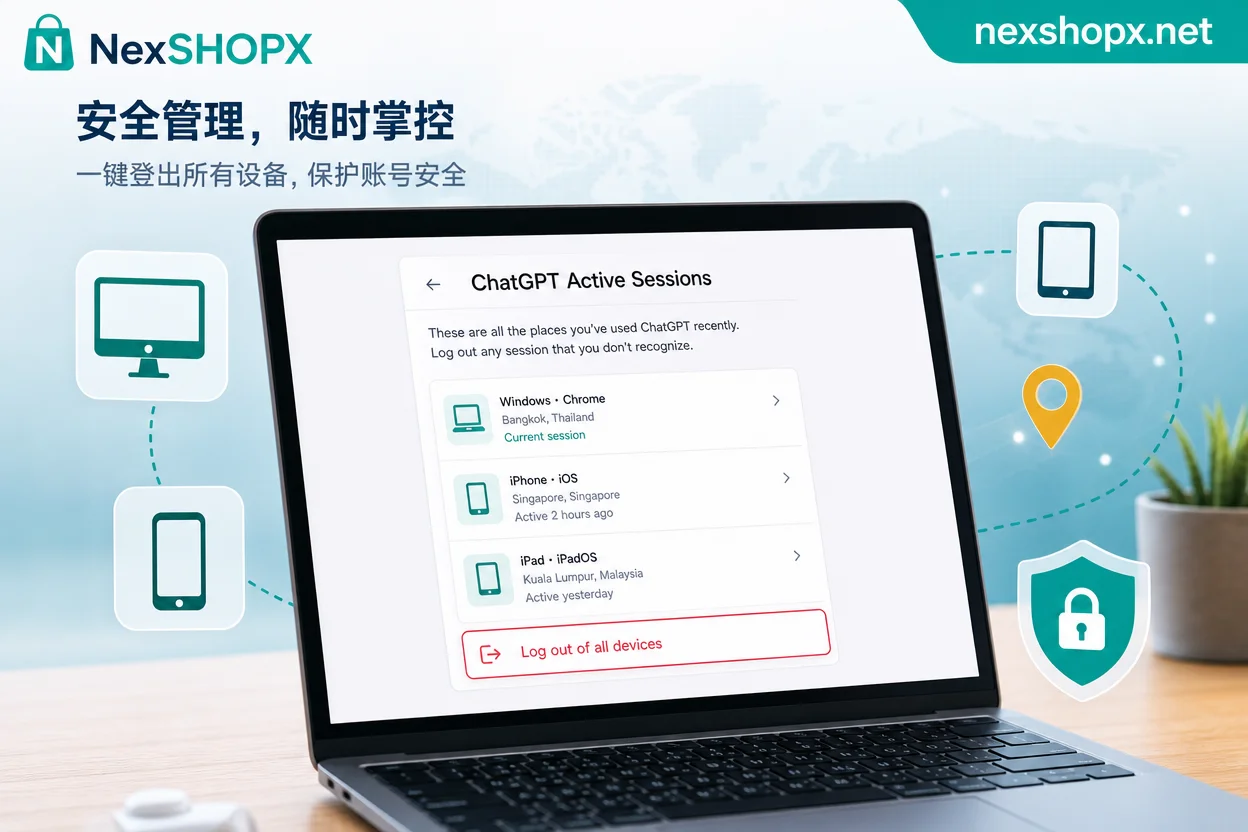
Open Settings > Security > Active Sessions to see all logged-in devices, including device type, app context, approximate location, and login time. If you see any unrecognized device, click "Log out of all devices" immediately to kick out all online sessions, keeping only the current one. After doing this, refresh the list; you should see only the current session, which is the criterion for passing this step.
Step 2: Take Stock of Current Verification Methods to Ensure Email, Phone, and Authenticator Are in Your Control
While password login and email/SMS recovery are still available, it's the best time to organize account ownership. Check the email, phone number, and two-factor authentication app bound in Settings, and confirm that you are the recipient of these contact methods. If the previous owner can still receive verification codes, all subsequent settings are meaningless. This step is a prerequisite for everything else; make sure to complete it first. For similar platforms, you can refer to TikTok account security settings.
Step 3: Bind Your Own Passkey—Why You Should Bind at Least Two
Under Settings > Security > Passkeys, you can add device-based Passkeys or bind hardware keys like YubiKey. Passkeys can be used for passwordless login or as MFA second factor. Advanced security mode requires at least 2 Passkeys to ensure cross-device recoverability. If you have only one device-based Passkey, losing the device becomes a problem. As for "Is YubiKey mandatory?"—not necessarily; any FIDO2-compliant hardware key works, but you need at least two Passkeys from different sources.
Step 4: Save the Recovery Key—Offline Storage Methods and an Irreversible Reminder
The recovery key is generated during the configuration flow when enabling advanced security mode, so this step should be done together with Step 5—when the configuration wizard shows the recovery key, complete the offline backup and verify it, then click confirm to enable. Never take a screenshot and store it in a cloud drive linked to the same email as your account. As for "Can I recover if I lose the recovery key?"—OpenAI officially states that if you lose both all Passkeys and the recovery key, customer support cannot assist in recovering the account. Some third-party forums claim manual recovery is possible, but this directly contradicts official documentation; don't rely on luck.
Step 5: Should You Enable Advanced Account Security Mode? What Must Be Done Before Enabling
Deciding whether to enable advanced mode is the only irreversible step in ChatGPT account security settings. Advanced security mode was introduced by OpenAI on April 30, 2026, and will be enforced for TAC (Trusted Access for Cyber) members starting September 2026. Before enabling, confirm all prerequisites are met:
- Session list is cleared, leaving only the current device.
- Email, phone, and authenticator are under your control.
- At least two Passkeys are active and you have tested login with them.
- The recovery key is saved offline and you can access it anytime.
If you frequently log in on new devices or share an account with a team, enabling it may cause significant inconvenience. For typical users, it's recommended to complete the first four steps and then evaluate whether to enable it. Disabling password login is one-way; once enabled, there's no turning back.
What Happens If You Get the Order Wrong: Typical Ways to Lock Yourself Out
- Enabling advanced security mode first, then binding Passkeys—if binding fails, the old password and recovery methods are already disabled, leaving no recovery channel.
- Binding only one device-based Passkey—if the device breaks or is lost, and no second Passkey is bound, you can't get in either.
- Saving the recovery key as a screenshot in the same email account—since the email account cannot be recovered after password login is disabled, it's like locking the key inside the safe.
- Changing verification methods before clearing sessions—if sessions aren't cleared, the previous device can still receive verification codes and may interfere during your setup.
If you've already disabled password login but haven't bound Passkeys, can you save yourself? The prerequisite is that the recovery key is still available; otherwise, you may contact OpenAI support, but they will tell you they can't help. So remember: order is the lifeline.
Post-Setup Checklist for ChatGPT Account Security: How to Confirm the Previous Owner Can't Get In
The following checklist helps confirm whether ChatGPT account security settings are fully effective. You can verify each item with the criteria provided:
| Check Item | Action Location | Pass Criteria |
|---|---|---|
| Active Sessions | Settings > Security > Active Sessions | Only the current device is listed; no unknown devices |
| Verification Methods | Settings > Security | Email, phone, and authenticator receive confirmations only by you |
| Passkeys | Settings > Security > Passkeys | At least two Passkeys, and test login on a second device succeeds |
| Recovery Key | Offline location | Can be read from memory or physical medium; not stored in the same email account |
| Password Login | Login page | If advanced mode is enabled, password login is disabled; only Passkey works |
Each item has clear pass criteria; if any fails, don't rush to enable advanced mode. If the account comes from a trading platform like NexSHOPX, it's advisable to complete the five checks above on the day of acceptance.
How NexSHOPX Can Help: Delivery Verification and the Boundaries of Limited-Time Login Support
If you're using a ready-made account, credential completeness verification should be done before enabling advanced security mode. NexSHOPX offers category search, self-service ordering, and fast delivery, along with an account delivery safety guide for acceptance. If you encounter issues on first login, you can reach out via Telegram 24/7 customer support and limited-time login after-sales. However, risk control is dynamically determined by the platform, and there's no guarantee against verification or bans. In other words, setup can be assisted, but the ultimate responsibility for account security lies with you. If you're still choosing an account source, you can first learn about the credentials to check when buying ChatGPT accounts, then follow the five steps above to complete the setup.
Compliance Reminder: Terms, Local Laws, and Identity Verification Requirements
The above settings only affect account login and recovery methods; they do not change OpenAI's identity verification and risk control. Before use, ensure compliance with OpenAI's terms of use, local laws, and real-name/KYC requirements. No security setting can bypass identity verification or risk control, so don't think you can use settings to circumvent real-name authentication. Ensure your usage complies with the terms; otherwise, the account may face restrictions.
Frequently Asked Questions
Here are the six most common questions about ChatGPT account security settings.
How do I bind a Passkey on ChatGPT?
Go to Settings > Security > Passkeys, click add, and choose either a device-based Passkey (like Windows Hello or Face ID) or a hardware key (like YubiKey). Follow the prompts to complete verification. It's recommended to bind at least two, on different devices or keys.
Should I enable advanced security mode on ChatGPT?
If you frequently log in on new devices or share an account with a team, it's not recommended because it disables password login and email recovery, causing inconvenience. For personal exclusive use, and if you've completed Passkey and recovery key offline backup, you can choose to enable it. Once enabled, it's not easy to revert.
Can I recover if I lose my ChatGPT recovery key?
OpenAI's official documentation clearly states that if both Passkeys and the recovery key are lost, customer support cannot assist in recovering the account. Some third-party forums claim manual recovery is possible, but that directly conflicts with official statements; it's not advisable to rely on it. The recovery key must be stored offline properly; without a backup, you've given up the account.
How do I view login devices and sessions on ChatGPT?
Go to Settings > Security > Active Sessions to see all logged-in devices, locations, and times, and you can log out of all devices with one click. It's recommended to check regularly, especially after using public devices.
What should I do after disabling password login on ChatGPT?
After disabling, you can only log in with Passkeys or the recovery key. If you haven't bound Passkeys yet, add at least two immediately and save the recovery key offline. If both are lost, the account cannot be recovered.
Do I have to use a YubiKey with ChatGPT?
Not necessarily. Any FIDO2-compliant hardware key works, but device-based Passkeys (like on your phone or computer) also meet the requirement. It's recommended to have at least two Passkeys from different sources for better cross-device recoverability.



Comments(0)